How to set up Voicemod on Discord
Voicemod can be your best buddy while trying to spice up your gaming sessions with your friends.
In the following article, we will explain to you how to configure Discord while using Voicemod.
In order for Voicemod to work correctly on Discord; we would need to make sure that the following settings are as indicated:
- First of all, Voicemod has to be open (and properly configured ) in order to feed our virtual microphone.
- Open Discord.
- Go to the User Settings.
- Search for the Voice & Video section.
- Set Microphone (Voicemod Virtual Audio Device (WDM)) as your input device.
- Set your headphones/headsets as your output device*.
*Do not use the Line (Voicemod Virtual Audio Device (WDM)) as the output device, we need it internally as an audio bridge to make all this work.
Through this output, you will hear the transformed voice if Voicemod is open, but not the rest of the sounds coming from games or other applications.

- The audio subsystem should be set to«Standard» mode*. Go to«Settings»and there to the «Voice & Video» tab. Scroll down to the «Audio Subsystem» drop-down list and select the «Standard» option.
*Some users have reported that the Legacy audio subsystem works better for them. If the problem persists with the Standard audio subsystem, please try the Legacy audio subsystem.
In addition, please note that the Discord test is currently failing in some situations* and you should test it on call directly.
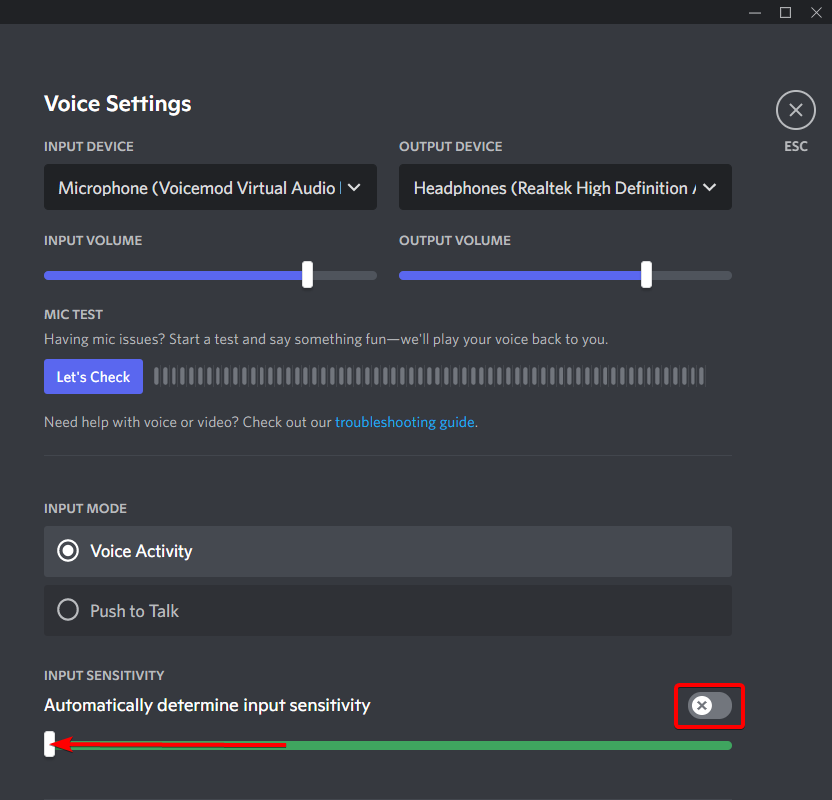
-
In addition, set all these options in this way:
If you have not been able to configure Discord to use Voicemod, please write us a ticket to the support form: https://www.voicemod.net/support by choosing the following categories:
- Technical Support
- Other technical issues
The Best Discord Voice Changer
Level up your party chat with Voicemod’s free voice changer for Discord. Try on voice filters to get in character for your next RPG session or just have fun and mess around with your friends! With tons of options available and growing monthly, your new voice is minutes away.
Windows 10/11 (64-bit)
Download Voicemod for Desktop
Voicemod is a free real-time voice changer and soundboard available on both Windows and macOS. Give us your email to get Voicemod in your mailbox.

GET VOICEMOD FREE!
Please check email!
I want to receive offers and news from Voicemod.
How to set up Voicemod Voice Changer with Discord
Get started with the free voice changer for Discord in 6 simple steps:
- Download Voicemod and configure it correctly on your PC by selecting your main microphone as the input device.
Install Discord and open it. - Navigate to the User Settings cog near the bottom left of the main window.
- Go to Voice & Video and change your input device to Microphone (Voicemod Virtual Audio Device)
In Voicemod, select the Voicebox feature on the left side of the main window. - Browse through our our existing sounds (or even create your own with Voicelab!) and assign them to keybinds
- Your new voice should now be coming through your microphone signal and into Discord! Enjoy the funny voice changer!
What can you do with Voicemod in Discord?
For example, you can sound like a Minion!
A lot of voices ready to be used
Voicemod gives you the freedom to experiment with over 80 distinctive voice filters in Discord. Make people laugh with the Chipmunk or Titan voices. Turn into a musical star using autotune effects with Lil’ Mod, Magic Chords, and more. Try out holiday-themed voices such as Santa, Ghost, and the Crazy Clown. There’s something for everyone. Our voices can take a D&D game from standard to epic with ample roleplaying potential! Assign your favorites to keybinds for quick and easy access (and to swap between characters on the fly!). Link them up with your Elgato Stream Deck if you’re feeling extra fancy. Content creators, we’re talking to you!

Create your own voice
Want to get even more creative? Voicemod’s Voicelab feature allows the true voice enthusiast to take their ideas and go wild! With over 15 effects to play with, you can combine and layer them to create the perfect voice filter. Each effect features its own tweaks and sliders, offering you the ability to fine-tune your newest creation. Come up with your own or even mimic existing iconic voices.
Improve your natural voice
Tired of hearing your friends complain about your echo or uneven volume in Discord party chats? Ever wish you could fix it with minimal effort? Our Clean Voice filter can alleviate all your (and your friends’) woes by cleaning up and enhancing your vocals in a single click. No matter what microphone you use, Clean Voice promises an enhanced audio experience for all your listeners.
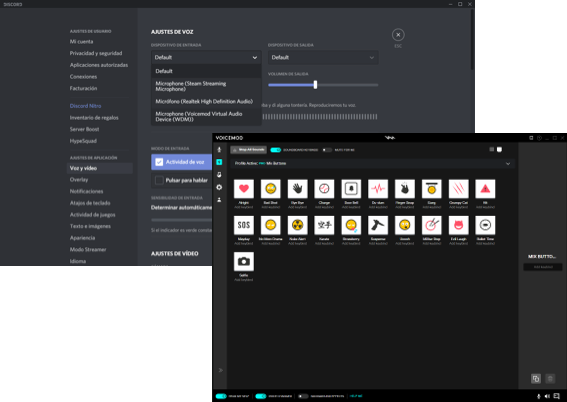
Looking for more?
Add even more flair to your sound by using our soundboard for Discord! And do not forget to check out Voicemod blog with tips for content creators, gamers, and streamers. Read about TikTok Voices: The Perfect Addition to Make Viral Videos or about How to Change Your Voice in our blog.