How to Open Recovery Mode in Nokia C20
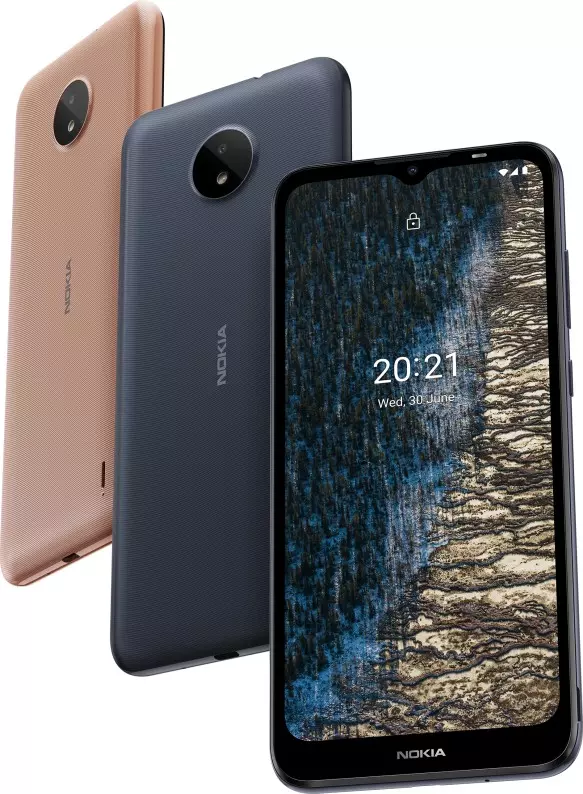
Recovery is a recovery mode for Android-based smartphones. There are two recovery modes: factory mode (built-in) and software mode (via third-party software). This mode is useful when it is not possible to boot the phone using the normal boot process. For example, if the phone is infected with viruses, the update has errors in the operating system, or the firmware needs to be installed. Activating recovery mode in the Nokia C20 is quite simple, but you need to know the right combination of keys.
Other types of recovery
Recovery by the manufacturer cannot break anything. At most, the user will lose their data if they accidentally reset to factory defaults. However, problems can occur with modified versions.
There are two versions: Clockworkmod Recovery (CWM) and Team Win Recovery Project (TWRP). The functionality of both modes includes dangerous features — gaining root privileges, installing custom firmware and kernels.
There are useful and safe features in the modes, such as backing up and restoring from a previous backup. However, it is possible to perform these actions without a restore mod, so installing modified versions is simply not justified.
Of course, we don’t want to discourage you from finding out for yourself, especially if you need root privileges or need to install custom firmware. However, we strongly advise you not to do this, as it will void your phone’s warranty at the very least, and make it inoperable at the worst.
Normal start in recovery mode Nokia C20
First switch off the machine, as recovery mode can only be activated when the machine is switched on. You do not need to enter any codes, just press the correct combination of keys to activate the mode:
- Press the power button and the volume down button.
- Press the power key and the volume up key.
- Press the Power key and the Volume up and down keys.
Recovery mode is operated using the Volume Down and Volume Up buttons. The power key has the function «OK» or «Select». All text is always in English, which is the main language of the Android interface.
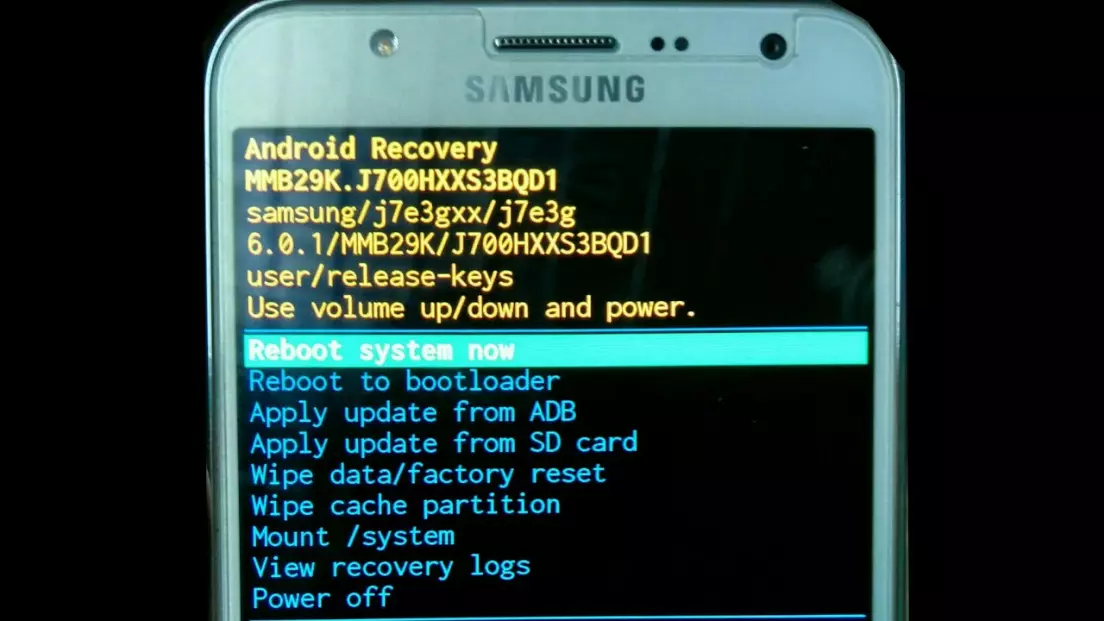
Accessing recovery mode with ADB
ADB — Android Debug Bridge. This is a standard command line extension that can be used to control a device connected to a computer. More specifically, it sends commands that are executed on the smartphone rather than the computer. Installing ADB is not easy, but you can either follow the instructions on the official Android Studio website or find a step-by-step guide online. The link to the official download page is https://developer.android.com/studio/index.html. On the website, go to the very bottom and look for «Command line tools only».
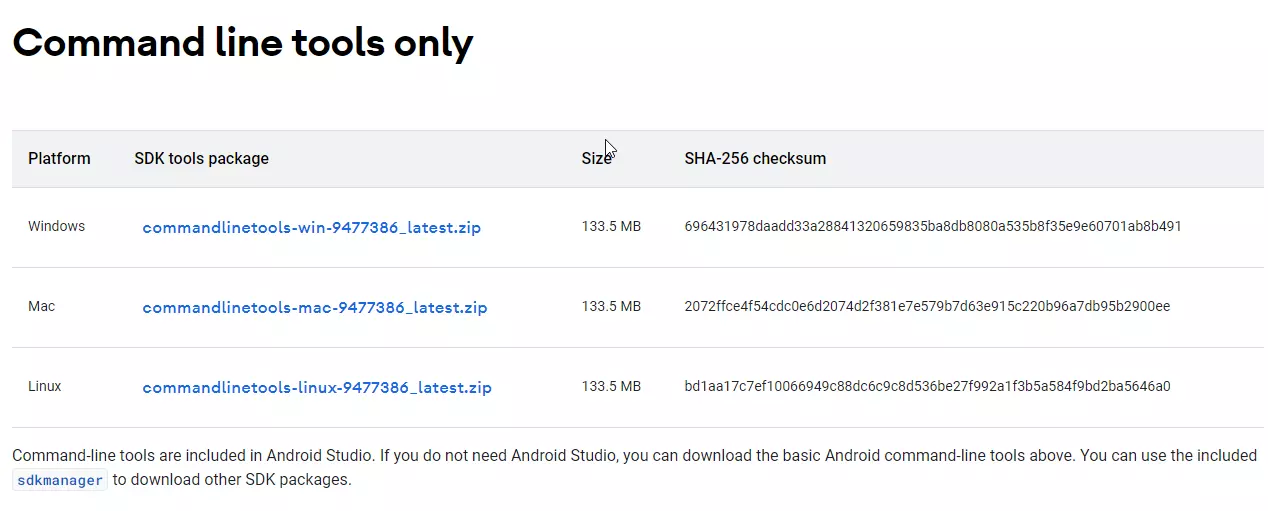
You will also need to install additional drivers. We recommend that you use the generic package that you can download from this link — https://adbdriver.com/downloads/. However, the manufacturers themselves also provide such drivers, but you will need to find them first. The phone must also be in debug mode for ADB to work.
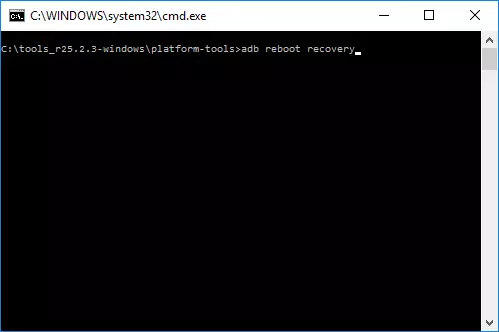
After installing any third-party software, simply open the console in administrator mode from the ADB utility folder and type «adb reboot recovery». The phone will automatically restart in reboot mode.
What’s wrong with using software from third parties?
There is special software that allows you to start the recuperator with a single click. But this only takes up space, as the same action can be performed with two keystrokes. And using a terminal emulator, as many websites recommend, is pointless.
Instead of Recoup mode, an Android icon appears with an exclamation mark in a triangle and «No Commands».
The error can be corrected by pressing the power and volume buttons. Press once for a few seconds. The Recoup menu will open.
By the way, another common problem is that after rebooting, a message appears saying that there is no operating system and that fast boot mode has been started. This means that you have activated the fast boot function in this mode. To deactivate the mode, press and hold the power button for 10-15 seconds.
Share this page with your friends:
Nokia C20 Recovery Mode
How to enter recovery mode on Nokia C20 ? Recovery Mode offers many useful options such as reboot system, factory reset, wipe data, data recovery, install software or firmware from phone memory or SD card, etc.
How to enter recovery mode on Nokia C20 ? Recovery mode offers many useful options such as reboot system, factory reset, wipe data, data recovery, etc.
Factory Reset > Nokia > Nokia Smartphones > Nokia C20 > Nokia C20 Recovery Mode
Nokia C20 Recovery Mode
About 2 minutes
How to enter recovery mode on Nokia C20 ? Recovery mode offers many useful options such as reboot system, factory reset, wipe data, data recovery, etc.
your device
min 50% charged battery
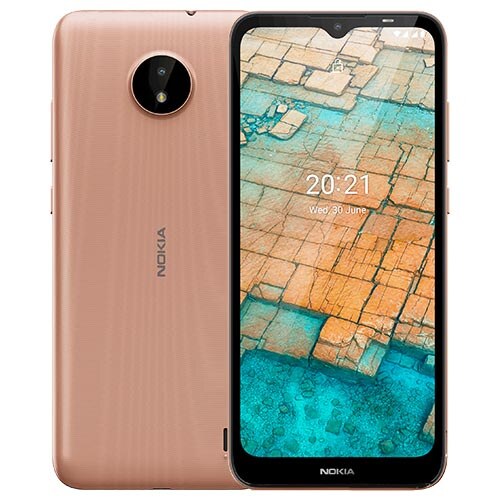
How to enter recovery mode on Nokia C20 ? Recovery Mode offers many useful options such as reboot system, factory reset, wipe data, data recovery, install software or firmware from phone memory or SD card, etc.
Factory reset, also known as hard reset, is the restoration of a device to its original manufacturer settings. This action deletes all the settings, applications and personal data from your device.
How to enter Nokia C20 recovery mode screen ?
This article contains:
Although using Recovery Mode does not require much knowledge and experience, your device may be permanently damaged when process goes wrong.
How To Enter Recovery Mode On Nokia C20
You can enter the Nokia C20 recovery mode screen for offers many useful options, following the instructions below:
https://www.factoryreset.net/images/turn-off-your-smartphone.png
https://www.factoryreset.net/images/press-hold-buttons-together.png
https://www.factoryreset.net/images/release-power-button.png
https://www.factoryreset.net/images/recovery-mode-screen.png
https://www.factoryreset.net/images/wipe-data-factory-reset.png
If your Nokia C20 powers on, but won’t load the operating system or only boots to the brands logo, this is a symptom of corrupted software. You’ll need to perform a hard reset to have the operating system reinstalled to get your device working again.
To exit the Nokia C20 recovery mode screen, come to Reboot System Now option and press Power button. The device will automatically reboot.
How to Boot Recovery Mode on Nokia C20 (TA-1339, TA-1352, TA-1348, TA-1356) Easily [Simple Steps]
Androidbiits.com will help you to boot your Nokia C20 (TA-1339, TA-1352, TA-1348, TA-1356) into recovery mode. It comes with 6.52 inches display, IMG8322 graphics processing unit, Unisoc SC9863A processor, high dynamic range support, 720 x 1600 pixels screen resolution, 720p video recording support, 5 Megapixel rear camera, LED flash and 8.8mm thickness. Nokia has launched this device in June 2021. If you are planning to wipe cache partition, then you can use some simple steps to boot your Nokia C20 (TA-1339, TA-1352) into recovery mode. As we know cache partition stores temporary files and logs. It is very important to wipe cache partition in Android device after every operating system update. It removes junk files. Androidbiits.com will publish the step-by-step instructions using which you can boot Nokia C20 (TA-1348, TA-1356) into recovery mode. Previously, I have published the simple instructions for performing a hard reset of Huawei GX8. Now, I will discuss about the step-by-step tutorial to boot Nokia C20 into recovery mode.
I am expecting that you will be able to enter recovery mode in Nokia C20 (TA-1339, TA-1352) without any problem after reading the tutorial written in Androidbiits.com. You can reboot to bootloader after entering into recovery mode. You will be able to view recovery logs on your Nokia C20 (TA-1348, TA-1356). You can do various other things in recovery mode. It will allow you to apply update from adb. It will also allow you to apply update from SD card. You can run graphics test on your phone after entering into recovery mode.
If you want to make your phone quicker, then you must wipe cache partition on your Nokia C20 (TA-1348, TA-1356). You can do it after entering into recovery mode. It is highly recommended to wipe cache partition in Android device after every operating system update. It removes outdated files from Nokia C20 (TA-1339, TA-1352). This process is harmless because it will not delete your apps and data available on your phone. It will only delete junk files. All your messages and contacts will remain safe.
Below are the steps using which you can boot recovery mode on Nokia C20 (TA-1339, TA-1352). Androidbiits.com will not be responsible if your device got broken during this process. Nokia C20 battery must be above 86 percentage before entering into recovery mode. You must follow these steps at your own risk.
How to Boot Recovery Mode on Nokia C20 (TA-1339, TA-1352, TA-1348, TA-1356) Easily [Simple Steps]
1. Press the power button and switch off your Nokia C20.
2. Press Volume down button and Power button simultaneously on your phone.
3. Release Volume down button and Power button after you see Logo on screen.
4. You have to select “Recovery Mode” option using volume button. Keep pressing volume button until you see “Recovery Mode” option.
5. Use power button to confirm “Recovery Mode” option.
6. Press Power button and Volume up button simultaneously after you see Android Logo or “no command” message on screen. Your Nokia C20 will enter into Recovery Mode after a few seconds.
In this way you can boot Nokia C20 (TA-1339, TA-1352, TA-1348, TA-1356) into recovery mode. If you are experiencing any difficulty while entering your device into recovery mode, then don’t hesitate to share your issue with Androidbiits.com. Please submit your email address and subscribe to get more information regarding your Nokia C20. You must check your email to activate subscription.
This entry was posted in Tutorial and tagged Recovery Mode on August 20, 2021 by admin .
Leave a Reply Cancel reply
You must be logged in to post a comment.
Blog
Here is the complete guide about How to enter into Recovery mode on Nokia C20. You don’t need any software or Computer to access Recovery mode.
If your smartphone running slow or forgot your smartphone password, or phone not responding, and so on, You must enter to Android recovery mode to fix those issues.
What can do with recovery Mode?
- Reboot system
- Factory Reset
- Wipe data
- Run graphics tests
- Software update from ADB or SD card
What is Recovery Mode?
Recovery Mode is an independent, light-weight runtime surroundings that is included on a separate partition from the main Android operating system (OS) on all Android devices like mobiles and tablets, and so on.
The main function of the recovery mode is to fix the smartphone while staying away from the faulty OS of the smartphone. You may boot directly into the recovery menu and use it to factory reset your device, reboot the system, delete the cache partition, and apply software updates or firmware updates, and so forth.
Options in Recovery Mode
Wipe data option is used to wipe or delete information for your Android smartphone or tablet. This will remove media documents, apps, contacts, and settings, and so on from your Nokia smartphone. You don’t want any password to apply this option. Some latest smartphones asking password to wipe information.
Install update option is used to install software or firmware from smartphone memory or SD card. You can upgrade to the latest software version with this option. You need to download and place the firmware file on the smartphone memory or SD card before using this option. A few Smartphones have the option to downgrade to a lower version.
System repair Mode choice is used to repair a little software related problems. It’s going to automatically repair your Android smartphone problems.
Enter into Recovery Mode on Nokia C20
Entering into recovery mode could be very easy on Nokia C20 Android smartphone. Recovery menu consists of Reboot system, Wipe data, install an update, system repair mode, power down and advanced options, and so on.
Step – 1
- First, switch off your Nokia Android smartphone, by holding the power button.
- After that, hold down the
- volume Up + power button (OR)
- volume Down + power button

- Finished, Now you are in Android smartphone recovery Mode.
Be aware: In case you do not go to recovery mode automatically after releasing all keys, do this. While holding down the power key, press and release volume up key Or Press the power key once.
Step – 2
- First, switch off your Nokia Android smartphone, by holding the power button.
- After that, hold down the
- Volume Down + PowerButton(OR)
- Volume Up + PowerButton(OR)
- Volume Up + Home +Power button(OR)
- Volume Up + Bixby+Power button(OR)
Step – 3
- First, switch off your Nokia Android smartphone, by holding the power button.
- After that, hold down the
- volume Up + power button (OR)
- volume Down + power button
Step – 4
- First, switch off your Nokia Android smartphone, by holding the power button.
- After that, hold down the
- volume Up + power button (OR)
- volume Down + power button
Exit Recovery mode
- After you enter the Recovery Mode menu.
- Use the volume buttons to select the Reboot system now option, and press the power button to confirm.
- After that, Your device will be rebooted automatically.
- Now you have successfully exited Recovery mode
Reboot Nokia C20
In case your smartphone running slow or phone no longer responding, you could reboot your smartphone.
Step – 1
- First of all, press and hold the power key.
- Subsequent, tap on the reboot or restart option.

- Sooner or later, your device should reboot.
Step – 2
- First, switch off your Nokia Android smartphone, by holding the power button.
- After that, hold down the
- volume Up + power button (OR)
- volume Down + power button