Managing Java Projects in VS Code
The Project Manager for Java extension helps you to manage your Java projects and their dependencies. It also helps you to create new Java projects, packages, and classes. To get the complete Java language support in Visual Studio Code, you can install the Extension Pack for Java, which includes the Project Manager for Java extension.
For details on how to get started with the extension pack, you can review the Getting Started with Java tutorial.
Projects view
The Java Projects view helps you view your Java projects and their dependencies, and provides entry points for project management tasks.
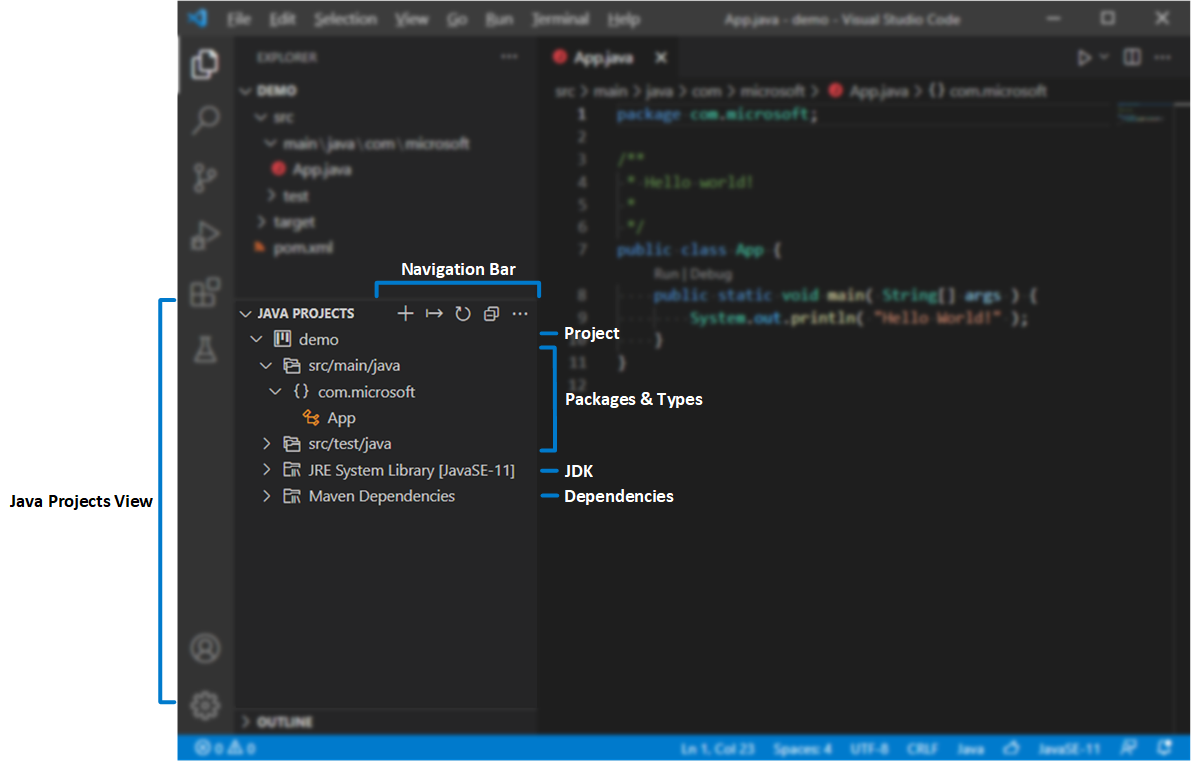
By default, the Java Projects view is displayed below the Explorer view. If you cannot see it, try clicking the . button in the EXPLORER title bar and select Java Projects.
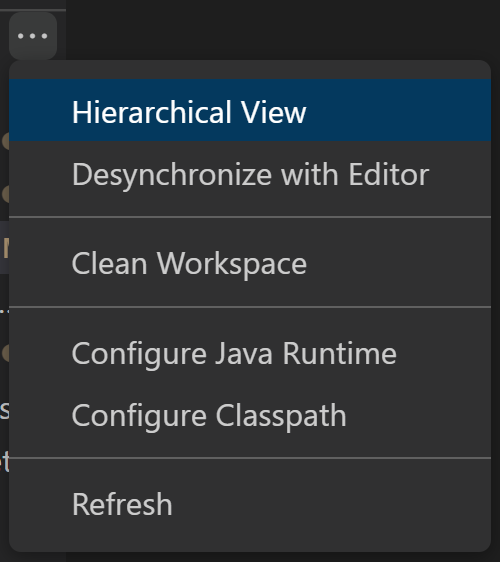
In the overflow button of the navigation bar, there are more options to use. For example, you can switch between hierarchical view and flat view.
You can find buttons next to the nodes in the Explorer, which provide useful shortcuts for some actions.

There are also many useful features in each node’s context menu, you can right-click on the node in Explorer to toggle it out.

Create a new Java project
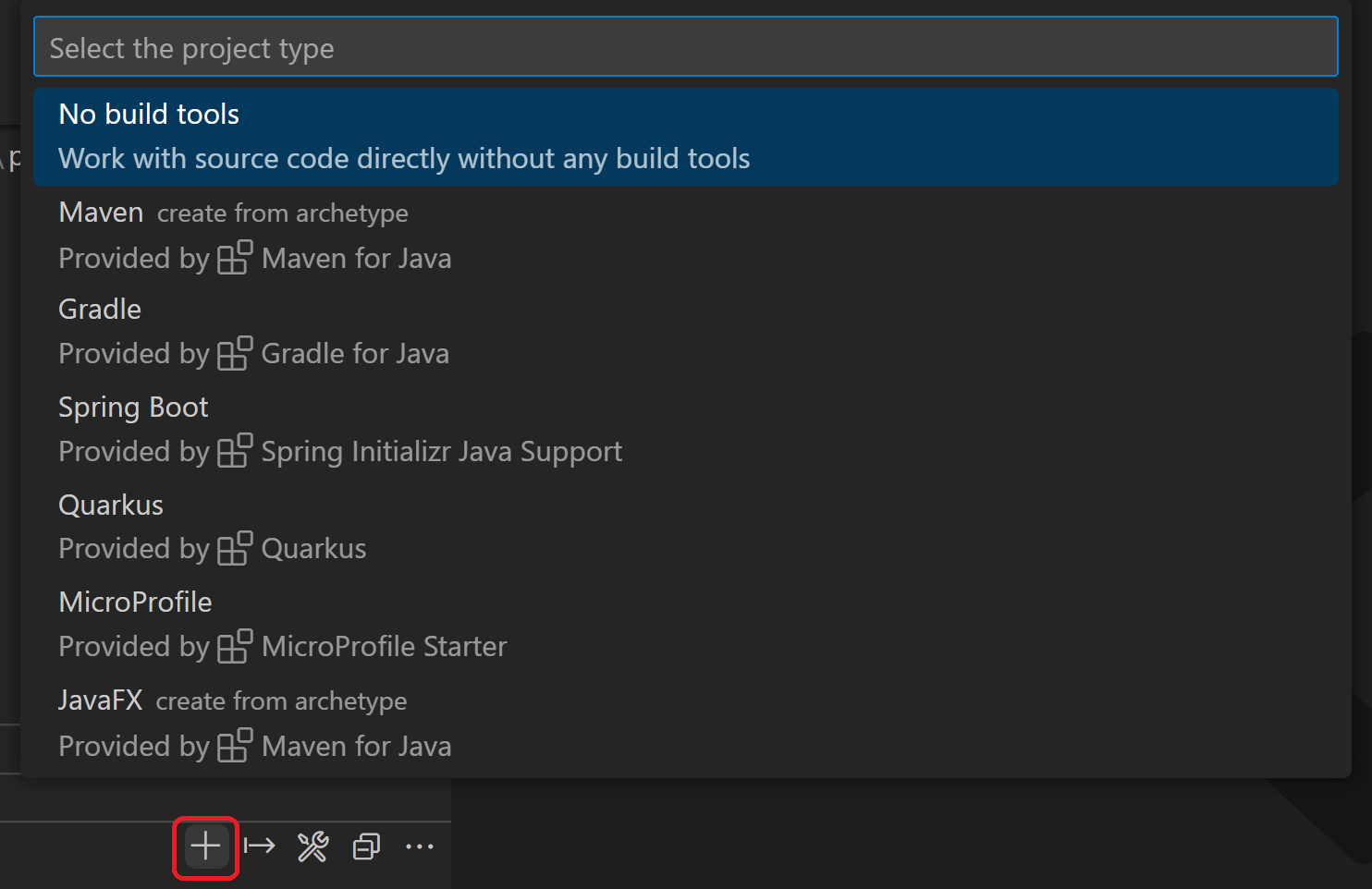
You can create a new Java project by clicking the + button in the navigation bar, or through the command: Java: Create Java Project. in Command Palette ( ⇧⌘P (Windows, Linux Ctrl+Shift+P ) ). During creation, VS Code will facilitate installing required extension(s) per your project type, if the extension(s) weren’t already installed.
Import Java projects
You can directly import existing Java projects and modules to your workspace through File > Open Folder. (Make sure the opened folder contains your build tool scripts, for example, pom.xml or build.gradle ). VS Code for Java will detect your projects and import them automatically.
When you add a new module into your projects, you can trigger the command Java: Import Java projects in workspace to import them to your workspace. This command helps to import new projects into the workspace without the need to reload the VS Code window.
Export to JAR
You can export your build to JAR from the projects view or by running the command Java: Export Jar. .
Configure Runtime for Projects
As Java evolves, it’s common that developers work with multiple versions of JDK. You can map them to your local installation paths via the setting: java.configuration.runtimes . The setting has following format:
"java.configuration.runtimes": [ "name": "JavaSE-1.8", "path": "/usr/local/jdk1.8.0_201" >, "name": "JavaSE-11", "path": "/usr/local/jdk-11.0.3", "sources" : "/usr/local/jdk-11.0.3/lib/src.zip", "javadoc" : "https://docs.oracle.com/en/java/javase/11/docs/api", "default": true >, "name": "JavaSE-12", "path": "/usr/local/jdk-12.0.2" >, "name": "JavaSE-13", "path": "/usr/local/jdk-13" > ] Note: You can set one of them to default by adding «default»: true to the entry. The default JDK will be used for your unmanaged folders (with out build tools).
To see which JDKs are used for your projects, you can trigger the command Java: Configure Java Runtime in Command Palette ( ⇧⌘P (Windows, Linux Ctrl+Shift+P ) ). This command opens a view displaying the runtime information for your projects:

Change JDK for Maven and Gradle projects
If you want to change the JDK version for your Maven or Gradle projects, you need to update it in your build scripts ( pom.xml or build.gradle ). You can click to see how to make such changes. Click will navigate to the build script file of the project.
Change JDK for unmanaged folders
To change the JDK for unmanaged folders (with out any build tools), you can click the button. It will list all the JDKs and you can select one for your unmanaged folders.
Download JDKs
If you want to download a new JDK, you can click the download link, or trigger the command Java: Install New JDK in Command Palette ( ⇧⌘P (Windows, Linux Ctrl+Shift+P ) ). It will open a new view guiding you to download JDKs.

Configure classpath for unmanaged folders
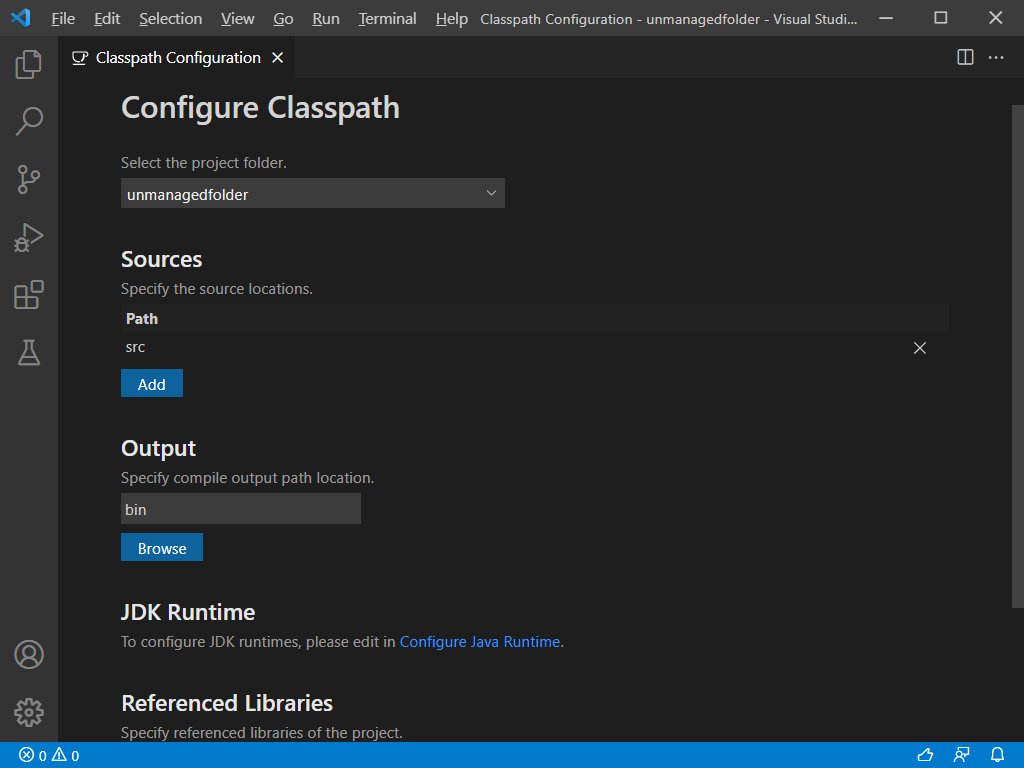
The Project Management for Java extension provides a user interface to configure the classpath for unmanaged folders. The classpath can be set manually in the classpath configuration page. You can open it by executing the Java: Configure Classpath command from the Command Palette ( ⇧⌘P (Windows, Linux Ctrl+Shift+P ) ).
In some rare cases, you may need to clean the Java workspace by executing the Java: Clean Java Language Server Workspace command from the Command Palette ( ⇧⌘P (Windows, Linux Ctrl+Shift+P ) ) to let the language server rebuild your dependencies.
Dependency management
Add a Maven dependency
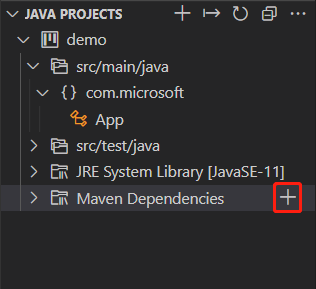
For Maven project, you can add a dependency by clicking the + icon next to Maven Dependencies node in project view.
Manage dependencies for unmanaged folder
If your project is an unmanaged folder without any build tools. You can manage the dependencies by clicking the + icon or the — icon on the Referenced Libraries node or the items under it, or you can just directly drag your jar libraries to the node Referenced Libraries
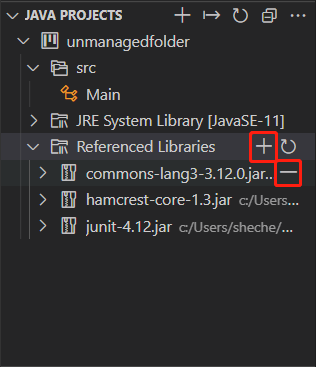
You can also manage the dependencies in the classpath configuration page. See: Configure classpath for unmanaged folder
Behind the scene, there’s a setting java.project.referencedLibraries in settings.json . Below are details on how to customize this setting.
Include libraries
The libraries to reference are described using a set of glob patterns.
"java.project.referencedLibraries": [ "library/**/*.jar", "/home/username/lib/foo.jar" ] The settings above will add all .jar files in workspace’s library folder along with foo.jar from a specified absolute path to the project’s external dependencies.
The referenced libraries are then watched by VS Code, and the project will be refreshed if there is a change to any of these dependent files.
By default, VS Code will reference all JAR files in workspace’s lib directory using the glob pattern lib/**/*.jar .
Exclude some libraries
If you want to exclude some libraries from the project, you can expand java.project.referencedLibraries to use include/exclude fields and add an exclude glob pattern:
"java.project.referencedLibraries": "include": [ "library/**/*.jar", "/home/username/lib/foo.jar" ], "exclude": [ "library/sources/**" ] > In the example above, any binary JAR files in the library/sources folder are ignored as the project’s external dependencies.
Attach source jars
By default, a referenced .jar will try to search -sources.jar under the same directory, and attach it as source if one match is found.
If you want to manually specify a JAR file as a source attachment, you can provide a key-value map in the sources field:
"java.project.referencedLibraries": "include": [ "library/**/*.jar", "/home/username/lib/foo.jar" ], "exclude": [ "library/sources/**" ], "sources": "library/bar.jar": "library/sources/bar-src.jar" > > In this way, bar-src.jar is attached to bar.jar as its source.
Lightweight Mode
VS Code for Java supports two modes, lightweight and standard. With lightweight mode, only source files and JDK are resolved by the language server; with standard mode, imported dependencies are resolved and the project is built by the language server. Lightweight mode works best when you need a quick-start and lightweight environment to work with your source files, for example, reading source code, navigating among source code and JDK, viewing outline and Javadoc, and detecting and fixing syntax errors. Also, code completion is supported within the scope of source files and JDK.
Lightweight mode doesn’t resolve imported dependencies nor build the project, so it does not support running, debugging, refactoring, linting, or detecting semantic errors. For these features to be available, you need to switch your workspace from lightweight mode to standard mode.
You can control which mode to launch with by configuring java.server.launchMode with the options below:
- Hybrid (default) — Firstly, a workspace is opened with lightweight mode. You will be asked whether to switch to standard mode if your workspace contains unresolved Java projects. If you choose Later, it will stay in lightweight mode. You can click the language status item on the Status bar to manually switch to standard mode.
- Standard — A workspace is opened with standard mode.
- LightWeight — A workspace is opened with lightweight mode. You can click the language status item on the Status bar to manually switch to standard mode.
The language status item indicates which mode the current workspace is in using different icons.
- — workspace opened with lightweight mode.
- — workspace in the process of being opened with standard mode.
- — workspace opened with standard mode.
Clicking the language status item switches to standard mode.
Build Status
When you edit Java source code in Visual Studio Code, the Java language server is building your workspace to provide you with the necessary language features. You can see the detailed build task status and watch what is happening behind the scene by clicking the language status item in the Status bar. You can also select the check details link when a notification shows the language server is opening Java projects to see the build task status.
Additional resources
There are several Visual Studio Code extensions to support different build systems for Java. Below are extensions for several popular build systems.
If you run into any problems when using the features above, you can contact us by filing an issue.
Next steps
Read on to find out more about:
- Java editing — Explore the editing features for Java in VS Code.
- Java debugging — Find out how to debug your Java project with VS Code.
- Java testing — Use VS Code for your JUnit and TestNG cases.
- Java extensions — Learn about more useful Java extensions for VS Code.
Java in Visual Studio Code
Support for Java in Visual Studio Code is provided through a wide range of extensions. Combined with the power of core VS Code, these extensions give you a lightweight and performant code editor that also supports many of the most common Java development techniques.
This article will give you an overview of different capabilities of Visual Studio Code for Java developers. For a quick walkthrough of editing, running, and debugging a Java program with Visual Studio Code, use the Java Getting Started Tutorial button below.
Overview
VS Code provides essential language features such as code completion, refactoring, linting, formatting, and code snippets along with convenient debugging and unit test support. VS Code also integrates with tooling and frameworks such as Maven, Tomcat, Jetty, and Spring Boot. Leveraging the power of Visual Studio Code, Java developers get an excellent tool for both quick code editing and also the full debugging and testing cycle. It’s a great choice for your Java work if you’re looking for a tool which:
- Is fast, lightweight, free, and open source.
- Supports many other languages, not just Java.
- Helps start your Java journey without installing and learning a complex IDE.
- Provides great microservices support including popular frameworks, container tooling, and cloud integration.
- Offers team-based collaboration features such as Visual Studio Live Share.
- Improves your productivity through IntelliSense and other code-aware editing features.
Install Visual Studio Code for Java
To help you set up quickly, we recommend you use the Coding Pack for Java, which is the bundle of VS Code, the Java Development Kit (JDK), and a collection of suggested extensions by Microsoft. The Coding Pack can also be used to fix an existing development environment.
Note: The Coding Pack for Java is only available for Windows and macOS. For other operating systems, you will need to manually install a JDK, VS Code, and Java extensions.
If you have already installed VS Code and want to add Java support to it, we recommend using the Extension Pack for Java, a collection of extensions suggested by Microsoft:
- Language Support for Java™ by Red Hat
- Debugger for Java
- Test Runner for Java
- Maven for Java
- Project Manager for Java
- Visual Studio IntelliCode
Alternatively, you can add Java language support to VS Code by installing the popular Java extensions by yourself.
Download VS Code — If you haven’t downloaded VS Code yet, quickly install for your platform (Windows, macOS, Linux).
There are also other popular Java extensions you can pick for your own needs, including:
- Spring Boot Extension Pack
- Gradle for Java
- Community Server Connectors (for Apache Felix, Karaf, Tomcat, Jetty, etc.)
- Server Connector (Red Hat Servers, for example Wildfly)
- Extension Pack for MicroProfile
- CheckStyle
- SonarLint
Thanks to the great Java community around VS Code, the list doesn’t end there. You can search for more Java extensions easily within VS Code:
- Go to the Extensions view ( ⇧⌘X (Windows, Linux Ctrl+Shift+X ) ).
- Filter the extensions list by typing «java».
This document describes some of the key features included in those Java extensions.
Note: To help get you started with Java development, you can use the Java General profile template to install useful extensions. You can learn more about profiles and how they let you quickly reconfigure your editor for different programming languages and workflows at Profiles in VS Code.
Getting started
NOTE: If you are using VS Code on Windows and want to take advantage of the Windows Subsystem for Linux, see Developing in WSL.
Install a Java Development Kit (JDK)
A Java Development Kit (JDK) is a software development environment used for developing Java applications. In order to run Java within Visual Studio Code, you need to install a JDK. The Extension Pack for Java supports Java version 1.5 or above.
We recommend you to consider installing the JDK from one of these sources:
- Amazon Corretto
- Azul Zulu
- Eclipse Adoptium’s Temurin
- IBM Semeru Runtimes
- Microsoft Build of OpenJDK
- Oracle Java SE
- Red Hat build of OpenJDK
- SapMachine
Note: If you have multiple JDKs installed and need to use a specific JDK version for your projects, see Configure Runtime for Projects. To enable Java preview features, see How can I use VS Code with new Java versions.
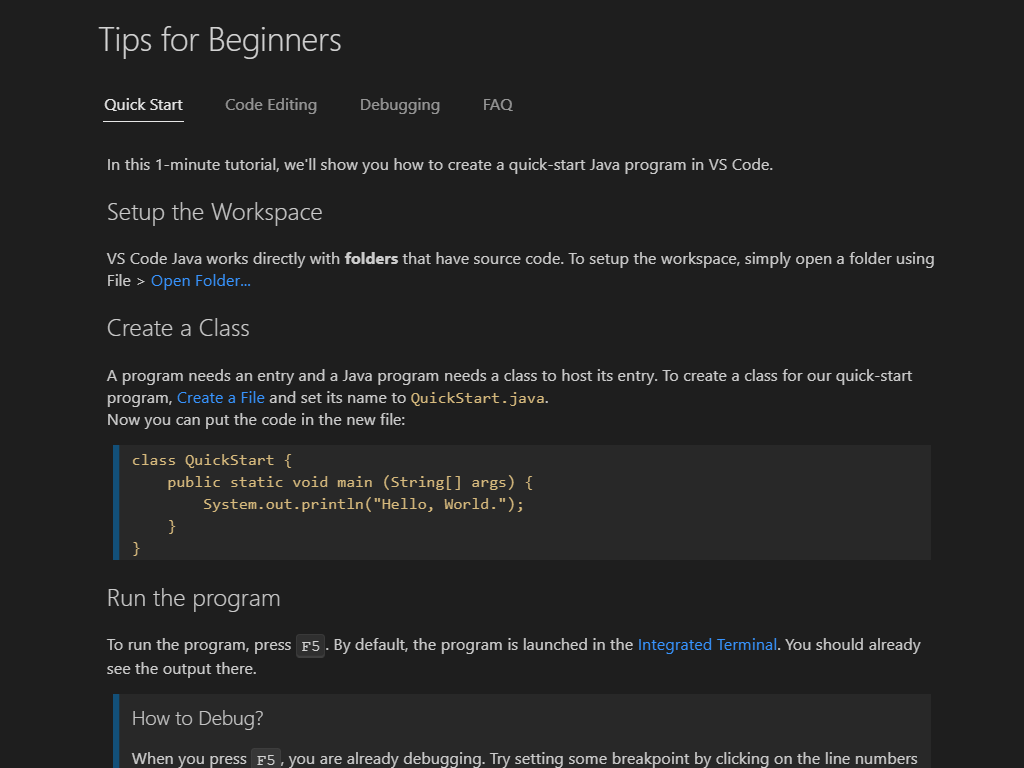
For developers new to Java or new to VS Code, we do provide some tips in our extensions. Once you’ve installed the Extension Pack for Java, you can see the tips using the Java: Tips for Beginners command from the Command Palette in VS Code.
Open the Command Palette ( ⇧⌘P (Windows, Linux Ctrl+Shift+P ) ) and type «java tips» to select the command.
Working with Java source files
You can use VS Code to read, write, run, and debug Java source file(s) without creating a project. VS Code for Java supports two modes, lightweight and standard. Lightweight mode is ideal for scenarios that only deal with source file(s). If you want to work with a full-scale project, standard mode will be required. You can easily switch from lightweight mode to standard mode, when needed. To learn more, see Lightweight Mode.
Working with Java projects
There are three things you must understand to work with Java in VS Code:
- How does VS Code handle Workspaces?
- How does VS Code handle Java?
- How does VS Code handle Workspaces that contain Java?
VS Code Workspaces
In Visual Studio Code, a «Workspace» means a collection of one or more filesystem folders (and their children) and all of the VS Code configurations that take effect when that «Workspace» is open in VS Code. There are two kinds of «Workspaces» in VS Code, «folder workspaces» and «multi-root workspaces».
A «folder workspace» is presented by VS Code when you open a filesystem folder (directory) in VS Code.
A «multi-root workspace» can refer to multiple folders (directories) from disparate parts of the file system and VS Code displays the contents of the folder(s) of the workspace together in the File Explorer. To learn more, see Multi-root Workspaces.
Java projects in VS Code
In contrast to IDEs such as IntelliJ IDEA, NetBeans, or Eclipse, the concept of a «Java project» is provided entirely by extensions, and is not a core concept in the base VS Code. When working with «Java projects» in VS Code, you must have the necessary extensions installed to work with those project files.
For example, Maven, Eclipse, and Gradle Java projects are supported through Language Support for Java™ by Red Hat, by utilizing M2Eclipse, which provides Maven support, and Buildship, which provides Gradle support through the Eclipse JDT Language Server.
With Maven for Java, you can generate projects from Maven Archetypes, browse through all the Maven projects within your workspace, and execute Maven goals easily from an embedded explorer. Projects can also be created and managed with the Project Manager for Java extension.
Visual Studio Code also supports working with standalone Java files outside of a Java project, described in the Getting Started with Java tutorial.
VS Code Workspaces that contain Java projects
Assuming the necessary Java extensions are installed, opening a VS Code workspace that contains Java artifacts will cause those extensions to understand those artifacts and present options for working with them.
More details about Java project support can be found in Java Project Management in Visual Studio Code and Java Build Tools.
Editing
Code Navigation
Java in Visual Studio Code also supports source code navigation features such as search for symbol, Peek Definition, and Go to Definition. The Spring Boot Tools extension provides enhanced navigation and code completion support for Spring Boot projects.
One of the key advantages of VS Code is speed. When you open your Java source file or folder, within a few seconds, with the help of Lightweight Mode, you will be able to navigate your code base with the Outline view, as well as commands such as Go to Definition and Go to Reference. This is especially useful when you open a project for the first time.
Code Completion
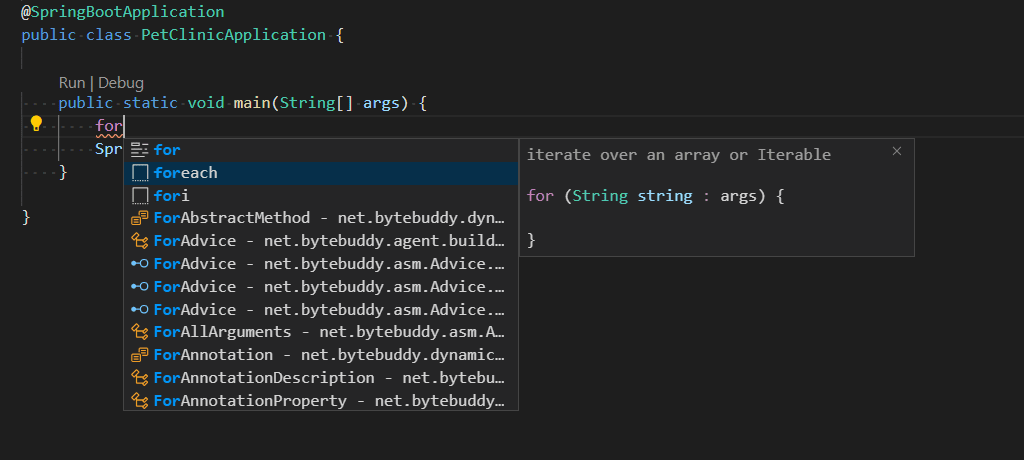
IntelliSense is a general term for language features, including intelligent code completion (in-context method and variable suggestions) across all your files and for both built-in and third-party modules. VS Code supports code completion and IntelliSense for Java through Language Support for Java™ by Red Hat. It also provides AI-assisted IntelliSense called IntelliCode by putting what you’re most likely to use at the top of your completion list.
Enhance completions with AI
GitHub Copilot is an AI-powered code completion tool that helps you write code faster and smarter. You can use the GitHub Copilot extension in VS Code to generate code, or to learn from the code it generates.

GitHub Copilot provides suggestions for numerous languages and a wide variety of frameworks, and it works especially well for Python, JavaScript, TypeScript, Ruby, Go, C# and C++.
You can learn more about how to get started with Copilot in the Copilot documentation.
Code snippets
Visual Studio Code supports a wide range of popular Java code snippets to make you more productive, such as class/interface, syserr, sysout, if/else, try/catch, static main method. Using information from Java language server, it also provides a preview of the code snippet during the selection.
For example, typing «sout» or «sysout» will produce a code snippet for System.out.println() .
Similarly, typing «main» or «psvm» will generate a code snippet for public static void main(String[] args) <> .
We support a wide range of code snippet shortcuts and postfix completion features. To see the complete list, see Code Snippets. VS Code also supports a range of Refactoring and Linting features.
Debugging
Debugger for Java is a lightweight Java Debugger based on Java Debug Server. It works with Language Support for Java™ by Red Hat to allow users to debug Java code within Visual Studio Code.
Starting a debugging session is easy: click the Run|Debug button available at the CodeLens of your main() function, or press F5 . The debugger will automatically generate the proper configuration for you.
Although it’s lightweight, the Java debugger supports advanced features such as expression evaluation, conditional breakpoints, and Hot Code Replace. For more debugging-related information, visit Java Debugging.
Testing
With the support from the Test Runner for Java extension, you can easily run, debug, and manage your JUnit and TestNG test cases.
For more about testing, read Testing Java.
Spring Boot, Tomcat, and Jetty
To further improve your Java productivity in VS Code, there are extensions for most popular frameworks and tools, such as Spring Boot, Tomcat, and Jetty, created by the community.
See Application Servers to learn more about support for Tomcat and Jetty, as well as other application servers with VS Code.
Spring Boot support is provided by VMware. There are also the Spring Initializr Java Support and Spring Boot Dashboard extensions provided by Microsoft, to further improve your experience with Spring Boot in Visual Studio Code.
See Spring Boot with VS Code to learn more about Spring Boot support in VS Code, and also Deploy to Azure Web Apps or Deploy to Azure Spring Apps to learn more about deploying Spring apps to Azure from VS Code.
Next steps
Learn more about Java in VS Code:
- Getting Started with Java
- Code Editing and Navigation
- Java Debugging
- Java Testing
- Java Project Management
- Spring Boot with VS Code
- Application Servers
- Azure with VS Code
Read on to find out more about Visual Studio Code:
- Basic Editing — Learn about the powerful VS Code editor.
- Code Navigation — Move quickly through your source code.
- Tasks — use tasks to build your project and more
- Debugging — find out how to use the debugger with your project
Java in Visual Studio Code
Support for Java in Visual Studio Code is provided through a wide range of extensions. Combined with the power of core VS Code, these extensions give you a lightweight and performant code editor that also supports many of the most common Java development techniques.
This article will give you an overview of different capabilities of Visual Studio Code for Java developers. For a quick walkthrough of editing, running, and debugging a Java program with Visual Studio Code, use the Java Getting Started Tutorial button below.
Overview
VS Code provides essential language features such as code completion, refactoring, linting, formatting, and code snippets along with convenient debugging and unit test support. VS Code also integrates with tooling and frameworks such as Maven, Tomcat, Jetty, and Spring Boot. Leveraging the power of Visual Studio Code, Java developers get an excellent tool for both quick code editing and also the full debugging and testing cycle. It’s a great choice for your Java work if you’re looking for a tool which:
- Is fast, lightweight, free, and open source.
- Supports many other languages, not just Java.
- Helps start your Java journey without installing and learning a complex IDE.
- Provides great microservices support including popular frameworks, container tooling, and cloud integration.
- Offers team-based collaboration features such as Visual Studio Live Share.
- Improves your productivity through IntelliSense and other code-aware editing features.
Install Visual Studio Code for Java
To help you set up quickly, we recommend you use the Coding Pack for Java, which is the bundle of VS Code, the Java Development Kit (JDK), and a collection of suggested extensions by Microsoft. The Coding Pack can also be used to fix an existing development environment.
Note: The Coding Pack for Java is only available for Windows and macOS. For other operating systems, you will need to manually install a JDK, VS Code, and Java extensions.
If you have already installed VS Code and want to add Java support to it, we recommend using the Extension Pack for Java, a collection of extensions suggested by Microsoft:
- Language Support for Java™ by Red Hat
- Debugger for Java
- Test Runner for Java
- Maven for Java
- Project Manager for Java
- Visual Studio IntelliCode
Alternatively, you can add Java language support to VS Code by installing the popular Java extensions by yourself.
Download VS Code — If you haven’t downloaded VS Code yet, quickly install for your platform (Windows, macOS, Linux).
There are also other popular Java extensions you can pick for your own needs, including:
- Spring Boot Extension Pack
- Gradle for Java
- Community Server Connectors (for Apache Felix, Karaf, Tomcat, Jetty, etc.)
- Server Connector (Red Hat Servers, for example Wildfly)
- Extension Pack for MicroProfile
- CheckStyle
- SonarLint
Thanks to the great Java community around VS Code, the list doesn’t end there. You can search for more Java extensions easily within VS Code:
- Go to the Extensions view ( ⇧⌘X (Windows, Linux Ctrl+Shift+X ) ).
- Filter the extensions list by typing «java».
This document describes some of the key features included in those Java extensions.
Note: To help get you started with Java development, you can use the Java General profile template to install useful extensions. You can learn more about profiles and how they let you quickly reconfigure your editor for different programming languages and workflows at Profiles in VS Code.
Getting started
NOTE: If you are using VS Code on Windows and want to take advantage of the Windows Subsystem for Linux, see Developing in WSL.
Install a Java Development Kit (JDK)
A Java Development Kit (JDK) is a software development environment used for developing Java applications. In order to run Java within Visual Studio Code, you need to install a JDK. The Extension Pack for Java supports Java version 1.5 or above.
We recommend you to consider installing the JDK from one of these sources:
- Amazon Corretto
- Azul Zulu
- Eclipse Adoptium’s Temurin
- IBM Semeru Runtimes
- Microsoft Build of OpenJDK
- Oracle Java SE
- Red Hat build of OpenJDK
- SapMachine
Note: If you have multiple JDKs installed and need to use a specific JDK version for your projects, see Configure Runtime for Projects. To enable Java preview features, see How can I use VS Code with new Java versions.
For developers new to Java or new to VS Code, we do provide some tips in our extensions. Once you’ve installed the Extension Pack for Java, you can see the tips using the Java: Tips for Beginners command from the Command Palette in VS Code.
Open the Command Palette ( ⇧⌘P (Windows, Linux Ctrl+Shift+P ) ) and type «java tips» to select the command.
Working with Java source files
You can use VS Code to read, write, run, and debug Java source file(s) without creating a project. VS Code for Java supports two modes, lightweight and standard. Lightweight mode is ideal for scenarios that only deal with source file(s). If you want to work with a full-scale project, standard mode will be required. You can easily switch from lightweight mode to standard mode, when needed. To learn more, see Lightweight Mode.
Working with Java projects
There are three things you must understand to work with Java in VS Code:
- How does VS Code handle Workspaces?
- How does VS Code handle Java?
- How does VS Code handle Workspaces that contain Java?
VS Code Workspaces
In Visual Studio Code, a «Workspace» means a collection of one or more filesystem folders (and their children) and all of the VS Code configurations that take effect when that «Workspace» is open in VS Code. There are two kinds of «Workspaces» in VS Code, «folder workspaces» and «multi-root workspaces».
A «folder workspace» is presented by VS Code when you open a filesystem folder (directory) in VS Code.
A «multi-root workspace» can refer to multiple folders (directories) from disparate parts of the file system and VS Code displays the contents of the folder(s) of the workspace together in the File Explorer. To learn more, see Multi-root Workspaces.
Java projects in VS Code
In contrast to IDEs such as IntelliJ IDEA, NetBeans, or Eclipse, the concept of a «Java project» is provided entirely by extensions, and is not a core concept in the base VS Code. When working with «Java projects» in VS Code, you must have the necessary extensions installed to work with those project files.
For example, Maven, Eclipse, and Gradle Java projects are supported through Language Support for Java™ by Red Hat, by utilizing M2Eclipse, which provides Maven support, and Buildship, which provides Gradle support through the Eclipse JDT Language Server.
With Maven for Java, you can generate projects from Maven Archetypes, browse through all the Maven projects within your workspace, and execute Maven goals easily from an embedded explorer. Projects can also be created and managed with the Project Manager for Java extension.
Visual Studio Code also supports working with standalone Java files outside of a Java project, described in the Getting Started with Java tutorial.
VS Code Workspaces that contain Java projects
Assuming the necessary Java extensions are installed, opening a VS Code workspace that contains Java artifacts will cause those extensions to understand those artifacts and present options for working with them.
More details about Java project support can be found in Java Project Management in Visual Studio Code and Java Build Tools.
Editing
Code Navigation
Java in Visual Studio Code also supports source code navigation features such as search for symbol, Peek Definition, and Go to Definition. The Spring Boot Tools extension provides enhanced navigation and code completion support for Spring Boot projects.
One of the key advantages of VS Code is speed. When you open your Java source file or folder, within a few seconds, with the help of Lightweight Mode, you will be able to navigate your code base with the Outline view, as well as commands such as Go to Definition and Go to Reference. This is especially useful when you open a project for the first time.
Code Completion
IntelliSense is a general term for language features, including intelligent code completion (in-context method and variable suggestions) across all your files and for both built-in and third-party modules. VS Code supports code completion and IntelliSense for Java through Language Support for Java™ by Red Hat. It also provides AI-assisted IntelliSense called IntelliCode by putting what you’re most likely to use at the top of your completion list.
Enhance completions with AI
GitHub Copilot is an AI-powered code completion tool that helps you write code faster and smarter. You can use the GitHub Copilot extension in VS Code to generate code, or to learn from the code it generates.
GitHub Copilot provides suggestions for numerous languages and a wide variety of frameworks, and it works especially well for Python, JavaScript, TypeScript, Ruby, Go, C# and C++.
You can learn more about how to get started with Copilot in the Copilot documentation.
Code snippets
Visual Studio Code supports a wide range of popular Java code snippets to make you more productive, such as class/interface, syserr, sysout, if/else, try/catch, static main method. Using information from Java language server, it also provides a preview of the code snippet during the selection.
For example, typing «sout» or «sysout» will produce a code snippet for System.out.println() .
Similarly, typing «main» or «psvm» will generate a code snippet for public static void main(String[] args) <> .
We support a wide range of code snippet shortcuts and postfix completion features. To see the complete list, see Code Snippets. VS Code also supports a range of Refactoring and Linting features.
Debugging
Debugger for Java is a lightweight Java Debugger based on Java Debug Server. It works with Language Support for Java™ by Red Hat to allow users to debug Java code within Visual Studio Code.
Starting a debugging session is easy: click the Run|Debug button available at the CodeLens of your main() function, or press F5 . The debugger will automatically generate the proper configuration for you.
Although it’s lightweight, the Java debugger supports advanced features such as expression evaluation, conditional breakpoints, and Hot Code Replace. For more debugging-related information, visit Java Debugging.
Testing
With the support from the Test Runner for Java extension, you can easily run, debug, and manage your JUnit and TestNG test cases.
For more about testing, read Testing Java.
Spring Boot, Tomcat, and Jetty
To further improve your Java productivity in VS Code, there are extensions for most popular frameworks and tools, such as Spring Boot, Tomcat, and Jetty, created by the community.
See Application Servers to learn more about support for Tomcat and Jetty, as well as other application servers with VS Code.
Spring Boot support is provided by VMware. There are also the Spring Initializr Java Support and Spring Boot Dashboard extensions provided by Microsoft, to further improve your experience with Spring Boot in Visual Studio Code.
See Spring Boot with VS Code to learn more about Spring Boot support in VS Code, and also Deploy to Azure Web Apps or Deploy to Azure Spring Apps to learn more about deploying Spring apps to Azure from VS Code.
Next steps
Learn more about Java in VS Code:
- Getting Started with Java
- Code Editing and Navigation
- Java Debugging
- Java Testing
- Java Project Management
- Spring Boot with VS Code
- Application Servers
- Azure with VS Code
Read on to find out more about Visual Studio Code:
- Basic Editing — Learn about the powerful VS Code editor.
- Code Navigation — Move quickly through your source code.
- Tasks — use tasks to build your project and more
- Debugging — find out how to use the debugger with your project
Как работать на Java в Visual studio code или community
У меня visual studio code последней версии(скачал в 2020) Незнаю как писать консольные программы на java с помощью visual studio code. С Visual studio community тоже самое.
Отслеживать
задан 1 мар 2020 в 14:25
21 1 1 золотой знак 1 1 серебряный знак 1 1 бронзовый знак
Так VS Code или VS?
1 мар 2020 в 14:36
Берите NetBeans , и не парьтесь.
2 мар 2020 в 9:30
4 ответа 4
Сортировка: Сброс на вариант по умолчанию
Есть хорошая инструкция для VSC — на их же (VSC) сайте. Лично я пробовал, мне не очень понравилось. Это скорее вариант для тех, кто уже привык к VSC и кому неудобно переключаться на Eclipse или IntelliJ. Но вы можете попробовать. Про поддержку разработки на Java в VS community мне не известно.
Отслеживать
ответ дан 2 мар 2020 в 9:27
Sergei Zhilinski Sergei Zhilinski
547 1 1 золотой знак 8 8 серебряных знаков 17 17 бронзовых знаков
Ни как. Данные среды разработки не предназначены для разработки на языке Java. Используйте например IntelliJ
Отслеживать
ответ дан 2 мар 2020 в 8:56
Александр Мартынцев Александр Мартынцев
1,659 8 8 серебряных знаков 16 16 бронзовых знаков
Писать приложения на Java вполне себе можно на Visual Studio Code (это редактор кода). Достаточно поставить необходимые расширения. Затем, можно запускать, и можно отлаживать проекты, в том числе и со сборщиком, типа Maven.
А, Visual Studio (Community) это IDE, она не предназначена для написания кода на Java.