Android Easter Egg что это за программа на Андроид? (Empty Dish)

Android Easter Egg — кнопка в игре Android Neko, которая является пасхалкой в Андроиде 7.0 Nougat. Кнопка появляется после выполнение некоторых магических действий
Разработчики ставят в Андроид так называемые пасхалки, чтобы пользователи их находили, разгадывали. В некотором роде это как секретный бонус, и в каждой версии прошивки он свой. Обычно просто так его не открыть — нужно знать некую комбинацию действий, чтобы активировать секретную игру или заставку. Сегодня я расскажу мельком об одной из таких пасхалок.
Цель игры. Вам нужно поймать несколько котов, у вас может быть коллекция из них. Далее можно делиться коллекцией с другими юзерами телефонов Андроид.
Вы можете подумать — поймать котов ведь просто. Но нет. Нужно выбрать еду-приманку для кота. Но прикол в том, что кот может на приманку не сразу пойти — или через пару минут. Или через час.

Активация игры Android Easter Egg происходит следующим образом
Попробуйте сделать вот так:
- Перейдите в настройки.
- Выберите меню О телефоне.
- Три раза нажмите по Версия Андроид.
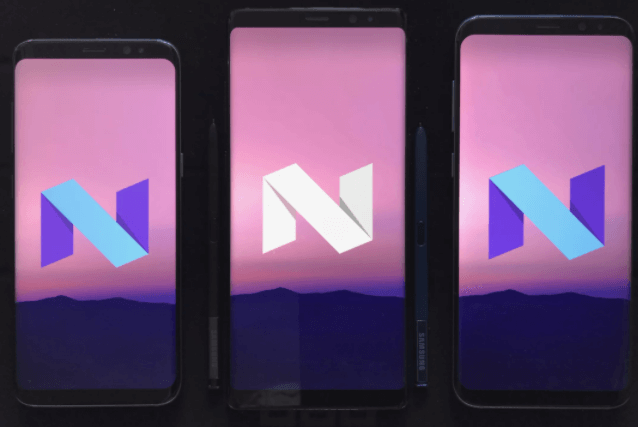
- Отобразится большая буква N. Несколько раз нажмите по ней и в конце удерживайте нажатие. Дождитесь появления смайла эмоджи в виде кота. Появление говорит о активации.
- Откройте верхнюю панель и перейдите в редактирование кнопок.
- В списке найдите . Android Easter Egg — переместите данную надпись в панель настроек.
- В быстрых настройках должна появиться кнопка Empty Dish. При нажатии по ней будет предоставлен выбор из нескольких типов еды — bits, fish, chicken или treat. Выберите то, чем бы хотели покормить кошака.
- Закройте верхнюю панель и дождись надписи появления кошака.
- При появлении кота кликните по нему. Он будет сохранен и добавлен в вашу коллекцию. Вы можете изменить его название. Также есть возможность делиться котиками, как именно не указывается.


Если вы не можете найти пасхалку — вы что-то делаете не так. Повторите все шаги и попробуйте снова активировать.
На этом все. Удачи и добра
Главная
Android Easter Egg — системная программа на Android, в которой есть игра («пасхалка»). В каждой версии Android игра разная. Например, в Android 7.0 Nougat игра (её называют «пасхалкой»), где нужно ловить кошек, а в Android 8.0 Oreo нужно просто двигать оьминога. Интересный факт: значок программы такой же, как и у значка приложения «Интерфейс системы», только другого цвета, но значки похожи своим очертанием:
В Android 7.0 значок «Интерфейса системы» в виде буквы «N», и у программы «Android Easter Egg» тоже значок в виде буквы «N», только значок «Интерфейса системы» зелёный, а значок «Android Easter Egg» — цветной (значок этого приложения есть на значке этого сайта, но на всякий случай, ниже есть картинка этого значка).
То-же самое, что и в Android 7.0, и в Android 8.0: там значок «Интерфейса системы» в виде двух кругов, которые сложены один внутрь другого (между кругами пробелов нет)(для того, чтобы вам было лучше понятно, ниже есть значок «Интерфейса системы») жёлтого цвета, а значок «Android Easter Egg» такой же, что и у «Интерфейса Системы», только синего цвета.
Все значки показаны на картинках ниже↓
В общем, Android Easter Egg — это игра («пасхалка»), где в каждой версии Android «пасхалка» разная. А ещё значок приложения «Android Easter Egg» очень похож на значок «Интерфейса Системы».
Android Easter Egg: что это за приложение на Андроид и нужно ли оно?
Пасхальные яйца (англ. Easter Egg) – это скрытые функции, не вписывающиеся в общую концепцию и функционал приложения. В подавляющем большинстве случаев “пасхалки” несут чисто юмористический характер, но иногда они применяются для защиты авторских прав – предполагается, что при исследовании клона приложения разработчик сможет открыть “пасхалку” и тем самым доказать свое авторство.

Easter Egg Collection – это приложение, с помощью которого можно просмотреть все пасхальные яйца, встречавшихся в разных версиях Android, за исключением последней Android 11.
Начиная с Gingerbread (2.3), каждое серьезное обновление включало в себя новое пасхальное яйцо, открываемое многократным нажатием на строку версии Android в настройках:

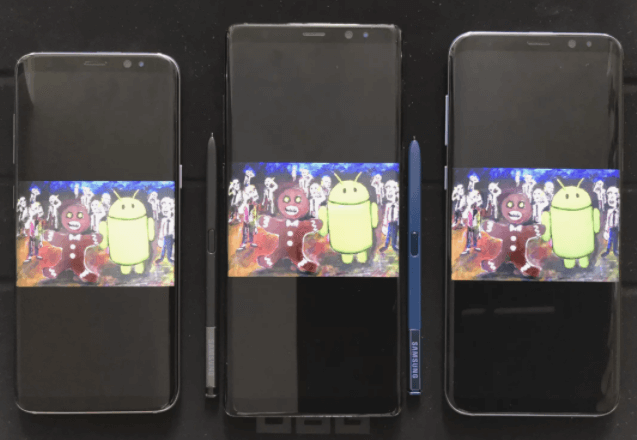
- 2.3 (Gingerbread) – изображение робота вместе с пряничным человечком;
- 3.0 (Honeycomb) – картинка пчелы-робота на желтоватом фоне;
- 4.0 (Ice Cream Sandwich) – багдройды, летящие в стиле Nyan Cat;
- 4.1-4.3 (Jelly Bean) – ожившие мармеладки;
- 4.4 (KitKat) – логотип Android в стиле KitKat, при нажатии на который появляются “плитки” предыдущих версий Android;
- 5.x (Lollipop) – клон Flappy Bird с багдроидом в качестве персонажа;
- 6.x (Marshmallow) – клон Flappy Bird с маршмеллоу в качестве персонажа;
- 7.x (Nougat) – логотип “N”, при нажатии на который появляются эмоджи котов внизу;
- 8.x (Oreo) – орео, при нажатии на который появляется осьминог;
- 9.x (Pie) – логотип Pie, при нажатии на который открывается простой графический редактор;
- 10 – логотип Android 10, у которого можно двигать цифры.
Если нажать на цифру 11, она начнет вращаться – так можно ее задвинуть на “0” и получить букву “Q”. Затем нужно подвигать название “Android” вокруг “собранной” Q, и появится японский кроссворд;

При первом запуске Easter Egg Collection открывает пасхалку актуальной Android 10, другие пасхалки можно открыть с помощью бокового меню. Все пасхалки точно воссозданы и адаптированы для работы на современных устройствах и версиях системы. Никаких настроек в приложении не предусмотрено.
Android Easter Egg

The Easter egg is a hidden feature in the Android operating system, which can be accessed by performing some specific steps in the settings menu. Every Android device comes with this hidden feature. The process of unlocking this feature is mostly similar to the recent version of Android. The Easter egg has been included since Android version 2.3 (Gingerbread).
You can access this feature under the Android version number in your device settings (may vary from device to device). However, it is mostly found under Settings > System > About phone. You can also search «Android Version» in the Settings screen. Once you find the Android version number, tap it continuously, and the Easter egg feature will be invoked.
In this article, you will learn the quick list of every Easter egg and how you will access each of them.
Android 13 Easter egg
Following are the steps to enable or find the Easter egg game in Android 13; the steps are the same as seen in Android’s lower version devices:
- Navigate the device Settings app > About phone> Android version.
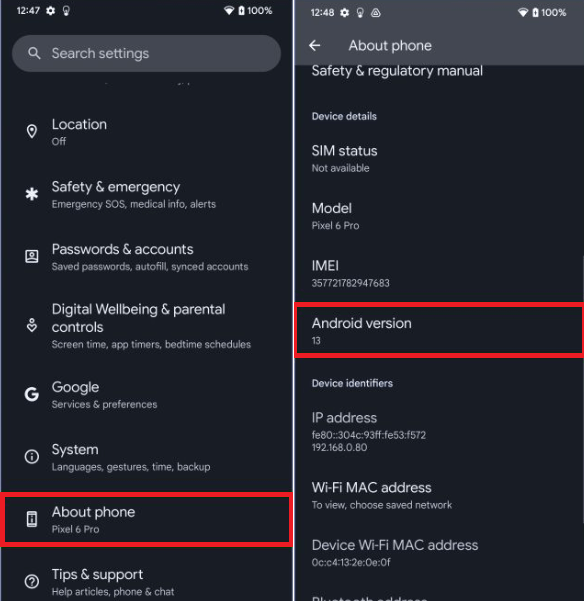
- Tap on the Android version number continuously until you see a clock.
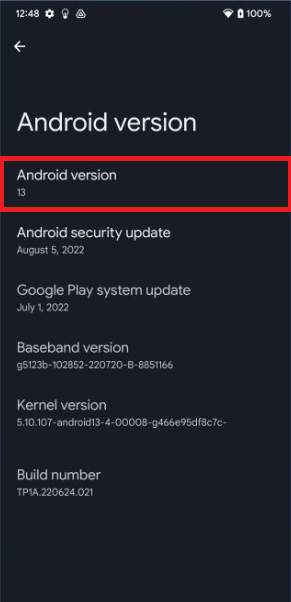
- With your finger, turn the dial to a circular motion until the clock reaches 1:00 pm (13:00).

- When you make 1:00 pm on screen, a big 13 appears with several bubbles.
Tap and hold the number 13 on the screen to change bubbles into emojis. Repeat this to see different emojis.
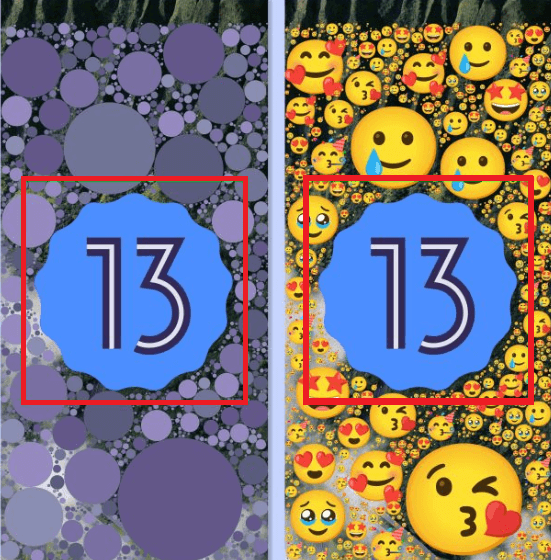
When a favorite image appears, you can take its screenshot to use as wallpaper on your device. If you take a screenshot in normal ways, you will notice that the old wallpaper appears behind the emoji. To take a screenshot on a black background, swipe up the screen from the bottom and tap «Screenshot».
Android 12 Easter egg
Finally, in the stable version of Android 12, we find the Easter egg, which is missing in several beta releases of Android 12. If you are using the Android 12 stable release, you can easily navigate it.
The Easter egg in Android 12 displays a screen with several different-sized bubbles that change color based on the device’s wallpaper colors. The followings are the steps to find and enable Easter egg in Android 12:
- Navigate to device Settings app > About phone> Android version.
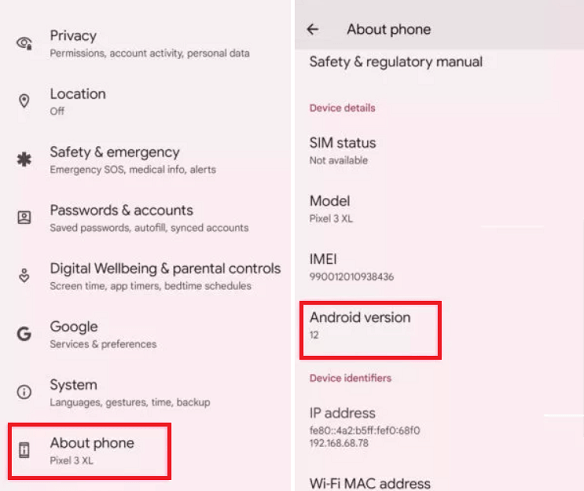
- Tap on the Android version number continuously until you see the clock.
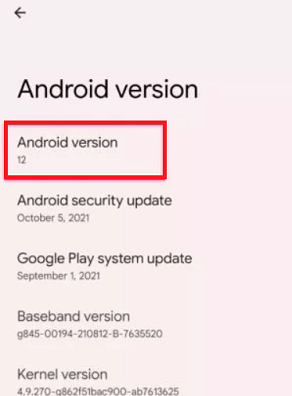
- Move both the clock hands to 12:00 clock (for Android 12).

- When you make the 12:00 clock, the Easter egg appears on the screen displaying the number 12 with different balls.

If you have followed all the steps above correctly, you will see a design known as Material You. In this theme, you will see different size balls appear on the wallpaper, and the wallpaper’s color depends on the device’s background color. One of the interesting things is that you see different size balls or dots when you close and re-open the Android 12 Easter egg.
Android 11 Easter egg
Following are the steps to enable or find the Easter egg game in Android 11; the steps are the same as we follow in the above version:
- Navigate the device Settings app > About phone> Android version.
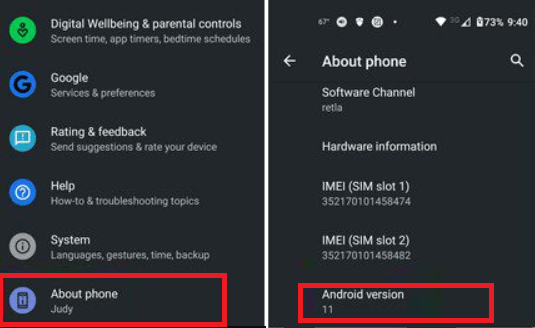
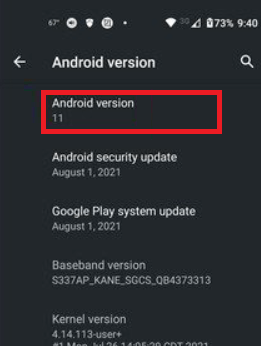
- Tap on the Android version number continuously until you see a volume dial.
- When you are at the volume dial screen, tap on the white circle and rotate the dial three times. In the third round, you will see the number 11.
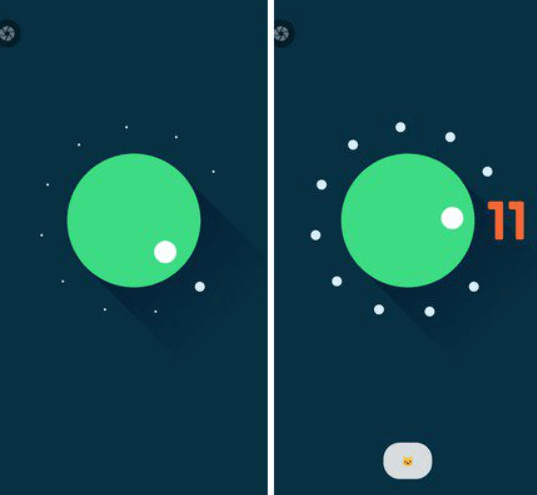
When you complete all the above steps, i.e., turn the volume dial three times, a cat emoji appears at the bottom of the volume dial. It means you have turned on the Easter egg game.
Android 10 Easter egg (formally termed as Android Q)
The step to enable Easter egg in Android 10 (which was formally termed as Android Q) is the same as other Android versions. The Easter egg is available in a black and gray screen says «Android 10» in white latter.

- Go to device Settings > About phone> Android version.
- Click on the Android version, and it will open another screen, now, continuously tap on Android Build Number until the Android 10 logo page appears.
- If you tap on the logo, it rotates, presses and holds, and starts it to spin.
- Rotate the logo and drag «1» into the «0» to make a «Q» logo. When the 1 and 0 are placed at the right place to form Q, tap on the Q logo.
- Tapping on the Q logo for few times, you will be taken to the nanogram game.
Android Pie (9.0) Easter egg
The Android Pie (P) Easter egg is accessed in the same way as other Android versions.
- Go to device Settings > About phone> Android version.
- Click on the Android version to open that screen; now, repeatedly tap on Android Build Number until the brightly colored P logo appears.
- Now, tap and long-press the P logo several times continuously until a drawing app appears.
In this drawing screen, you can change the brush size and color and get a dropper tool to draw some stuff and enjoy a bit of fun.

Android Oreo (8.0) Easter egg
The first two steps to enable Easter egg on Android Oreo are the same as on another Android version.

- Go to device Settings > About phone> Android version.
- Click on the Android version to open that screen; now, repeatedly tap on Android Build Number until the Android O logo appears.
- Continuously tap on O for few times after that press and hold, the screen switches to an ocean setting with a black octopus onscreen. You can now drag this octopus around the screen and watch it floating.
Android Nougat (7.0) Easter egg
You can get Easter egg on Nougat in the same way as Oreo. However, its Easter egg is more entertaining. Activate this feature by following ways:
- Go to device Settings > About phone> Android version.
- Now, repeatedly tap on the Android version tab until the N logo appears on the screen.
Drop down from the top of the screen to visit your quick settings panel and click on EDIT. Here, you will see a cat face icon with the title «Android Easter egg«. Drag and drop this icon to the main quick setting panel. Tap on the Easter egg icon to start your fun activity. This Easter egg feature enables a game called Android Neko, which is based on a kitten. Tap it, and you will see four different types of food: bits, fish, chicken, and treat; select anyone to feed a cat.
Android Marshmallow (6.0) Easter egg
To access the Easter egg on Android 6.0, follow the below steps:
- Navigate to device Settings > Android phone> Android version.
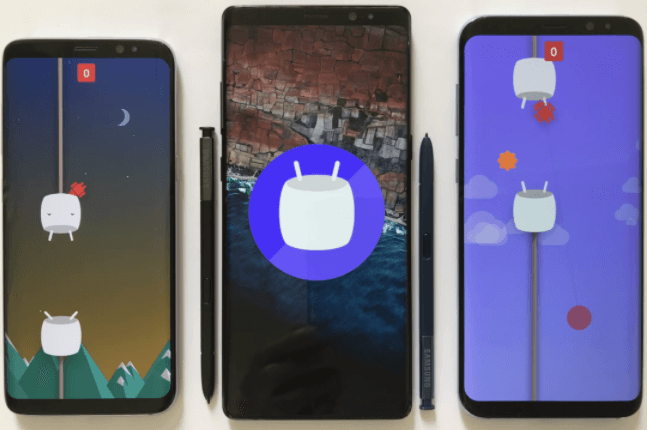
- Now, repeatedly tap on the Android version until the Marshmallow logo M appears on the screen.
- Press and hold the logo one more time to start the Flappy Bird
In the Flappy Bird game, you can fly through sticks with marshmallows. It also allows joining multiple people to play at the same time. Clicking on the small «+» button allows up to six people to play simultaneously.
Android Lollipop (5.0) Easter egg
Android Lollipop’s Easter egg was mostly the same as the Android Marshmallow Easter egg in terms of concept, graphics and mini-game. To access the Easter egg on Android Lollipop, follow the below steps:
- Navigate to device Settings > Android phone> Android version.
- Now, repeatedly tap on the Android version until the Lollipop logo appears on the screen.
You will get the first Easter egg with the word «lollipop» printed on it. Now, tap on the lollipop to change the color of the candy. Finally, long-press the Lollipop logo to start the game.

Android KitKat (4.4) Easter egg
Android KitKat was the first version which has the Android’s first three-stage Easter egg fun activity. In the first stage, you will see a nondescript K logo that you can spin. In the second stage, a red color Android logo appears on the screen. Finally, tap and long-press the red Android logo multiple times until the tiles bunch appears on the screen. Tap on these tiles and watch them moving randomly around the board. To enable Easter egg on KitKat, follow the steps below:

- Navigate to device Settings > Android phone> Android version.
- Now, repeatedly tap on the Android version until the Easter egg appears on the screen.
Android Jelly Bean (4.1-4.3) Easter egg
Android Jelly Bean has another version that also has a two-stage Easter egg. In the first stage, you will see a colorful jelly bean graphic that appears on the screen. When you tap on the jelly bean, a cute little smiley face is added in the second stage. Long-pressing the jelly bean brings you to a screen to start a mini-game. To enable Easter egg on Jelly Bean, follow the steps below:

- Navigate to device Settings > Android phone> Android version.
- Now, repeatedly tap on the Android version until the Easter egg appears on the screen.
Android Ice Cream Sandwich (4.0) Easter egg
Android Ice Cream Sandwich was a first multi-stage (two-stage) Easter egg that can be enabled in the same way as other Android versions. To enable Easter egg on Ice Cream Sandwich, follow the below steps:
- Navigate to device Settings > Android phone> Android version.
- Now, repeatedly tap on the Android version until the Easter egg appears on the screen.
The initial stage of Easter egg in this version appears in the form of bugdroid with a tasty ice cream sandwich for a body. Continuously tapping on the bugdroid makes it bigger and fills the screen. You will see your phone goes filled with ice cream sandwich bugdroids flying across the screen as a popular Nyan Cat meme.

Android Honeycomb (3.0) Easter egg
Android Honeycomb is the only such a version which was exclusively developed for tablet, and it also looks good over the large screen devices. The Easter egg of this version was inspired by a movie whose name was Tron Legacy. To enable Easter egg on Honeycomb, follow the below steps:
- Navigate to device Settings > Android phone> Android version.
- Now, repeatedly tap on the Android version until the Easter egg appears on the screen.
When the Easter egg activated, it shortly toast a «REZZZZZZZ…» message.

Android Gingerbread (2.3) Easter egg
Easter egg in Android has started from version Gingerbread. This Easter egg looks like a bugdroid feature next to the zombie gingerbread man. To enable Easter egg on Gingerbread, follow the below steps:
- Navigate to device Settings > Android phone> Android version.
- Now, repeatedly tap on the Android version until the Easter egg appears on the screen.
When your Easter egg gets activated, it displays a toast message.
Next Topic Drudge report Android apps

For Videos Join Our Youtube Channel: Join Now
Feedback
- Send your Feedback to [email protected]
Help Others, Please Share


Learn Latest Tutorials


Python Design Patterns


Preparation


Trending Technologies


B.Tech / MCA


Javatpoint Services
JavaTpoint offers too many high quality services. Mail us on h[email protected], to get more information about given services.
- Website Designing
- Website Development
- Java Development
- PHP Development
- WordPress
- Graphic Designing
- Logo
- Digital Marketing
- On Page and Off Page SEO
- PPC
- Content Development
- Corporate Training
- Classroom and Online Training
- Data Entry
Training For College Campus
JavaTpoint offers college campus training on Core Java, Advance Java, .Net, Android, Hadoop, PHP, Web Technology and Python. Please mail your requirement at [email protected].
Duration: 1 week to 2 week
Like/Subscribe us for latest updates or newsletter 


