Google Play Music for Android

Google Play Music is a free music and podcast app, offering users a platform to listen to with an endless number of songs from a never-ending list of genres. Whether looking for tracks to listen to during the long morning commute or just to enjoy with some friends on a Friday night, this music app has you covered. Unfortunately, Google has discontinued the app, and Youtube Music has replaced it.
Features
Google Play Music features ad-supported music, radio, and podcasts. You can upload up to 50,000 songs onto the app and listen to them anywhere with internet access. You also get recommendations based on your frequented types of music and it also has a dark mode.
The app offers a subscription service, either for an individual or for a family of up to six, which allows you to listen to tracks ad-free and download songs and podcasts to listen to offline. You can also get a Youtube Music Premium Membership.
Youtube Music
If you attempt to use the app on your Android device now, you will receive a suggestion to use Youtube Music instead. If you click on the link, the app redirects you to the online platform to get instant access to some of the top artists. There is also a Youtube Music app which you can download.
Unfortunately for many users, if they did not save their custom Google Play Music song lists, they would have lost it all.
Other Alternatives
SoundCloud is a top-rated streaming service for music. To use it, you’ll have to create an account. The app offers an excellent interface, tons of different songs to listen and Facebook integration.
Spotify Music is another popular go-to when it comes to streaming audio. Like Soundcloud, it offers many different genres of music and a sleek interface to boot.
Our take
Unfortunately, the app is no longer in use, so we can’t say much about it, but other users’ experiences say they appreciated the ability to save their songs on Google Play Music.
Should you download it?
No, as the app is no longer available. You can instead download Youtube Music which has replaced it.
- Used to offer a great platform for saving tracks
- There were few ad interruptions
- Came pre-installed on many devices
- No longer available
How to use Google Play Music and get more than a music streaming service
Want to know how to use Google Play Music? We give you all that you need to use the popular music streaming service from Google.
By Adam Doud
January 11, 2019
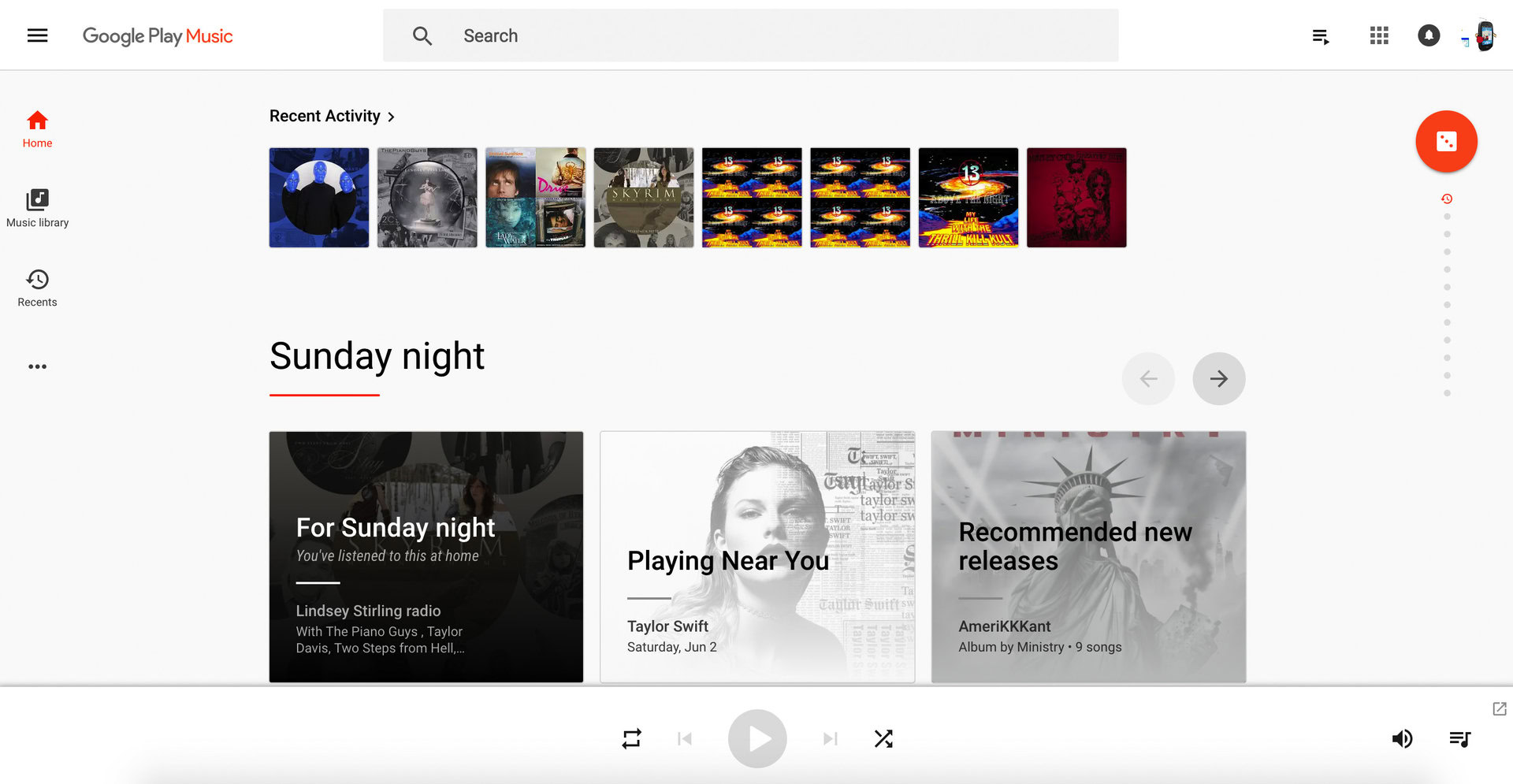
Google Play Music is Google’s music streaming service. It’s a competitor for similar services like Apple Music, Spotify, and Pandora. Each of those services has their own niche, but if you ask us here at Android Authority, Google Play Music is one of the best deals around.
Google Play Music boasts 35 million songs. It lets you curate playlists and even upload your own music. You can store up to 50,000 of your own songs, and they are always ad free. You can also use Google Play Music for free, though that is limited to artist radios, limited skips, and ads. Let’s dive into the nuts and bolts of how to actually use it.
Google Play Music app for Android and iPhone

If you’re out and about, and want to listen to some tunes, just pop open the Google Play Music app. If you’re reading this, it’s already probably on your phone. If not, you can download it here for Android or here for iOS.
Once downloaded, fire up the app, and sign in with your Google account. If you don’t subscribe to Google Play Music, you’ll run into some limitations. You won’t be able to play specific songs you’re looking for, only radio stations. They’ll get you close to what you want, but not to specific songs. You also have a limited number of skips — up to six in an hour. Finally, of course, you’ll get ads, and the occasional prompt to subscribe. None of these are absolute deal killers, but they can make getting your jam on frustrating.
“Where you at?” – Location-based suggestions
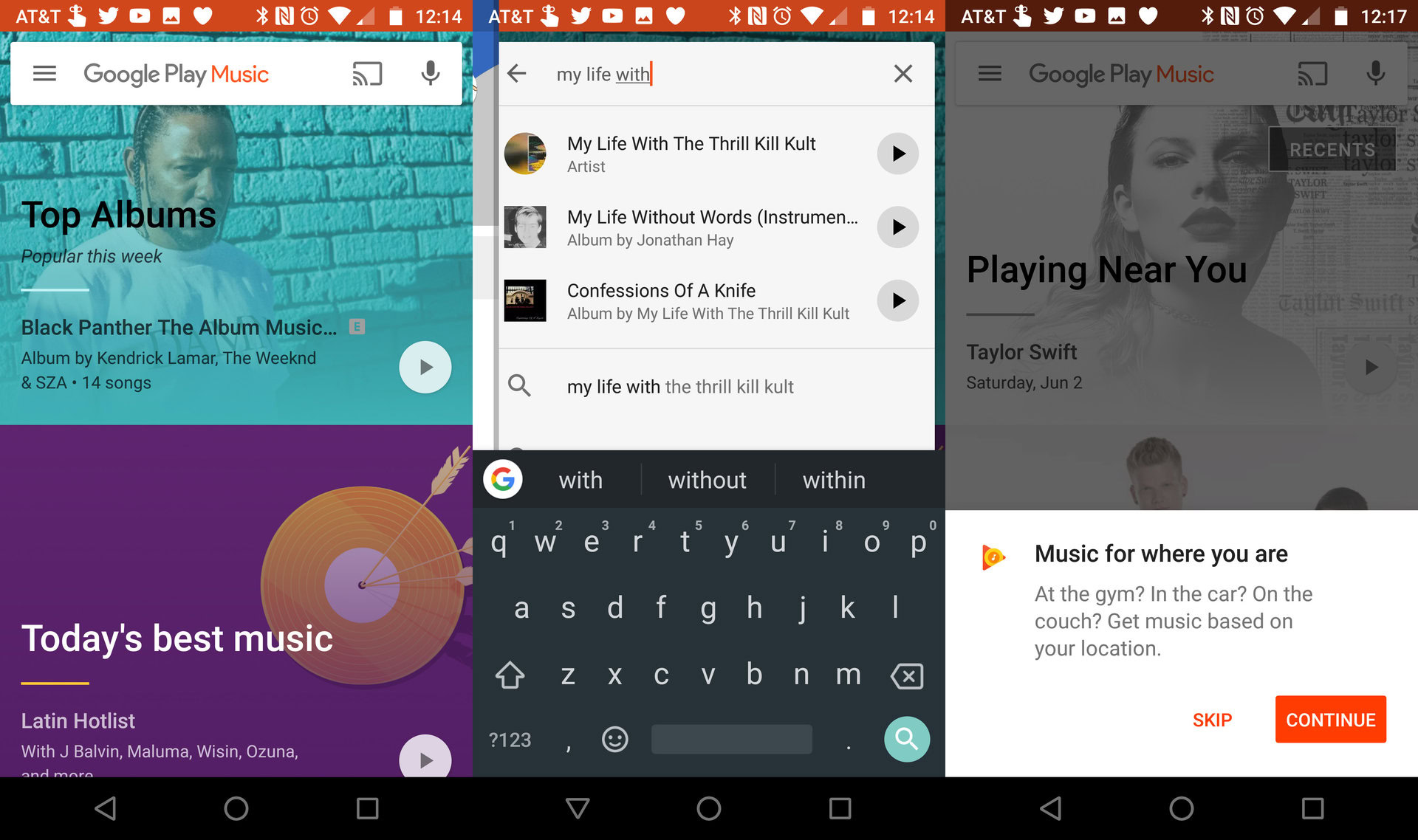
Your home page contains your recent activity, and recommendations based on listening history and your location. Speaking of location, Google Play Music has some cool location-based features you might be interested in. First and foremost, it can tailor music suggestions based on your location, like workout music when you’re at the gym. Another neat trick Google Play Music offers is curated suggestions of live performances based on music you’ve listened to.
If you are a fan of My Life with the Thrill Kill Kult — and let’s face it, everyone is — the app will let you know that TKK is playing near you in April. Not that a superfan like you didn’t already know that, but it’s handy.
Using the Google Play Music app manager
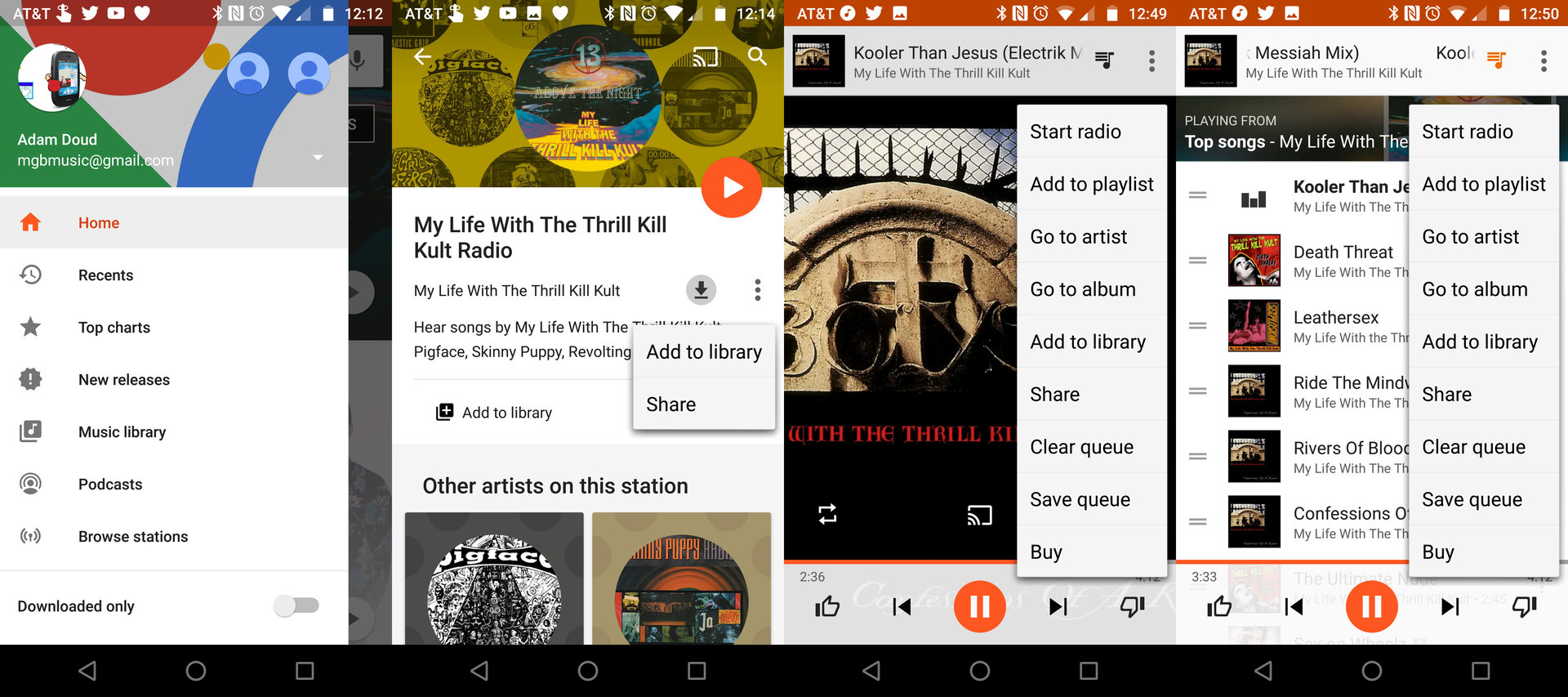
In the app, you can search by song or artist. In the search results, you have three options:
- Tap on an artist to open them and see songs.
- Tap the Play button in the bottom right corner to being playing the artist
- Tap the three dots below the play button to start artist radio, Share the artist, or Shuffle the artist’s songs.
Once you start playing music, a bar will appear at the bottom of the screen with the name of the artist and song, and a single play/pause button. Tap on that bar to open more details, including repeat play, cast, shuffle, like or dislike, and skip or go back. This screen also features album art.
In the upper right corner, tap the music note icon to see your current playlist. Additionally, tapping the three dots next to that icon opens number of different options like “Start Radio,” playlist and library controls, and of course, the option to buy the song.
How to open Google Play Music on your desktop
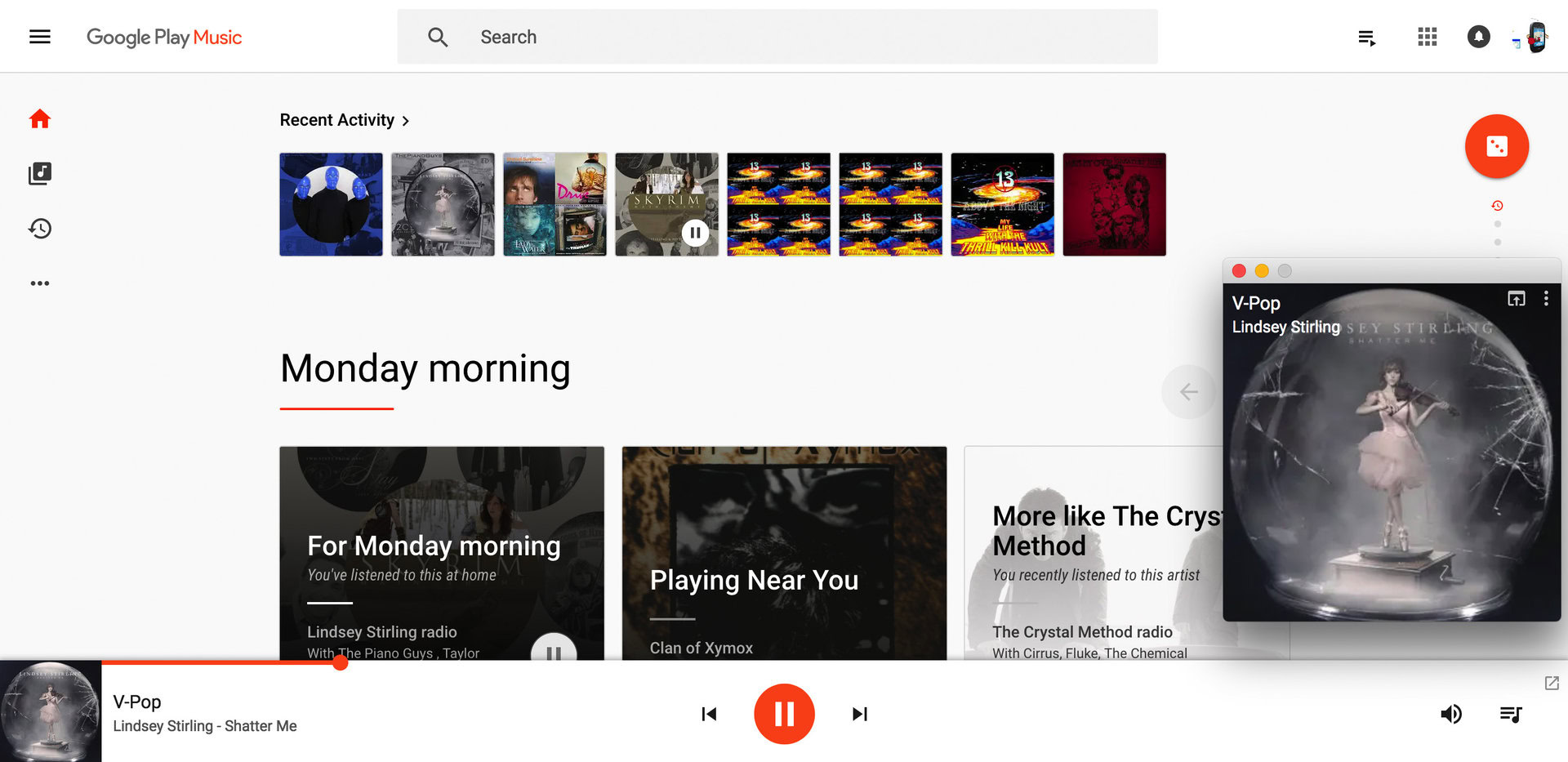
If you’re using a web browser, we highly recommend you use Chrome. It has a mini player extension you can install, which allows to you pop out a music control box. The app can run in a full window, but if you just want it out of the way, the mini player is great. It gives you album art, playback controls, and like and dislike options.
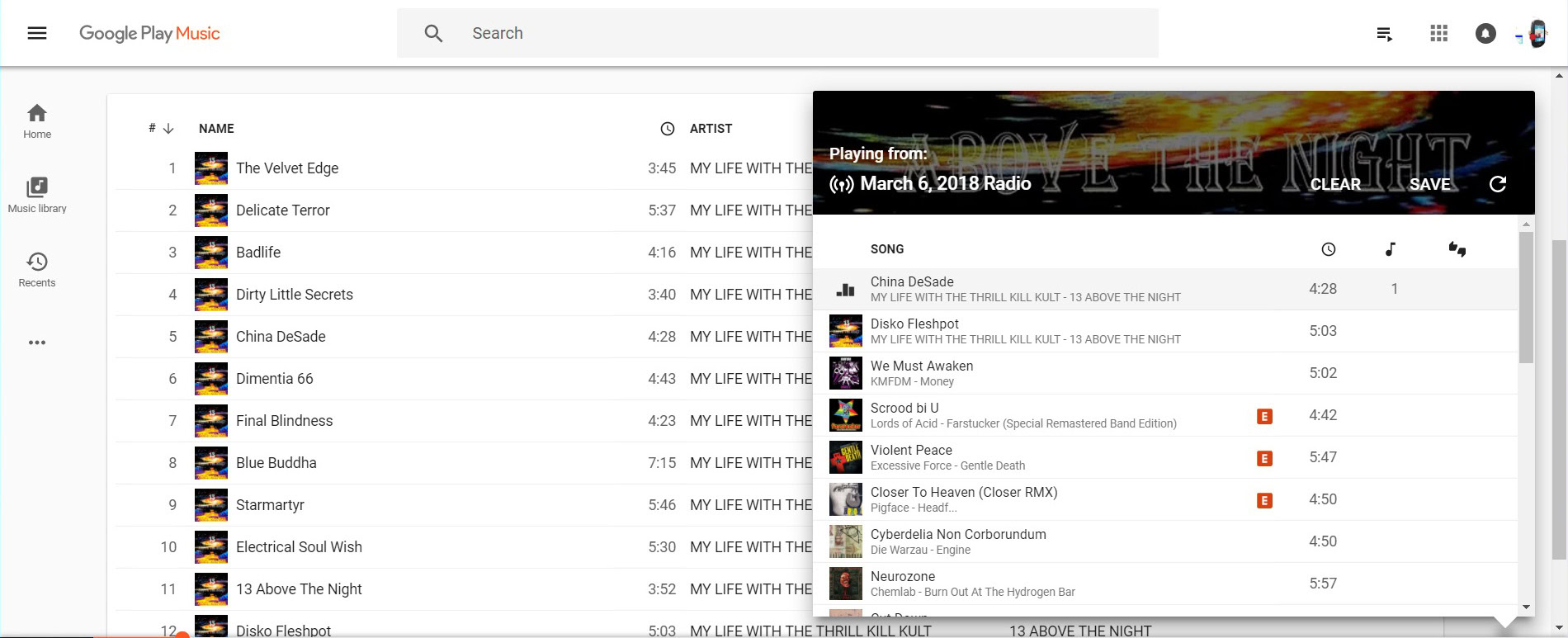
If you stick with the full browser, you can get started by searching for an artist or song. From there you can click on a song or album to play. Google Play Music also lists all of your recent history, which can help you pick up where you left off. Once you select a song and it starts playing, you’ll see a play bar across the bottom of the browser. First, you have options which include radio controls, library and playlist controls, and share and buy buttons. After that, you have the like and dislike buttons, play controls, volume, track listing, and if you’re in Chrome, the option to cast.
I’m Feeling Lucky
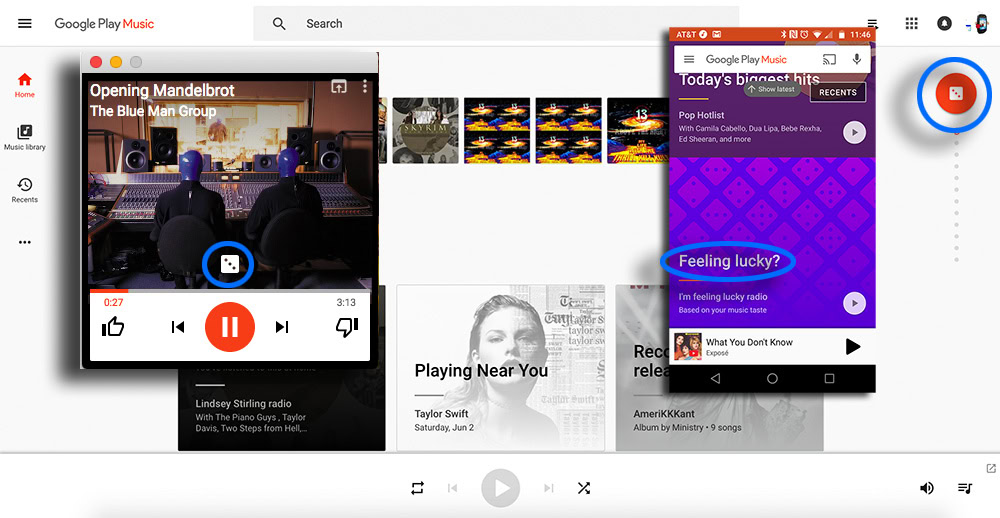
Google Play Music also features a standout Google feature: I’m Feeling Lucky. This feature, much like the browser feature, randomly generates a result — a radio player here — based on your play history, music likes, and more. It can be handy when you’re not really sure what you want to listen to. On mobile, you can find it by tapping the menu button, tapping home, and scrolling to the bottom of the page.
On the web, the “I’m Feeling Lucky” button looks like a dice cube, and it’s located on the far right side of the homepage in Google Play Music. In the Chrome app, it’s even easier to locate and (also easier to click accidentally). It appears as a dice cube above the play controls.
Upload your older songs to Google Play Music
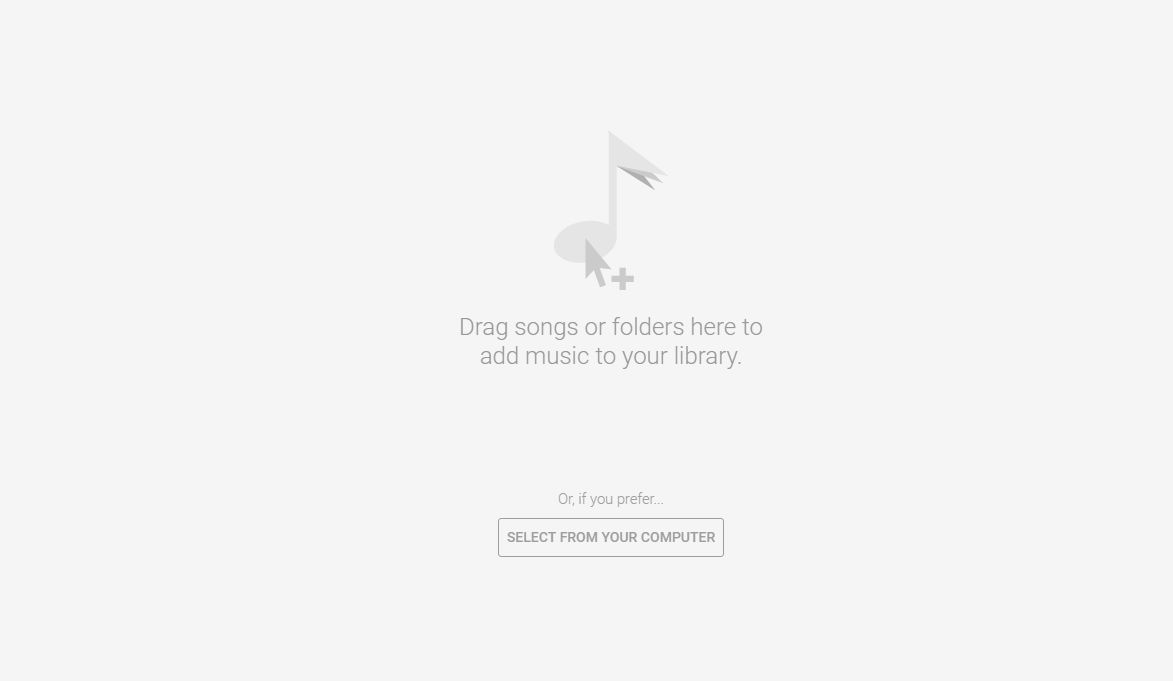
If you still have older songs that you have purchased from services like iTunes, or if you have songs that you have taken from (legally purchased) CDs, you can upload them to Google Play Music and you don’t even have to sign up for the premium service to use this feature. Google Play Music allows you to upload up to 50,000 songs for free.
The bad news is that you cannot upload any songs from your Android smartphone or tablet to Google Play Music. You have to use a PC to accomplish this. The easiest way is just to use Google’s Chrome browser and then download and install the Google Play Store Chrome extension [no longer available]. Then launch the menu, select the “Upload Music” option and drag any songs or folders with music to add to your cloud library of tunes. You can also search and select any audio files you have stored on your PC to upload them to Google Play Music.
If, for some reason, you don’t want to use the Chrome extension, there’s also the Music Manager app you can download to your PC. Once you install it and sign into your Google account, just follow the direction to upload your songs to Google Play Music.
Bonus: Podcasts
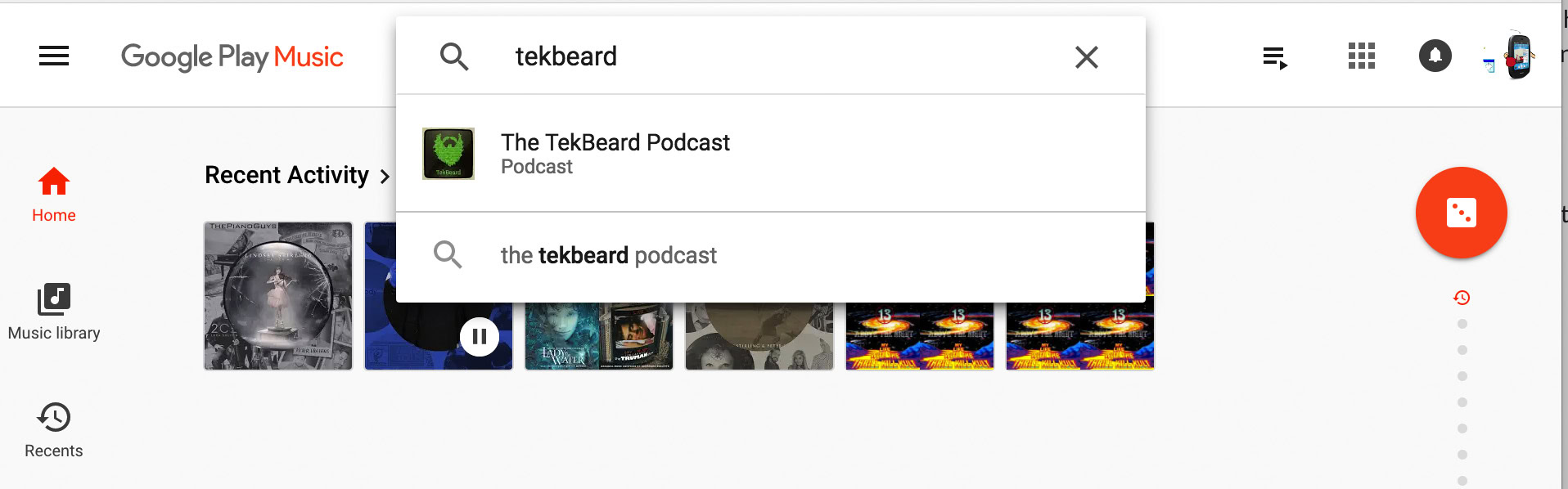
You can also use Google Play Music to play your favorite podcasts as well. All you need to do is search for a podcast, and subscribe to it. Podcasts are listed in their own section of Google Play Music, and the podcast homepage contains a number of popular podcasts. Beyond that, the podcast interface is exactly like the music interface.
The one downside to the podcast interface is, if you’re really behind on a podcast, it can be difficult downloading episodes in bulk, and generally determining where you are in a podcast list. The red dot at the beginning of a podcast will disappear the more you progress through a podcast, but it’s not our favorite UI.
The end of Google Play Music?
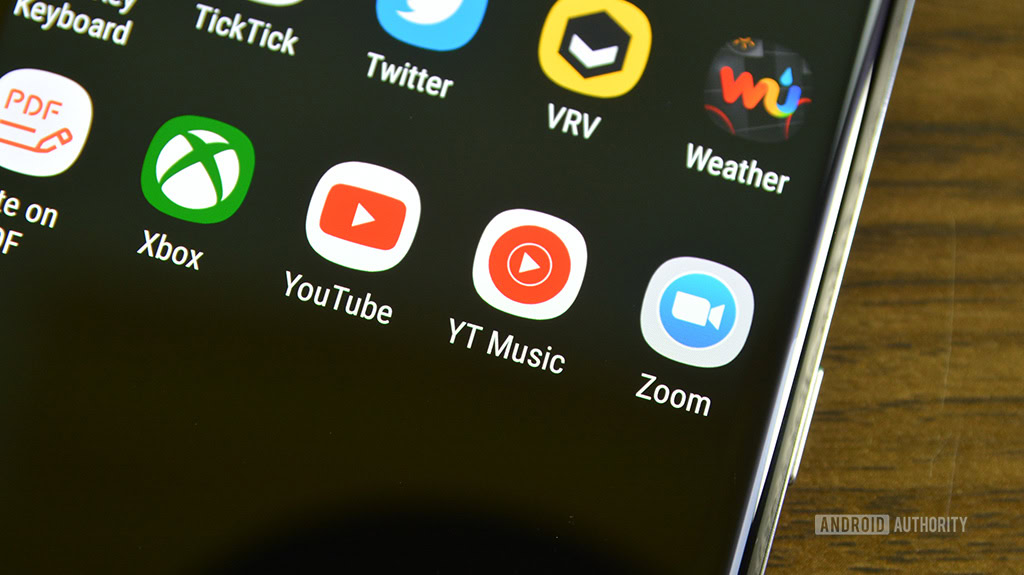
As much as we love Google Play Music, the truth is that Google doesn’t seem happy with it. In 2018, the company revealed a new music streaming service, YouTube Music, which not only offers full albums and individual songs to stream but also lots of remixes, live performances, and music videos. YouTube Premium, the paid version of YouTube Music, costs the same as Google Play Music at $9.99 a month.
Google already announced YouTube Music will eventually replace Google Play Music as the company’s only music streaming service. However, it’s not clear when exactly that will happen. Google Play Music will probably shut down sometime in 2019, but we don’t know exactly when. Google has indicated that when the shutdown does happen, users of Google Play Music will have all of their preferences, songs, and playlists transferred to YouTube Music. Google Play Music’s ability to upload and store up to 50,000 songs in the cloud for free will reportedly be supported for YouTube Music as well, at least eventually.
We will update this feature when Google announces when Google Play Music will shut down, along with how the transition to YouTube Music will take place. If you want to switch to another streaming service when the shutdown is announced, you can download any songs or albums you have purchased on Google Play Music. Be prepared — it will likely take a long, long time.
How to use Google Play Music – Wrapping up
So that’s how to use Google Play Music. Did we miss anything? Did you have any other questions about the service? Sound off in the comments and we’ll be sure to update this article periodically.
Google Play Music coverage
- 10 best music streaming apps and music streaming services for Android
- 10 best free music apps for Android
- Problems with Google Play Music and how to fix them
Как скачать музыку из Google Play Music
Если вы хотите сохранить свою музыку на своем компьютере, это руководство покажет вам, как загрузить всю вашу библиотеку Google Play Music.
Google Play Music заменяется обновленным YouTube Music. Google утверждает, что для пользователей Play Music ничего не изменится, но мы все знаем, что со временем это изменится. Вся загруженная вами музыка, плейлисты и купленная музыка будут перенесены на YouTube Music. Однако, если вы хотите взять дело в свои руки, мы покажем вам, как загрузить всю вашу библиотеку Google Play Music.
Загрузите приложение Музыкальный менеджер
Google предлагает бесплатное приложение под названием Music Manager. Он доступен для Windows и Mac. Это приложение позволит вам скачать всю вашу музыку (загруженную или купленную). Загрузите приложение с страница Google Play Музыки прямо здесь . Откройте файл и установите приложение на свой компьютер.
Войдите и загрузите свою библиотеку
После установки вы можете открыть приложение и войти в систему, используя учетную запись Google, связанную с вашей учетной записью Play Music. Это приложение можно использовать для загрузки и скачивания музыки. Очевидно, в этом случае мы будем использовать функцию загрузки.
- Выбирать Загрузите песни из Google Play на свой компьютер
- Нажмите Следующий
- Выбирать Загрузите мою библиотеку или Загрузите всю мою бесплатную и купленную музыку
- Нажмите Начать загрузку
- В зависимости от количества имеющихся у вас песен этот процесс может занять до нескольких часов. Будьте терпеливы и позвольте ему сделать свое дело.
Категории
- Xda полные обзоры
- Новости вычислительной техники
- Xda мини
- Вычислительные обзоры
- Xda руководства по покупке
- Xda учебники
- Предложения по умному дому
- Мобильные сравнения
- Руководства по покупке компьютеров
- Руководства по покупке мобильных устройств
- Homepod
- Вычислительные сделки
- Учебники по вычислительной технике
- Xda моды
- Хда полный
- Хда андроид
- Игровые предложения
- функция Xda
- Мобильная редакция
- Мобильные учебники
- Xda эксклюзив
- I Pod
- Спонсируемый
- Мобильные новости
- Xda обсуждение
- ссылки на форум Xda
- Учебники
- объявления сайта Xda
- ремешки для часов Apple
- Руководства по покупке
Google Play Music Desktop
Google Play Music is a service from Google that lets you play and download music online. With the web version, you need an Internet browser in order to use its features. This unofficial client, on the other hand, lets you listen to your music without wasting RAM by using Chrome.
In practical terms, it’s exactly like the browser version. In fact, it’s just a WebView system that shows the pages the same. You can access your libraries, whether your music is from the online store or from your local files. The notifications show up on the bottom right corner of the Windows desktop, where you can access all the features.
There are also a few exclusive features in this version, like the option to transform it into a mini player that stays on top of other windows, letting you control the volume and skip between songs. There’s also an exclusive options menu in the pop-up toolbar that lets you change the default theme color and mute notifications.
Reviewed by Álvaro Toledo Translated by Uptodown Localization Team
Advertisement
More information
| License | Free |
| Op. System | Windows |
| Category | Audio streaming |
| Language | English |