Установить Python в Linux

Прежде чем приступать к решительным действиям желательно проверить не установлен ли Python в Вашем дистрибутиве Linux по умолчанию.
Как Вы можете увидеть — в моём Debian из коробки установлены Python 2.7.16 и Python 3.7.3
Если у вас нет Python по умолчанию — переходите к следующему шагу.
Прежде чем устанавливать Python советую установить бибилотеки для работы с ssl.
Иначе, в будущем можно столкнуться с ошибкой SSL module is not available
Установка с помощью менеджера пакетов
Самый простой способ — воспользоваться менеджером пакетов.
В Debian , Ubuntu и других .deb дистрибутивах это apt
В CentOS , Rocky , RedHat и других .rpm дистрибутивах это yum
sudo apt update -y
sudo apt-get install -y python3
sudo yum update -y
sudo yum install -y python3
Если что-то не получается — переходите к следующему шагу
Скачать Python
Пример скачивания с помощью wget
Скачать и установить Python 2.7.9
Чтобы установить Python из скачанного архива нужен компилятор C например gcc
Если нужно установить второй Python последней версии 2.7.9
—2021-01-11 12:17:43— https://www.python.org/ftp/python/2.7.9/Python-2.7.9.tgz Resolving www.python.org (www.python.org). 151.101.84.223, 2a04:4e42:14::223 Connecting to www.python.org (www.python.org)|151.101.84.223|:443. connected. HTTP request sent, awaiting response. 200 OK Length: 16657930 (16M) [application/octet-stream] Saving to: ‘Python-2.7.9.tgz’ Python-2.7.9.tgz 100%[=============================================================>] 15.89M 3.63MB/s in 4.4s 2021-01-11 12:17:48 (3.61 MB/s) — ‘Python-2.7.9.tgz’ saved [16657930/16657930]
Распаковать архив можно командой
tar xvzf Python-2.7.9.tgz
Затем нужно перейти в распакованную директорию и выполнить configure make install
cd Python-2.7.9
./configure
make
sudo make install
Пример Make файла для установки рабочего окружения
.PHONY: preinstall-env preinstall-env: @ sudo apt update @ sudo apt upgrade @ sudo apt-get install -y build-essential libssl-dev zlib1g-dev \ libbz2-dev libreadline-dev libsqlite3-dev libffi-dev \ wget llvm \ libncursesw5-dev xz-utils tk-dev libxml2-dev libxmlsec1-dev \ liblzma-dev curl git #@curl https://pyenv.run | bash curl -L https://github.com/pyenv/pyenv-installer/raw/master/bin/pyenv-installer | bash @ echo «» >> ~/.bashrc @ echo ‘eval «$$(pyenv virtualenv-init -)»‘ >> /home/$$(whoami)/.bashrc @ echo «» >> ~/.bashrc @ echo ‘eval «$$(pyenv init -)»‘ >> ~/.bashrc @ export PYENV_ROOT=»/home/$$(whoami)/.pyenv» @ export PATH=»$PYENV_ROOT/bin:$PATH»
Скачать и установить Python 3
Перед установкой Python 3 советую установить библиотеки libbz2-dev libffi-dev libssl-dev
sudo apt-get install -y libffi-dev libbz2-dev libffi-dev libssl-dev
Они далеко не всегда нужны, но если какая-то понадобится и её нет — придётся переустанавливать Python
Подробнее про библиотеки, которые могут пригодиться читайте ниже в параграфе Makefile
Подробнее про утилиту wget читайте в статье «Скачивание из интернета в Linux»
Ниже вы можете изучить примеры скачивания и установки конкретных версий Python.
Скачать и установить Python 3.11.3
wget https://www.python.org/ftp/python/3.11.3/Python-3.11.3.tgz ; tar xvzf Python-3.11.3.tgz ; cd Python-3.11.3 ; ./configure ; sudo make install
Возможно, после установки будет полезно добавить в текущий профиль новый alias
Скачать и установить Python 3.9.1
wget https://www.python.org/ftp/python/3.9.1/Python-3.9.1.tgz ; tar xvzf Python-3.9.1.tgz ; cd Python-3.9.1 ; ./configure ; sudo make install
Установка Python 3.9.13 в CentOS7
sudo yum -y install gcc zlib-devel zlib bzip2-devel libffi-devel openssl-devel wget make
wget https://www.python.org/ftp/python/3.9.13/Python-3.9.13.tgz ; tar xvzf Python-3.9.13.tgz ; cd Python-3.9.13 ; ./configure ; sudo make install
pyenv: установка нескольких разных версий
Про установку разных версий python на одну систему, управление этими версиями и виртуальными окружениями в них — читайте статью pyenv
Установка Pip
sudo apt update
sudo apt install python3-pip
pip3 —version
pip 18.1 from /usr/lib/python3/dist-packages/pip (python 3.7)
Библиотеки лежат в /home/andrei/.local/lib
ls -la /home/andrei/.local/lib
total 0
drwx—— 0 andrei andrei 512 Mar 20 16:41 .
drwx—— 0 andrei andrei 512 Mar 19 13:31 ..
drwx—— 0 andrei andrei 512 Mar 19 13:19 python2.7
drwx—— 0 andrei andrei 512 Mar 20 15:01 python3.5
Пример Make файла для установки рабочего окружения
.PHONY: preinstall-env preinstall-env: @ sudo apt -y update @ sudo apt -y upgrade @ sudo apt-get install -y build-essential libssl-dev zlib1g-dev \ libbz2-dev libreadline-dev libsqlite3-dev libffi-dev \ wget llvm \ libncursesw5-dev xz-utils tk-dev libxml2-dev libxmlsec1-dev \ liblzma-dev curl git @ curl https://pyenv.run | bash # substitute for # curl -L https://github.com/pyenv/pyenv-installer/raw/master/bin/pyenv-installer | bash @ echo «# Pyenv Config» >> ~/.bashrc @ echo ‘export PYENV_ROOT=»$$HOME/.pyenv»‘ >> /home/$$(whoami)/.bashrc @ echo ‘export PATH=»$$PYENV_ROOT/bin:$$PATH»‘ >> /home/$$(whoami)/.bashrc @ echo ‘eval «$$(pyenv init —path)»‘ >> /home/$$(whoami)/.bashrc @ echo ‘eval «$$(pyenv virtualenv-init -)»‘ >> /home/$$(whoami)/.bashrc
В .bashrc будет прописано
# PyEnv Configuration export PYENV_ROOT= » $HOME /.pyenv » export PATH= » $PYENV_ROOT /bin: $PATH » eval » $( pyenv init —path ) » eval » $( pyenv virtualenv-init — ) «
Перезапустить shell можно выполнив
Переход на Python 3 в Debian и Kali Linux
Python 2 в Debian и производных дистрибутивах
Kali Linux полностью перешла на Python 3. Это означает, что любой инструмент, присутствующий в репозиториях Kali, который использовал Python 2, был либо удалён, либо конвертирован для использования в Python 3. Во всех этих инструментах в качестве шебанга указан /usr/bin/python3.
Что касается пакетов, которые поступают прямо из Debian, они сделали то же самое для большинства пакетов, но есть несколько исключений, когда пакетам разрешено продолжать полагаться на Python 2. Однако эти пакеты были обновлены, поэтому все эти скрипты используют /usr/bin/python2 в качестве их шебанга, то есть в них использование python2 указано явно (вместо прежнего python).
Благодаря этим изменениям Debian больше не нужно предоставлять /usr/bin/python, а недавние обновления эффективно избавятся от этой символической ссылки.
К сожалению, когда вы загружаете скрипт Python в Интернет, он, скорее всего, будет иметь /usr/bin/python в качестве его шебанга. Если вы попытаетесь выполнить его, не исправляя строку shebang, вы получите ошибку, подобную этой:
zsh: /home/kali/test.py: bad interpreter: /usr/bin/python: no such file or directory
То есть плохой интерпретатор /usr/bin/python, нет такого файла или каталога.
В Debian вы можете восстановить символическую ссылку /usr/bin/python, установив один из пакетов:
- python-is-python2, если вы хотите, чтобы он указывал на python2
- python-is-python3, если вы хотите, чтобы он указывал на python3
Сохранение обратной совместимости в Kali с Python 2
Учитывая большое количество пользователей, которые не знали, как избежать вышеуказанной ошибки, было решено, что Kali будет продолжать поставлять Python 2 по умолчанию (пока Debian всё ещё предоставляет его) и что /usr/bin/python будет указывать на него. Также сохранено несколько общих внешних модулей (например, requests), чтобы скрипты эксплойтов имели разумные шансы на успешное выполнение.
Однако pip для Python2 (он же python-pip) больше не используется, /usr/bin/pip совпадает с /usr/bin/pip3, и он установит модули для Python 3. Для получения дополнительной информации смотрите вопросы и ответы ниже.
Эта совместимость была реализована за счёт того, что kali-linux-headless рекомендовал python2, python-is-python2 и offsec-awae-python2, так что они устанавливаются по умолчанию и могут быть удалены пользователями, которые хотели бы избавиться от них.
Чтобы пользователи знали об этой ситуации, при входе в систему выводится сообщение:
┏━(Message from Kali developers) ┃ ┃ We have kept /usr/bin/python pointing to Python 2 for backwards ┃ compatibility. Learn how to change this and avoid this message: ┃ ⇒ https://www.kali.org/docs/general-use/python3-transition/ ┃ ┗━(Run “touch ~/.hushlogin” to hide this message)
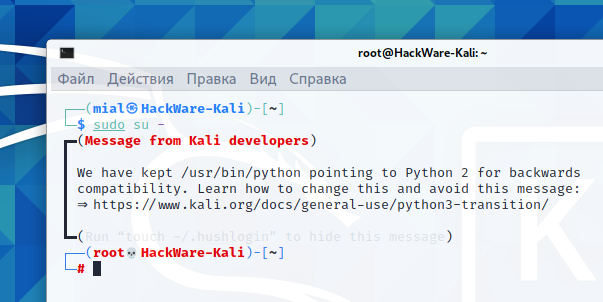
В этом сообщении дана ссылка на страницу, перевод которой вы сейчас читаете. Ниже будет показано, что нужно сделать, чтобы это сообщение не выводилось.
Часто задаваемые вопросы по переходу на Python 3
В: Я загрузил скрипт Python, что мне делать?
О: Вам нужно осмотреть его шебанг. Строка shebang — это первая строка скрипта, которая начинается с символов #! за которыми следует путь к интерпретатору, который будет использоваться для выполнения скрипта.
Если интерпретатором является /usr/bin/python, вам следует прочитать документацию, чтобы узнать, может ли скрипт работать с Python 3. Если да, то вам следует обновить строку shebang, чтобы она указывала на /usr/bin/python3. В противном случае вам следует обновить его, чтобы она указывал на /usr/bin/python2.
Хорошие строки shebang, которые можно оставить как есть:
Плохие строки shebang, которые необходимо обновить:
В: Как я могу избавиться от сообщения о Python 2 которое показывается при входе в систему?
О: Сообщение будет отображаться только до тех пор, пока /usr/bin/python указывает на устаревший Python 2. Теперь, когда вы знаете об этой ситуации и знаете, как исправить строку shebang в старых скриптах, вы можете безопасно избавиться от /usr/bin/python:
sudo apt remove python-is-python2
Или вы можете указать на Python 3:
sudo apt install python-is-python3
Любое из этих действий избавит от приведённого выше сообщения.
В качестве альтернативы, если вы хотите, чтобы /usr/bin/python указывал на python2, и вы всё равно хотите отключить это сообщение, вы можете сделать это:
mkdir -p ~/.local/share/kali-motd touch ~/.local/share/kali-motd/disable-old-python-warning
В: У меня есть скрипт Python 2, который не запускается, что мне делать?
О: Если ваш скрипт Python 2 использует модули, которых нет среди тех, которые поставляются в пакете совместимости offsec-awae-python2 (смотрите список здесь), то вы можете попробовать pyenv для установки полностью изолированной среды Python 2, где вы можете использовать pip для установки дополнительных модулей. Смотрите следующий раздел «Использование версий EoL Python в Kali».
В: Я хочу pip для Python 2, как я могу его вернуть?
В: Я написал скрипт на Python, что мне делать?
О: Будьте вежливы с конечными пользователями:
- чётко задокументируйте, работает ли ваш код с Python 3 или Python 2
- используйте /usr/bin/python3 или /usr/bin/python2 в качестве строки shebang, она более выразительна, чем /usr/bin/python, и с большей вероятностью даст желаемый результат
- обновите его для совместимости с Python 3, если это ещё не так
Связанные статьи:
- Как переключаться между различными версиями Python. Как установить Python 2 (100%)
- Как настроить Python в качестве CGI модуля в Apache на Debian (Ubuntu, Linux Mint) (54.1%)
- Как установить pip в Kali Linux (52.8%)
- Решение проблемы со сломавшимся после обновления пакетов Pip (50%)
- Решение проблемы с ошибкой fatal error: libxml/xmlversion.h: Нет такого файла или каталога (50%)
- Ошибка «Error: pg_config executable not found.» (РЕШЕНО) (RANDOM — 50%)
How to install Python on Kali Linux

Installing Python on Kali Linux is very easy as you have to follow a few steps.
You install Python on Kali Linux by opening a Terminal window and running the following commands:
sudo apt update && sudo apt upgrade -y sudo apt install python3 python3-pip # confirm you have installed Python python3 --version Most programmers would prefer to develop their programs on a Windows machine and later deploy the applications on a Linux instance.
I ask myself, why would they do that?
Well, I prefer Linux. Linux offers too much when it comes to programming.
On top of that, I like being different and taking on challenges others prefer to avoid, like using Linux.
Most people seem to be intimidated by a Linux Terminal. I know it seems tedious and mind-intensive to remember all the commands. Well, that is where the fun is.
Being creative like me should mean that you would never settle for less. You learn and experience new things every day.
That’s why we have come to this tutorial, where you will learn how to install Python on a Kali Linux machine or any other Debian-based operating system such as Ubuntu.
Kali Linux is easy to learn, depending on how you take it. I take it lightly, and with every new problem comes a new experience of having to research and troubleshoot the problem.
I am talking too much. Let’s get right into the purpose of this tutorial.
Right, installing Python on Kali Linux.
How to install Python on Kali Linux using the Terminal
To get started, ensure
- You have installed Kali Linux on your machine. If you haven’t done that, check this article on How to install Kali Linux alongside Windows.
- Access to the internet.
- Probably, you need to be sober. Do not drink and drive a Kali machine. For me, I prefer my brain cells to be working right. So, should you … right?
Hoping you have all the things ready, open a new Terminal window and start typing the following:
Wait for the system to complete upgrading.
Do not judge me, but I sometimes place my laptop where everybody can see the text printed on the Terminal and wait for the moment they say …
“Oooh mighty Steven. Hack my girlfriend’s phone, please!”
Little do they know … I know nothing.
Well, after a successful upgrade, it is time to install the latest Python version on your system.
To do that, type the following:
The command will install the latest Python version on the Debian distribution release.
Remember, we executed the command, sudo apt update .
The command served to update the sources list to the latest distribution release with all the operating system’s packages, libraries, utilities, and drivers. Python is one of them.
If you miss running the command, your package sources list will have outdated package versions.
After the command executes successfully, run the following commands to confirm that the latest Python version has been installed on your system.
You should see a textual output indicating the Python version installed on your system.
On some occasions, you may find the latest version advertised on the python.org website is not the same as the one installed on your system.
Well, this comes back to the sudo apt update command.
Maintainers test each python version for compatibility with the OS and applications that depend on it. If the OS used the latest Python version immediately after its release, it would lead to compatibility and dependency issues.
Thus, testing the version before adding it to the distribution release is necessary.
Don’t worry, though. That version will work just fine as the latest version.
What if you want to install a specific version of Python on Kali Linux?
How to install specific Python version in Kali Linux
Well, you may install a specific Python version by downloading it from the sources, compiling it, and then installing it. To do that, you have to follow these steps.
Step 1: Install the required packages
You have to install additional packages before installing Python.
To install the required packages, run the following commands:
To learn more on how Linux commands such as apt and sudo , you should check out this ridiculously simple course:
Looking to master the Linux command line interface?
The “Linux Command Line Basics” course is the ultimate solution to all your Linux woes. Designed for beginners, this course covers the essentials of Linux, from understanding the directory structure to managing files and directories and performing user management tasks.
With interactive video tutorials, hands-on exercises, and a supportive community of learners, our experts will guide you through this course.
By the end of it, you’ll be a pro at navigating the Linux command line interface and gain a deeper understanding of this powerful operating system.
Step 2: Download and extract Python tarball
Head over to Python.org and note the Python filename of the Python version you intend to install.
For example, if you want to install Python version 3.8, the filename will be Python-3.8.0.tgz.
Navigate into the /usr/src folder on your Linux machine and download the Python archive.
The usr/src folder holds files used by programs to compile or build packages.
cd /usr/src sudo wget https://www.python.org/ftp/python/3.8.0/Python-3.8.0.tgz After downloading, extract the Python archive by running the following command:

Step 3: Compile the downloaded Python source code and install it on your Linux system
Run the following commands to install Python 3.8 on your Linux:
cd Python-3.8.0 sudo ./configure sudo make altinstall If you were to replace the original Python binary file installed on /usr/bin/python , you would likely mess up with the compatibility and dependencies of already installed OS packages.
The safest way is to use altinstall to prevent replacing the default Python file.
Step 4: Confirm that you have installed Python 3.8 on your Linux system
Type the following to check the Python version installed on your Kali Linux machine:
The command should display the Python version that you previously downloaded, compiled, and installed.
However, you should specify it on the terminal whenever you want to use that particular version.
For example, typing python3.8 opens the version specified after the word ‘python’ – the Python version that was compiled and installed.
If you want to use the original Python binary file, use the keyword ‘python’ without specifying the version.

Where is Python installed on Linux?
Well, to determine the installation location for your Python version, use the command ‘whereis’.
For example, to know where the original Python binary file is installed, type:
On the other hand, to know where a specific Python version is installed, add the Python binary version at the end of the ‘python’ keyword. For example, to know the installation directory for Python binary version 3.8, type:
You will notice that the original Python binary file resides inside the /usr/bin folder. Python is installed on Linux inside the /usr/bin folder, where most distribution-managed user programs live.
The binary file is stored inside the /usr/local/bin folder for a specific Python version. The /usr/local/bin folder stores binary files for locally compiled packages – not distributed by the package manager such as apt.
Well, you have installed Python on your system.
How do I open and use it to run my Python scripts?
How to run Python programs on Linux
Well, there are two ways to run python statements on Linux
- By using the Linux Terminal
- By using an integrated development environment (IDE)
How to run Python on a Linux Terminal.
Using the Terminal to run Python scripts is the easiest. However, that depends. You should be familiar with navigating the Linux filesystem using the Terminal.
Open the Terminal and type the following
Press enter
The Terminal window should display the Python version installed on your system and some other information.
Don’t worry about that, though. Focus on the three greater than (>>>) symbols.
The symbols indicate a Python prompt. A prompt waits for the user to enter something and then executes provided it follows Python syntax.
If you see that, you are ready to use Python on your system. Print a little message, like
print( """ Steve, you should leave your girlfriend if she is cheating. Do not hack her phone. It is a violation of private property oh - privacy private privacy, daang! whatever """ )Wait, it wasn’t my girlfriend.
Well, that is one way you can use the Terminal to interact with Python.
However, using the Python prompt can be cumbersome, especially when writing large programs. Besides, what if you were to use a Python script?
Running Python scripts using the Terminal on Linux
Well, if you have a Python script, you can execute it by opening a new Terminal window, navigating to the script’s location, and executing it.
For example, your script, named script.py, is stored in the Desktop folder.
To navigate, you would type the following in the Terminal:
Then type the following to execute the script:

Replace script.py with the name of your script.
Using python filename.py executes the valid Python statements in that file.
Python is a beginner-friendly Python programming language. However, it can take you a very long time to master the language if you do not have the right learning approaches.
Because you are smart- you should always take the shortest route; like I did with learning through the right course.
With this course, I guarantee you will be a master Python programmer who can take any coding/job challenge like me.
The only thing that it takes is to click on the link (Affiliate link) and make the right decision to invest in a top-quality Python course today!
Executing Python scripts using IDE on Linux
Another way to execute a Python script is to use an IDE.
- IDEs increase productivity by reducing the setup time. Besides, you do not need to spend too much on the syntax of a programming language.
- IDEs are easy to use – you don’t have to open a new Terminal whenever you want to execute your script.
- IDEs provide formatting and check errors as you write the code. IDEs assist in writing quality code.
- You are transitioning from a Graphical rich OS such as Windows and haven’t familiarized yourself with the Terminal.
What is the best IDE I could use when programming with Python on a Linux machine?
Well, here’s my article, which has three common IDE I use.
Generally, these IDEs are Visual Studio Code, Pycharm, and Spyder.
Any of the three should get you started.
However, let me show you how to install and use Spyder to execute your Python scripts.
Open the Terminal and type the following:
The command installs the latest Spyder version on your Linux machine.
To start using Spyder, press the super key (the key with the Windows logo on your machine) and start typing spyder.
You should see a window like the one below with the Spyder app icon appearing after typing the spyder.

Click on the icon to open it.
If you cannot see the icon, open the Terminal and type the following
Press Enter
The command should open Spyder app.
Once the Spyder app opens, you use the left pane to write your script.
To execute the script, use the little play button at the top toolbar.
Alternatively, press the F5 function key to execute your Python script.
The script output should be displayed inside the right window pane.

How to install pip in Kali Linux
If you have installed Python on your Linux machine, mostly likely pip will be installed.
However, you can always install pip on Linux using the following command:
Check the pip version installed on your system by typing:
The command should display the pip version installed on your system.
Why install pip on Linux
Well, you may ask: Why should I need pip installed on my Linux system?
Well, you will need pip to install and manage packages not officially distributed in the Python standard library.
Just like the Debian distribution that may not supply the latest Python Version immediately, the Python standard library may lack some packages you may need for your projects. For example, NumPy.
The packages not in the Python standard library are not installed when installing Python on your Linux machine.
You will have to install them manually using the pip package manager.
- Pip makes the installation of extra packages that aren’t part of the Python standard library easier
- Pip allows easy uninstalling of packages
- Pip resolves dependencies automatically. Pip checks if all the dependencies are installed before installing a package. If some are missing, pip installs the first.
- Pip allows one to easily create a requirements.txt file that contains a list of all the packages and dependencies required in a project.
From this point onward, familiarise yourself with the Linux system. Besides, learn a Python web framework if you want to be a web developer.
Whenever you may want to deploy your application, you will not have to learn the Linux filesystem and navigation afresh.
You will have familiarized yourself with using it, and deploying your application will be easy.
If you create a web application using Django, check out this article. The article has all the information you need to deploy Django on a Linux server.
That’s it for this tutorial.
You are now ready to create a bad [peep] Python application.
Share your love
Nganga Stephen
Nganga Stephen here, creator of ngangasn.com— A website dedicated to providing helpful information and how-to’s of web development and hosting. Inspired by a fascination to write the most efficient code to make a computer laugh, & humans, Steve has a passion for organizing characters to create code and informative content.
What makes me happy?
Well, nothing like the feeling of finally figuring out that one pesky bug that’s been driving me crazy.
Related Posts
Can Linux and Windows share the same drive?
- August 10, 2023
Linux File Identification: Do file extensions matter in Linux?
- August 5, 2023
Using Python in Linux: Can I code Python in Kali Linux?
- April 13, 2023
Leave a Reply Cancel Reply

About the Author:
A web developer passionate about helping you navigate through Linux, create your first Django website, and deploy your web application on Linux servers.
I have helped 100K+ developers achieve their Web Development goals.
I hope to inspire you too!
Disclosure: Some of the links may be affiliate links, which can provide compensation to me at no cost to you if you decide to purchase a paid plan. These are products I’ve personally used and stand behind. This site also participates in affiliate programs with Amazon Services LLC and other sites. Thus, compensated for referring traffic and business to these companies. You can read the affiliate disclosure in my privacy policy.
Подскажите, как установить нужные библиотеки в Pyton на Kali Linux
Проблема скорее обусловлена отсутствием опыта, отчего и обращаюсь к тем, у кого этого опыта в избытке. Суть вопроса в заголовке, а пояснить думаю стоит следующее: насколько мне известно о работе на питоне из под винды, что добавлять, обновлять и удалять библиотеки проще простого — это благодаря pip. Вот только установить его в линукс никак не выходит. В общем советы по установке pip на просторах интернета мало чем отличаются (sudo apt-get update sudo apt install python3-pip), но все эти манипуляции выдают ошибку, вроде, что пакеты не найдены, хоть про них что-то и где то упоминалось. Буду благодарен за любую помощь! ☼☼

am-priority
10.07.20 00:04:52 MSK

Если ты хочешь ответ на свой вопрос, то скинь то, что тебе пишет apt при ошибке.
P.S. Ну и типичный вопрос для такого треда: Зачем тебе Kali Linux?
snake266 ★★
( 10.07.20 00:07:33 MSK )
Bagrov ★★★★★
( 10.07.20 00:16:00 MSK )

thunar ★★★★★
( 10.07.20 00:29:48 MSK )
Ответ на: комментарий от snake266 10.07.20 00:07:33 MSK
Пакет python3-pip недоступен, но упомянут в списке зависимостей другого пакета. Это может означать, что пакет отсутствует, устарел или доступен из источников, не упомянутых в sources.list
P.S. Вопрос про Kali Linux как я понял — риторический. Верно?
am-priority
( 10.07.20 00:38:28 MSK ) автор топика
Ответ на: комментарий от am-priority 10.07.20 00:38:28 MSK
P.S. Вопрос про Kali Linux как я понял — риторический. Верно?
Это не риторический вопрос — всем реально интересно зачем человек, который не может решить такую простую проблему, выбирает дистрибутив, который совсем не для новичков и не для использования на десктопе.
По теме — небось информация о пакетах стухла, начните с ее апдейта.
micronekodesu ★★★
( 10.07.20 01:03:22 MSK )
Ответ на: комментарий от am-priority 10.07.20 00:38:28 MSK
Покажи список подключенных репозиториев.
Читай какие репозитории нужно подключить в документации Kali.
anonymous
( 10.07.20 01:20:26 MSK )
Ответ на: комментарий от am-priority 10.07.20 00:38:28 MSK

Нет. Если бы у тебя был любой дистрибутив общего назначения, то такой проблемы ты бы не испытал вообще.
peregrine ★★★★★
( 10.07.20 02:38:02 MSK )
Ответ на: комментарий от am-priority 10.07.20 00:38:28 MSK

P.S. Вопрос про Kali Linux как я понял — риторический.
Нет, это не риторияеский вопрос.
Kali это дистрибутив и ядро заточенные под запуск нескольких узкоспециальных программ, нужных только безопасникам и ворам.
И ты явно не безопасник и не вор, потому что и те и другие
- знают как обновлять библиотеки
- не будут обновлять библиотеки :)))
В общем ты либо малолетний взломщик вайфая, либо вообще случайный человек взявший Kali по рекомендации ютубовских блогеров.
Если хочешь изучать линукс идейно то ставь Арч, devuan или gentoo.
Просто надо поставить альтернативу винде под игрушки из Steam то бери Ubuntu, хотя в перспективе это не правильный выбор.
torvn77 ★★★★★
( 10.07.20 02:41:47 MSK )
Каждая новая тема с кали всё тупее и тупее. Не тот нынче линуксоед пошёл.
anonymous
( 10.07.20 03:03:22 MSK )

В общем советы по установке pip на просторах интернета мало чем отличаются (sudo apt-get update sudo apt install python3-pip), но все эти манипуляции выдают ошибку, вроде, что пакеты не найдены, хоть про них что-то и где то упоминалось. Буду благодарен за любую помощь! ☼☼
Это особенность Kali Linux. К слову, о ней пишут сами разработчики: https://www.kali.org/docs/introduction/should-i-use-kali-linux/
A minimal and trusted set of repositories: given the aims and goals of Kali Linux, maintaining the integrity of the system as a whole is absolutely key. With that goal in mind, the set of upstream software sources which Kali uses is kept to an absolute minimum. Many new Kali users are tempted to add additional repositories to their sources.list, but doing so runs a very serious risk of breaking your Kali Linux installation.
Kali Linux — это специализированный дистрибутив, который содержит только то, что нужно для пентестов — и ничего более. Поэтому многое из того, что нормально работает в Debian или Ubuntu, в нём не работает или работает криво.
As the distribution’s developers, you might expect us to recommend that everyone should be using Kali Linux. The fact of the matter is, however, that Kali is a Linux distribution specifically geared towards professional penetration testers and security specialists, and given its unique nature, it is NOT a recommended distribution if you’re unfamiliar with Linux or are looking for a general-purpose Linux desktop distribution for development, web design, gaming, etc.
Но сейчас популярен миф о том, что он для профессионалов. Это не совсем миф, просто снегоуборочные машины тоже для профессионалов, но ты же не будешь на ней ездить в супермаркет или возить лес? Узкая специализация, понятно?