Как обновить Python в Linux?

Руководство по обновлению Python в операционных системах семейства Linux.
Введение
Представь себе ситуацию, ты придумал какой-нибудь проект, решил реализовать его на Python, открываешь терминал и обнаруживаешь старую версию, например Python 3.4.
Правильно, обновить Python через пакетный менеджер.
Далее я расскажу как это сделать.
Не забываем самое главное.
Все команды необходимо выполнять под пользователем root или же через sudo.
Обновление Python
Рассмотрим несколько примеров обновления Python в самых популярных дистрибутивах
Обновление Python в Debian Linux (Ubuntu, Raspbian, Mint и другие)
В моем случае я буду использовать raspberrypi 4 с дистрибутивом raspbian (основан на Debian buster). Открываем терминал (или подключаемся по ssh) и вводим команду apt update
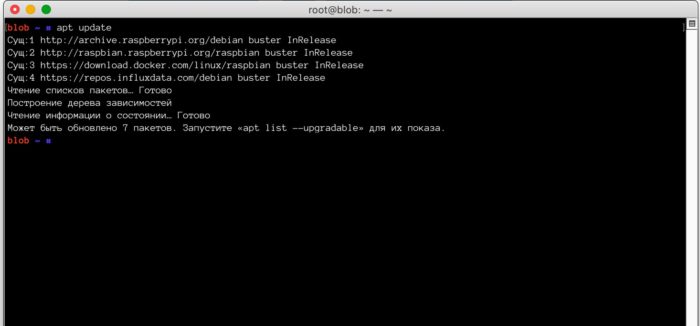
Видим примерно такую же ситуацию, локальный репозиторий обновил информацию о доступным пакетах из сетевого репозитория и стали доступны обновления других пакетов. Но мы сейчас не об этом. Нас интересует только python.
Далее вводим команду
apt install python3
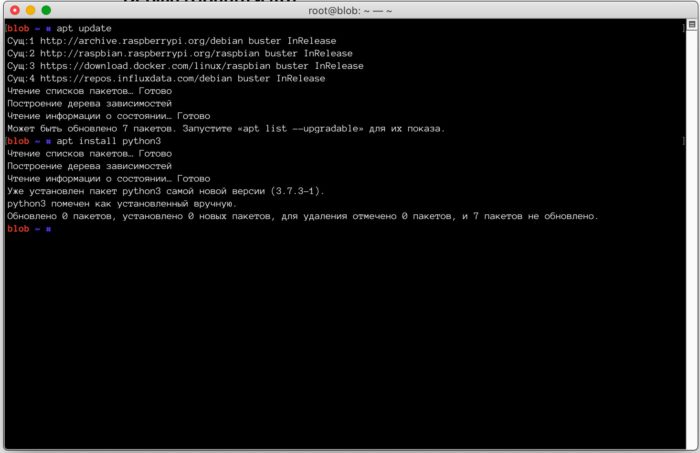
В моем дистрибутиве используется последняя доступная версия 3.7.3-1
Обновление Python в Red Hat Linux (CentOS и Fedora Linux)
В принципе обновление пакетов в linux имеет схожий алгоритм. Сперва вы получаете список доступных пакетов из удаленного репозитория и сравнивание с тем, что установлено у вас локально. После обновление локального репозитория нужно инициализировать установку python. Разнообразных дистрибутивов linux у меня под рукой нет, да и используя я в серверных вариантах только debian-based. Но информация о работе с другими пакетными менеджерами доступна онлайн:)
Обновление python выполняется одной командой
yum update python3
Заключение
В этом руководстве мы узнали как обновить Python в Linux.
Установка свежей версии Python на Ubuntu
Python сегодня – это один из самых используемых языков программирования. Основными его преимуществами являются относительная простота, низкий порог вхождения, универсальность в применении, а также множество плагинов. Теперь интерпретатор часто применяют для создания скриптов, разнообразного программного обеспечения, разработки игр и даже в “обучении” нейросетей. Python имеет кросс-платформенный синтаксис и может быть установлен на любую “актуальную” операционную систему. В данной инструкции мы рассмотрим процесс установки Pyhton на сервер под управлением ОС Ubuntu.
Установка Python при помощи менеджера ПО
Если вам нужен именно новейший Python, вы можете столкнуться с проблемой. Дело в том, что люди, занимающиеся сопровождением “мейнстримных”, репозиториев Ubuntu, не всегда своевременно актуализируют содержащееся в них программное обеспечение. Чтобы воспользоваться именно самой “свежей” версией Python, выполните пошаговую инструкцию ниже:
- Авторизуйтесь от имени суперпользователя и проведите установку нескольких утилит;
apt install -y software-properties-common
- Обновите все имеющиеся ПО;
apt-get update -y; apt upgrade -y

- Перезагрузите сервер;
- Включите в список системных репозиториев еще один;
add-apt-repository -y ppa:deadsnakes/ppa

- Обновите системный кэш, затем уточните, какая из версий Python выпущена последней;
apt-get update && apt-cache search python3.1

Как видно, новейшей на сегодняшний день является версия 3.11. Процесс ее установки буквально “однострочный”:
apt-get install python3.11 -y

- Следующий шаг не является обязательным. Создайте симлинк для большего удобства впоследствии, затем можете проверить, действительно ли корректно прошел процесс установки:
ln -s /usr/bin/python3.11 /usr/bin/python
python —version

Самостоятельная компиляция
Если установка пакета из репозитория по тем или иным причинам невозможна, всегда остается возможность собрать «свежий» Python из так называемых “сырцов”. Инструкция также достаточно проста:
- Откройте SSH-сеанс с повышенными правами и обновите имеющееся ПО как описывалось ранее;
- Далее нужно установить пакеты, которые позже будут использованы для сборки Python;
apt-get -y update; apt -y install zlib1g-dev build-essential libgdbm-dev libncurses5-dev libssl-dev libnss3-dev libffi-dev libreadline-dev wget libsqlite3-dev libbz2-dev

- Перейдите на веб-страницу загрузок Python через браузер и скопируйте в буфер обмена ссылку на архив с исходными кодами нужной версии;

- Вернитесь в консоль вашего сервера, создайте папку для “сборки”, перейдите в нее, скачайте архив по скопированной ранее ссылке и распакуйте его;
mkdir /root/build
cd /root/build
wget
tar -xf *.tgz

- Перейдите “на уровень ниже”, в каталог, соответствующий скачанному архиву, и запустите процедуру подготовки к компиляции;

- Следующий этап – собственно сборка пакета. Время зависит от производительности сервера, прежде всего его процессора, но вы в любом случае успеете выпить чашечку кофе:
make -j $(nproc)

- Последний шаг — “интеграция” собранного вами пакета непосредственно в ОС:
make altinstall

- В качестве проверки можете также узнать версию Python в системе. Если картина подобна показанной ниже, то работа выполнена на “отлично”:
ln -s /usr/local/bin/python3.11 /usr/bin/python
python —version

Итоги статьи
Теперь вы знаете о том, что такое Python, преимуществах этого интерпретатора и сферах его применения. Также вы умеете устанавливать данное ПО из репозитория или с помощью самостоятельной сборки из исходных кодов.
How to Update Python
Python receives a major update once every 12 months, with bug-fix updates and security patches being released every few months. The most recent version of Python – Python 3.9 – introduces features like Union Operators in dict, the Flexible function, and Type Hinting Generics. Updating Python can be confusing regardless of which OS you’re running. Do you remove the old version first? Or can you update the package directly? Here’s an easy tutorial on how to update Python.
How to Update Python in Linux, Mac, or Windows
It is possible to install two major versions of Python – say, Python 2.x and Python 3.x – on one computer and use both. If you want to move from Python 2.x to 3.x, you don’t have to uninstall the previous version unless you don’t want to use it anymore. Furthermore, Python 3 now comes with the “py.exe” launcher integrated by default. The launcher helps users in two ways:
- Users can run Python from any shell using the command “py.” Typing “python” is no longer required.
- Allows you to use two different versions of Python 3 at the same time. You can specify which version of Python you want to use to run code with simple switches in commands (like “py -3.6”).
In other words, you won’t need to change the PATH variable every time you want to use another version of Python. But the launcher only comes installed on the Windows version of Python 3. Updating Python in computers with Linux or macOS can be more complicated.
Note: If you’ve not installed Python on your computer yet, you cannot update to a newer version. If you’re having trouble installing Python on your computer, reading our Python installation guide will help.
Updating Python in Linux

Before you run any commands, you can save yourself a lot of effort by checking whether the Linux installation comes with the latest version of Python installed. To check what version of Python 3 your machine has, open the Terminal by pressing Ctrl+Alt +T, and type in the following command: python3 –version Or alternatively: python3 -V The output should look something like this: If you see that your machine doesn’t have Python 3.9, you must run the following commands: sudo apt update sudo apt install software-properties-common These commands will install the Python packages required to install the newest Python version. You can now install the latest version of Python in two ways: using Apt and using the source code. Using Apt to update Python is faster and easier. Here’s how you do it:
Updating Python Using Apt-Get
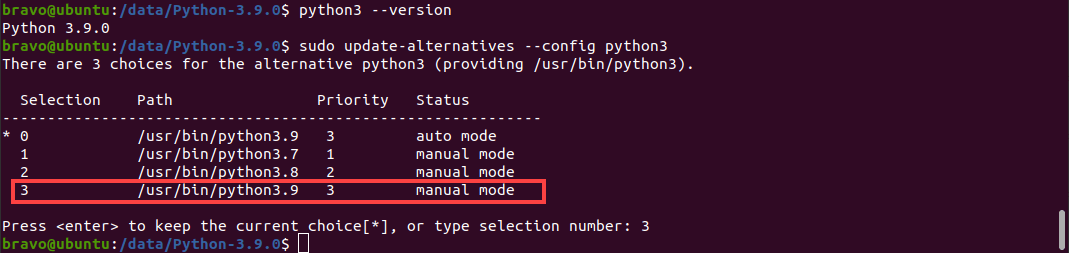
Using the Apt package manager is the easiest method of installing Python 3.9 on Linux. First, you must configure the deadsnakes PPA to your machine by running the following command: sudo add-apt-repository ppa:deadsnakes/ppa You can now update the apt cache and install the Python 3.9 package: sudo apt update sudo apt install python3.9 The Python update will install. However, by default, Python will point to the previously installed version of Python 3. After installation completes, you must update Python 3 to point to Python 3.9. Enter this command to configure Python 3: sudo update-alternatives —config python3 A list of options will appear, and you will be prompted to pick which version of Python you want Python 3 to point to. The prompt should look like this: All you have to do is type the right selection number, and you will have updated Python to the newest version on your Linux machine. To verify the version of Python being used, you can run: python3 —V
Updating Python in Mac
Updating Python on a machine with macOS is a lot easier than updating it on a Linux machine. A Mac can have more than one version of Python installed. Therefore, you can update Python by visiting https://www.python.org/downloads/mac-osx/ , downloading the installer, and running it. If you have Homebrew installed on your Mac, you can run the following command on the Terminal: brew install python After the process completes, your computer will have the latest version of Python 3. You can verify this by running the command: python3 —version If you want to upgrade pip and add a new library to it, you can enter the following command: pip3 install
Updating Python in Windows
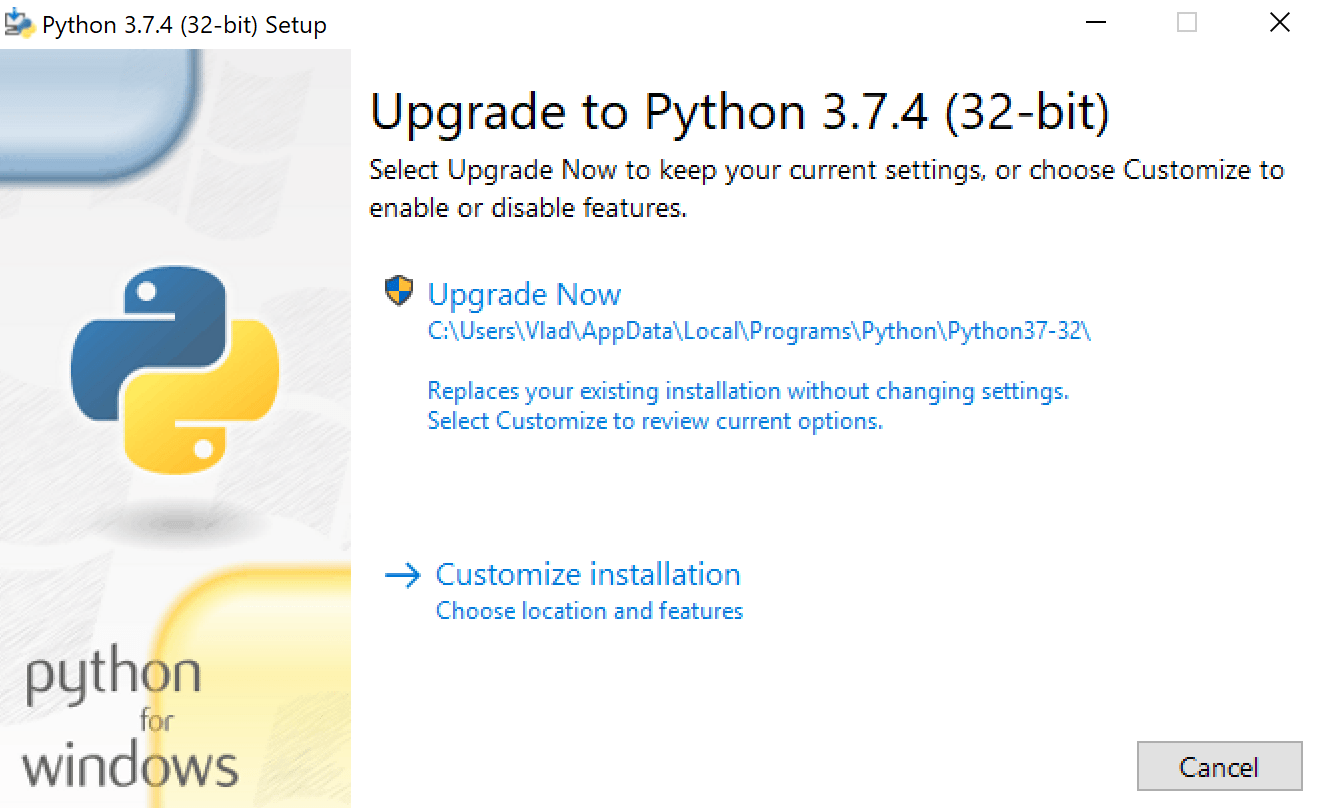
Updating to a new Python version is easy on a computer running Windows. All you have to do is visit the Python downloads page and download the latest version. If you’re updating to a new patch of Python (3.x.a to 3.x.b), when you run the installer, it will prompt you to “Upgrade Now.” The installer will look like this: Clicking on the button will replace the existing version of Python with the new version. The older version will be removed from your computer. After you restart the computer, the new patch will be installed on your machine. In contrast, if you’re updating Python to a new minor version (3.x to 3.y), you will see the “Install Now” prompt instead of the “Upgrade Now” prompt on the installer. Clicking the button will install the new version of Python. However, the old version will not be removed. Your computer can have more than one Python version installed. The py launcher is installed automatically regardless of the version of Python you’re using. It will enable you to select the version of Python you want to use. Running a program with a specific version is as simple as using the “py” command and entering the version you want to use, like so: py -3.8 or py -3.9 Suppose there are many projects on your machine that use the previous version of Python, and you use them all in a virtual environment. In that case, you can update Python just in that environment using the following command: python -m venv —upgrade
Conclusion
Every version of Python, including the newest release , has some limitations. However, updating to the latest version of Python allows you to use all the new features. Furthermore, updated versions also come with bug fixes and improved security measures. With this guide handy, you should be able to get your hands on the newest Python version in a matter of minutes. Going through our Python usage guide next will help you quickly pick up all that you can do with Python.
- Home
- Python Tips and Tricks
- Python Library Tutorials
- Python How To’s
- Python Tutorials
Форум русскоязычного сообщества Ubuntu
Страница сгенерирована за 0.038 секунд. Запросов: 23.
- Сайт
- Об Ubuntu
- Скачать Ubuntu
- Семейство Ubuntu
- Новости
- Форум
- Помощь
- Правила
- Документация
- Пользовательская документация
- Официальная документация
- Семейство Ubuntu
- Материалы для загрузки
- Совместимость с оборудованием
- RSS лента
- Сообщество
- Наши проекты
- Местные сообщества
- Перевод Ubuntu
- Тестирование
- RSS лента
© 2012 Ubuntu-ru — Русскоязычное сообщество Ubuntu Linux.
© 2012 Canonical Ltd. Ubuntu и Canonical являются зарегистрированными торговыми знаками Canonical Ltd.