Расширение проектов Visual Studio Installer и .NET 6.0
Область применения: Visual Studio Visual Studio для Mac
 Visual Studio Code
Упаковка приложений в виде MSI часто выполняется с помощью расширения проектов установщика Visual Studio.
Эта статья относится к приложениям, предназначенным для .NET Core 3.1, .NET 5, .NET 6 и более поздних версий.
Вы можете скачать расширение здесь:
Обновление для .NET Core
.NET Core имеет две разные модели для публикации.
- Развертывания, зависящие от платформы
- Автономные приложения включают среду выполнения.
Дополнительные сведения об этих стратегиях развертывания см. в обзоре публикации приложений .NET Core.
Создание проекта установки
- В Visual Studio выберите «Расширения управления расширениями >» и найдите «Проекты установщика Visual Studio». Или скачайте расширение непосредственно из Marketplace.
- В окне «Пуск» выберите «Создать проект«, а затем в поле поиска введите «настройка». Выберите проект установки и следуйте инструкциям. Дополнительные сведения см. в разделе «Настройка и развертывание проектов».
Изменения рабочего процесса для .NET Core 3.1 и более поздних версий
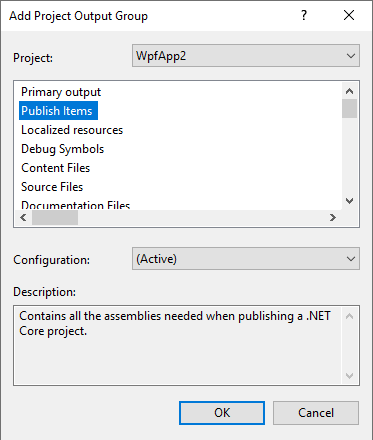
- Выберите «Опубликовать элементы» вместо первичных выходных данных, чтобы получить правильные выходные данные для проектов .NET Core 3.1, .NET 5.0 или .NET 6.0. Чтобы открыть это диалоговое окно, выберите «Добавить >выходные данные проекта» в контекстном меню проекта.
- Чтобы создать автономный установщик, задайте свойство PublishProfilePath на узле Publish Items в проекте установки, используя относительный путь профиля публикации с правильным набором свойств.
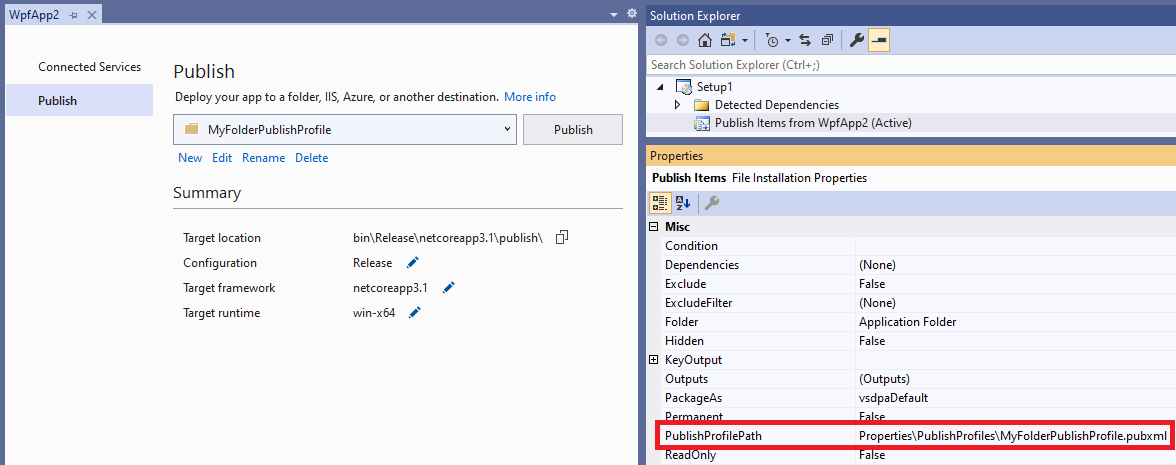
Этот рабочий процесс не поддерживается для ASP.NET основных приложений, только классических приложений Windows.
Необходимые компоненты
Если вы хотите, чтобы установщик мог установить необходимую среду выполнения для приложения ,зависящей от платформы .NET Core 3.1, .NET 5.0 или .NET 6.0, это можно сделать с помощью предварительных требований. В диалоговом окне свойств проекта установщика откройте диалоговое окно «Предварительные требования. « , и вы увидите следующие записи:
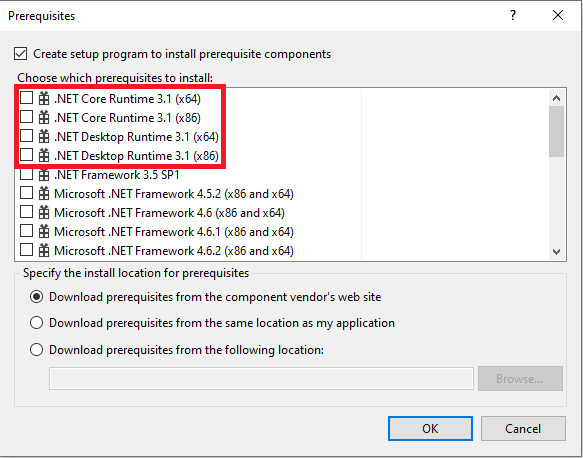
Параметр среды выполнения .NET Core. должен быть выбран для консольных приложений, среда выполнения рабочего стола .NET. должна быть выбрана для приложений WPF/WinForms.
Эти элементы начинаются с выпуска Visual Studio 2019 с обновлением 7.
См. также
- Диалоговое окно «Необходимые компоненты»
- Обязательные требования к развертыванию приложений
Visual Studio 2022 Platform Targeting and Compatibility
Watch the recordings of the Visual Studio 2022 launch event to learn about what’s new, hear tips & tricks, and download free digital swag.
Visual Studio 2022 contains many new and exciting features and IDE productivity enhancements to support Windows app development, cross-platform mobile development, Azure development, web and cloud development, and more. To try out Visual Studio 2022, see Visual Studio 2022 Downloads. For more information about everything that’s new in this release, see the Visual Studio 2022 release notes and What’s New in Visual Studio 2022.
- For Visual Studio Code, see Visual Studio Code FAQ.
Installation
You can install and use Visual Studio 2022 alongside previous versions of Visual Studio, including Visual Studio 2019, Visual Studio 2017, Visual Studio 2015, Visual Studio 2013, and Visual Studio 2012.
Download
Click a button to download the latest version of Visual Studio 2022. For instructions on installing and updating Visual Studio 2022, see Update Visual Studio 2022 to the most recent release. Also, see instructions on how to install offline.
Visit the Visual Studio site to download other Visual Studio 2022 products.
Note: Installation package size will vary depending on your current Visual Studio configuration.
System Requirements
For information on the system requirements for installing and running the Visual Studio 2022 family of products, see the Visual Studio 2022 System Requirement page.
Feedback and Support
For support, or to submit feedback on Visual Studio, see:
- Visual Studio Support
- Submit a product suggestion or idea
- Report a problem or bug
Upgrade Projects to Visual Studio 2022
When following the supported upgrade paths, your Visual Studio source, solutions, and project files will continue to work; however, you should expect to make some changes to sources. While we cannot guarantee binary compatibility between releases, we will do our best to document significant changes to assist you with updates.
For details on how to migrate your projects to Visual Studio 2022, see Porting, Migrating, and Upgrading Visual Studio Projects.
Platform Targeting
Visual Studio provides cutting-edge tools and technologies to create apps that take advantage of the latest platform capabilities, whether Windows, Android, iOS, or Linux. Visual Studio 2022 also targets earlier platforms so you can create new apps or modernize existing apps that execute on earlier versions of Windows while leveraging the enhanced development tools, quality enablement, and team collaboration capabilities in Visual Studio 2022. For more information, see Managing references in a project and Visual Studio Multi-Targeting Overview.
- Developing apps for Windows
- Developing apps for Android
- Developing apps for iOS
- Developing apps for Linux
- Developing apps for macOS
- Developing apps for other technologies and platforms
Visual Studio 2022 Support for Windows Development
The following table explains the Microsoft Windows platforms for which you can build apps by using Visual Studio 2022.
Build Apps that Run on Windows Clients
| Windows client version | Using Tools for Native and Managed Classic Windows Desktop Development | Using Tools for UWP App Development |
|---|---|---|
| Windows 11 Windows 10 |
Yes (see notes below) |
Yes (see notes below) |
| Windows 10 Team Edition | Not applicable | Yes Remote debugging required. |
| Windows 11 S Windows 10 S |
Not applicable | Yes Remote debugging required. |
| Windows 10 LTSC | Yes Remote debugging required. |
Yes Remote debugging required. |
| HoloLens | No | Yes See the Windows Holographic Dev Center. |
| Xbox One | Not applicable | Yes See the Xbox Dev Center. |
| Windows 8.1 | Yes | Not available. Use Visual Studio 2015. |
| Windows 8 (Windows 8) | No | Not available. |
| Windows 7 | Yes | Not applicable |
| Windows Vista | No | Not applicable |
| Windows XP | No | Not applicable |
- For support information regarding Microsoft operating systems, see Microsoft Support Lifecycle and Windows 10 Release Information.
- For support information on Microsoft .NET Framework, see .NET Framework Support Lifecycle FAQ and .NET Framework System Requirements.
- Universal Windows app development for all target platforms is available when Visual Studio is installed on Windows 11 or Windows 10.
- Unity, and Xamarin can also be used for cross-platform development of Universal Windows Apps on Windows 11 or Windows 10.
Build Apps that Run on Windows Phone
| Windows Phone version | Using Tools for Native and Managed Classic Windows Desktop Development | Using Tools for UWP App Development |
|---|---|---|
| Windows 10 Mobile | No | Not available. Use Visual Studio 2017. |
| Windows Phone 8.1 and 8.0 | No | Not available. Use Visual Studio 2015. |
| Windows Phone 7.x | No | Not available. Use Visual Studio 2012. |
- For support information regarding Microsoft operating systems, see Microsoft Support Lifecycle and Windows 10 Release Information.
Build Apps that Run on Windows Server
| Windows Server version | Using Tools for Native and Managed Classic Windows Desktop Development | Using Tools for UWP App Development |
|---|---|---|
| Windows Server 2019 | Yes | Yes (see notes below) |
| Windows Server 2016 | Yes | Yes (see notes below) |
| Windows Server 2016, Nano Server Installation Option | Yes, for .NET Core and a subset of Win32 See the Nano Server Dev Center. |
No |
| Windows Server 2012 R2 | Yes | Windows Store app development is not available. |
| Windows Server 2012 | Yes | Windows Store app development is not available. |
| Windows Server 2008 R2 | Yes | Not applicable |
| Windows Server 2008 | No | Not applicable |
| Windows Server 2003 | No | Not applicable |
- For support information regarding Microsoft operating systems, see Microsoft Support Lifecycle and Windows 10 Release Information.
- For support information on Microsoft .NET Framework, see .NET Framework Support Lifecycle FAQ and .NET Framework System Requirements.
- Universal Windows apps can be built from the command line when using Windows Server 2016 or Windows Server 2019. UWP development—including designing, editing, and local debugging—is not available on Windows Server. You may deploy these apps to Windows server and debug them remotely.
Build Apps that Run on Windows Embedded Devices
| Windows Embedded version | Using Tools for Native and Managed Classic Windows Desktop Development | Using Tools for UWP App Development |
|---|---|---|
| Windows 10 IoT Core | Yes, for a subset of Win32 APIs See the IoT Core API Porting Tool for information. |
Yes See the Windows IoT Dev Center for additional tools and resources. |
| Windows 10 IoT Mobile Enterprise | No | Yes See the Windows IoT Dev Center for additional tools and resources. |
| Windows 10 IoT Enterprise | Yes See the Windows IoT Dev Center»> for additional tools and resources. |
Yes See the Windows IoT Dev Center for additional tools and resources. |
| Windows Embedded 8 Standard and 8.1 Industry | Yes | No |
| Windows Embedded Compact 2013 | No | Not applicable |
| Windows Embedded 7 (Compact, Standard, and POSReady) | No | Not applicable |
| Windows Embedded CE 6.0 and earlier | No | Not applicable |
| Windows XP Embedded (Including POSReady 2009, WES 2009, WEPOS) | No | Not applicable |
- For support information regarding Microsoft operating systems, see Microsoft Support Lifecycle and Windows 10 Release Information.
- For support information on Microsoft .NET Framework, see .NET Framework Support Lifecycle FAQ and .NET Framework System Requirements.
Visual Studio 2022 Support for .NET Development
Visual Studio 2022 supports development of apps that use any of the .NET implementations. Among the workloads and project types, you can find support for .NET Framework, .NET Core, Mono, .NET Native for Universal Windows Platform (UWP), C#, F#, and Visual Basic. Visual Studio 2022 supports the following .NET implementations:
- .NET Framework versions 4.8.1, 4.8, 4.7.2, 4.7.1, 4.7, and 4.6.2
- .NET Core 8.0 Preview, 7.0, 6.0.
- .NET Native
- Mono
For more information on each of these implementations, and on the common API specification .NET Standard, see .NET architectural components. See also the NET support policy.
Visual Studio 2022 Support for Android Development
Visual Studio 2022 enables you to build native Android apps using Xamarin and C# or using C++. The Visual Studio Tools for Unity and the Unreal Engine enable Android game development. You can also use Visual Studio for Mac to build Android apps using a Mac.
You can use Visual Studio setup to easily obtain the Android SDK and Android API levels 25 (for Mobile development with C++) and 33. You can download additional API levels separately using the Android SDK Manager. You can also use Visual Studio Setup to obtain the Android Native Development Kit (R10E), Java SE Development Kit, and Apache Ant.
For information on .NET development for Android, see Android and iOS with Xamarin.
Visual Studio 2022 Support for iOS Development
Visual Studio 2022 enables you to build and debug apps for iOS by using C++, Unity, or Xamarin and a Mac configured for iOS development when using remotebuild, vcremote, the Visual Studio Tools for Unity, or the Xamarin Mac Agent. Xamarin supports iOS 9 and higher, and requires Xcode 12.5 or higher and OS X 11.0 «Big Sur» or higher. You can also use Visual Studio for Mac to build iOS apps using a Mac.
For more information, see Cross-platform mobile development in Visual Studio. For information on .NET development for iOS, see Android and iOS with Xamarin.
Visual Studio 2022 Support for Linux Development
Visual Studio 2022 enables you to build and debug apps for Linux using C++, Python, and Node.js. Creating C++ apps for Linux requires the Visual C++ for Linux Development extension. Creating apps with Python or Node,js, requires that you enable remote debugging on the target Linux machine. You can also create, build and remote debug .NET Core and ASP.NET Core applications for Linux using modern languages such as C#, VB and F#.
For information on .NET development for Linux, see Install .NET on Linux.
- CentOS 7.1 and Oracle Linux 7.1
- Debian 10, 11
- Fedora 37, 38
- openSUSE 15.4
- Red Hat Enterprise Linux 7, 8, 9
- Ubuntu 16.04, 18.04, 20.04, 22.04, 22.10, 23.04
Visual Studio 2022 Support for macOS Development
Visual Studio 2022 enables you to build console applications and ASP.NET applications that target macOS. However, debugging is not supported. For additional macOS development tools choices, try Visual Studio Code or Visual Studio for Mac. Visual Studio Code provides a streamlined, extensible developer tool experience for macOS. Visual Studio for Mac provides a feature-rich IDE that enables you to build native macOS apps, including ASP.NET, using C#.
For information on .NET development forMacOS, see Install .NET on macOS.
Other Platforms and Technologies
Visual Studio 2022 also supports the following platforms and technologies. For more information, see https://visualstudio.microsoft.com/vs/features/.
- Anaconda
- Apache Ant
- Azure web apps and connected services, including Azure Data Lake
- Clang with Microsoft CodeGen
- ClickOnce
- Cocos
- Docker
- Entity Framework 6
- F#
- Git for Windows, and GitHub
- Microsoft SQL Server 2012, SQL Server 2014, and SQL Server 2016
- Microsoft Office 365, Office 2016, Office 2013, Office 2010
- Visual Studio App Center
- Node.js
- PowerShell
- Python
- TypeScript (versions 3.6 and later) and JavaScript
- Unity
- Unreal Engine
- Web Development with ASP.NET, HTML5/CSS3, JavaScript, Node.js, Python, or TypeScript
Compatibility with Previous Releases
.NET Framework
.NET 4.8 is is a highly compatible in-place update for .NET Framework versions 4.0 — 4.7.2.
Team Explorer, Azure DevOps Server, and Team Foundation Server
Team Explorer for Visual Studio 2022 will connect to Azure DevOps Server 2019, Team Foundation Server 2017, Team Foundation Server 2015, Team Foundation Server 2013, Team Foundation Server 2012, and Team Foundation Server 2010 SP1.
Develop .NET applications
By downloading, you agree to the licensing terms for the Visual Studio edition you select below. We also offer the ability to download software with Visual Studio. This software is licensed separately, as set out in the 3 rd Party Notices or in its accompanying license. By downloading, you also agree to those licenses.
Coding instead in a different language?
Download Visual Studio for Windows and choose the tools you need.
C# and Visual Basic
Productive, multi-purpose, type-safe, object-oriented, open source
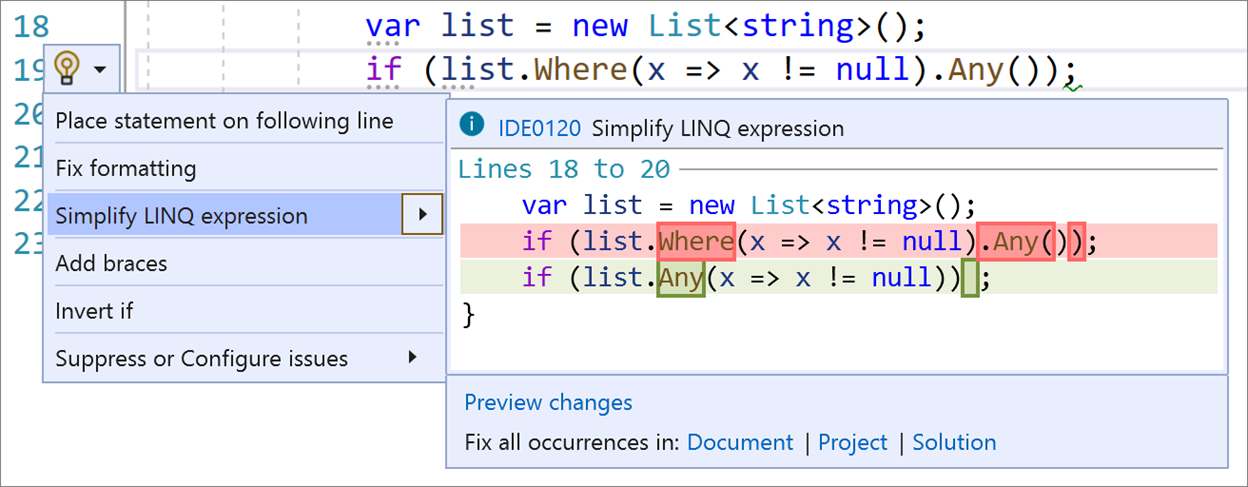
C# and Visual Basic are programming languages designed for creating a variety of applications that run on .NET. These languages are powerful, type-safe, and object-oriented. They are built on the .NET Compiler Platform “Roslyn” which provides rich code analysis APIs and it’s all open source on GitHub.
F#
Simple, efficient, data-rich, functional-first programming
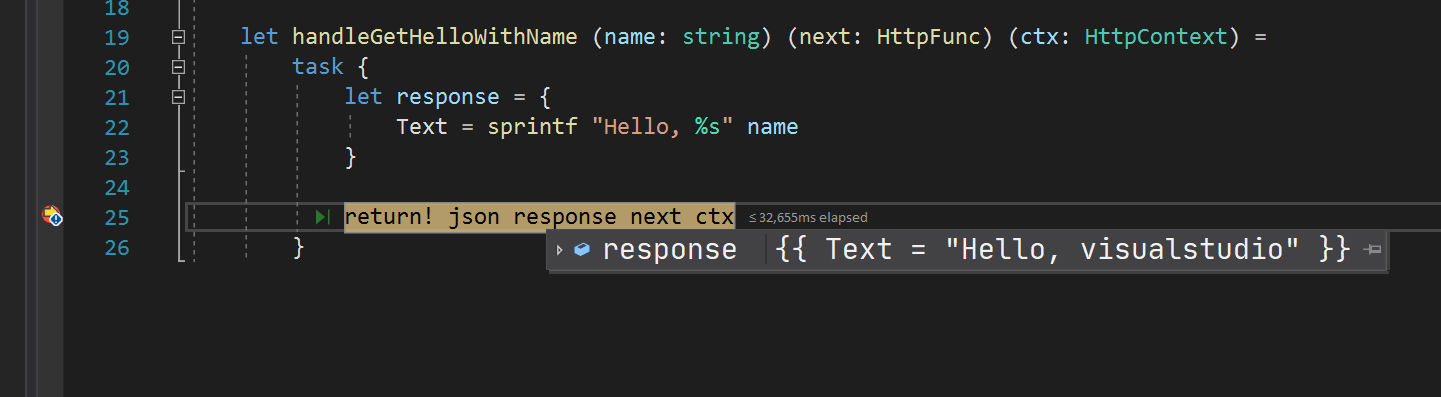
F# is an open source, cross-platform, functional-first programming language that enables developers to tackle computing problems with simple, maintainable, and robust code. F# is on GitHub, and many tools and libraries are available from the F# community.
.NET Productivity
Be the most productive you can be
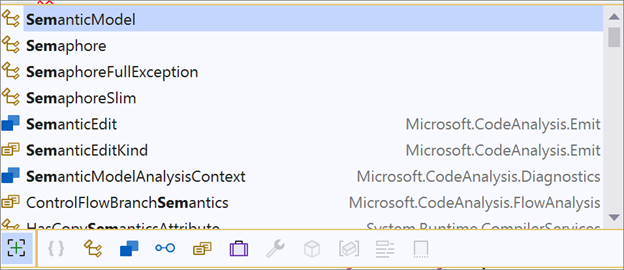
Visual Studio guides you with live assistance as you write Visual Basic and C# code through IntelliSense, and Analyzers, as well as provides world-class debugging and diagnostics tools.
Cloud apps in Azure
Quickly deploy mission-critical apps. Start free. Scale as you grow
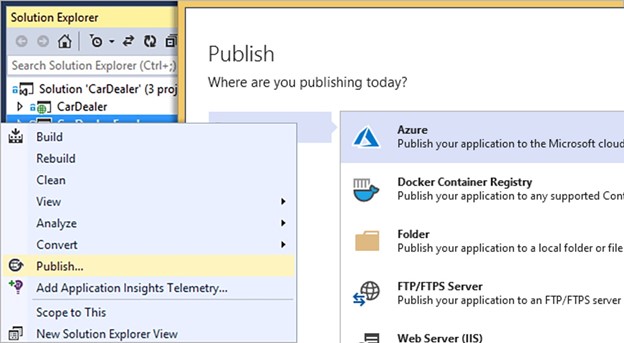
Run ASP.NET web apps and .NET programs in the cloud by using Azure Web Apps, Functions, Cloud Services, and VMs. Quick deploy to Azure using out of box GitHub actions integration.
Web Applications with ASP.NET
Open, flexible tools you need to create and deploy modern web apps
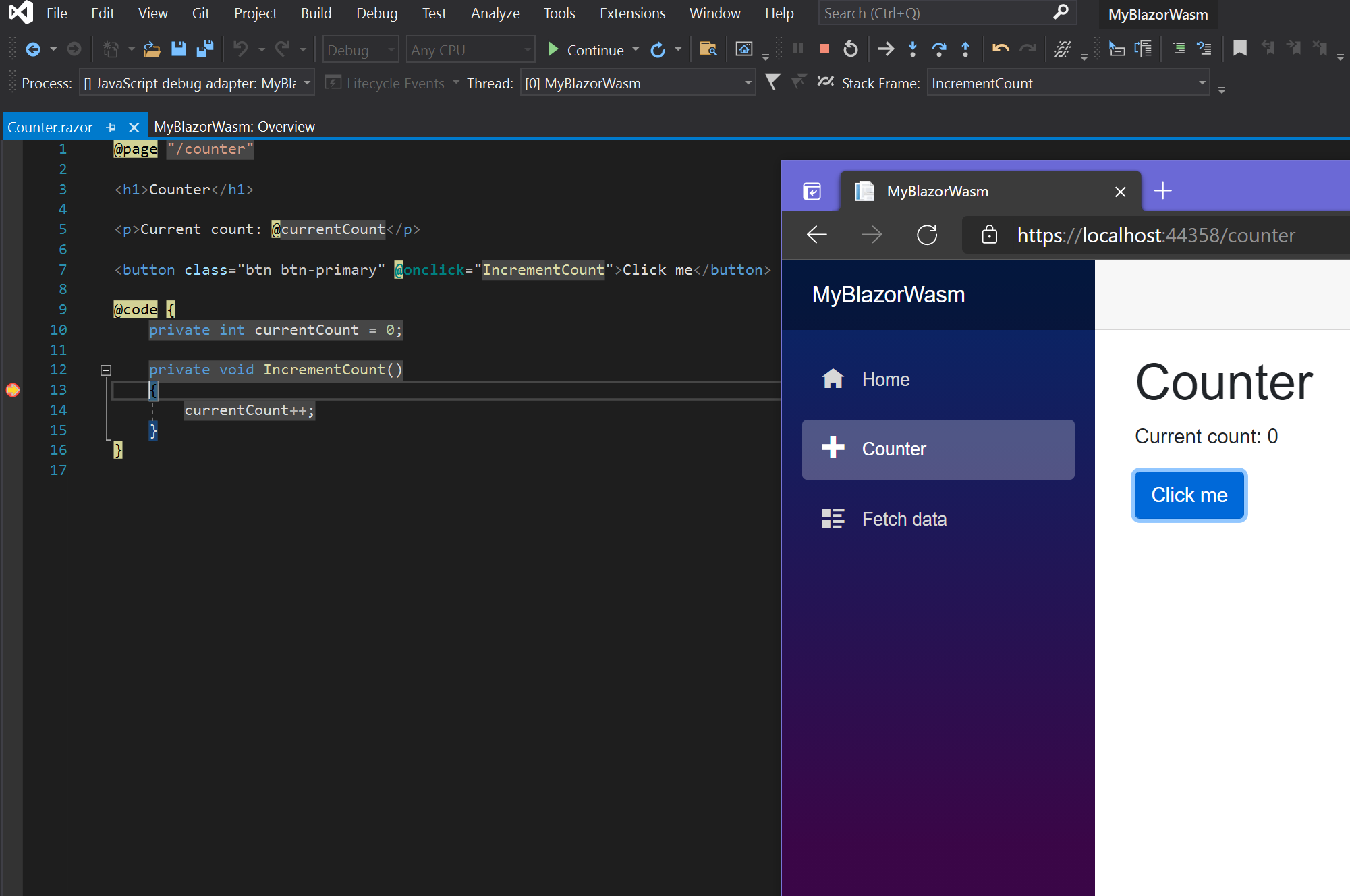
ASP.NET is an open source web framework for building great web apps and services. Build beautiful, responsive, web UIs all with C# instead of JavaScript. You can also create web APIs and mobile sites, use real-time technologies like Web Sockets, and more.
Windows desktop applications
Windows Forms and WPF
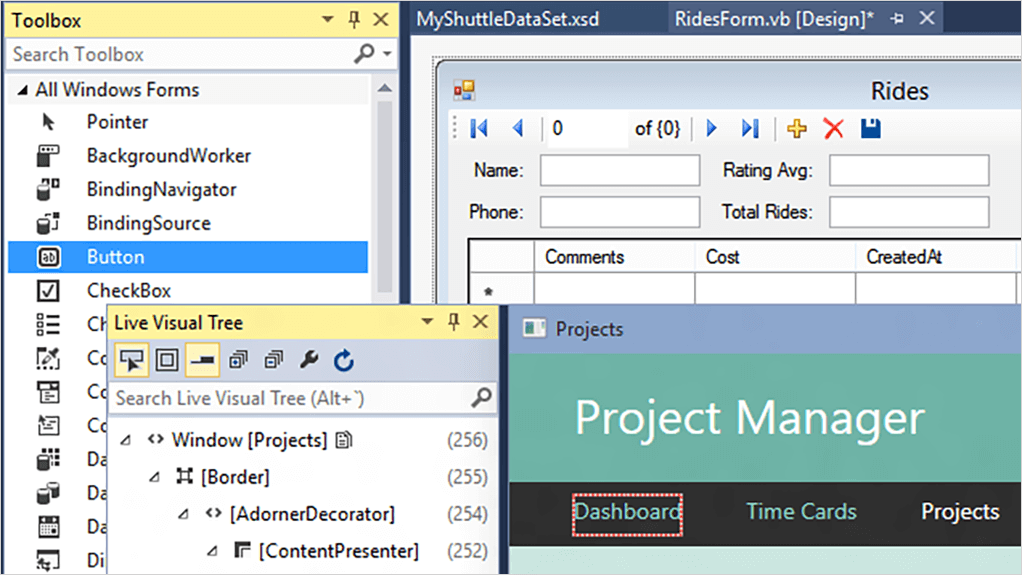
.NET and Visual Studio enable you to develop data-centric, modern line of business applications (LoB) for Windows. Create visually stunning user experiences with WPF or use WinForms productive WYSIWYG designers to incorporate UI, media, and complex business models. Rapidly develop enterprise-class line of business applications with a comprehensive set of features like controls, data binding, animation, styles, templates, and more.
Cross platform mobile
Visual Studio and Xamarin
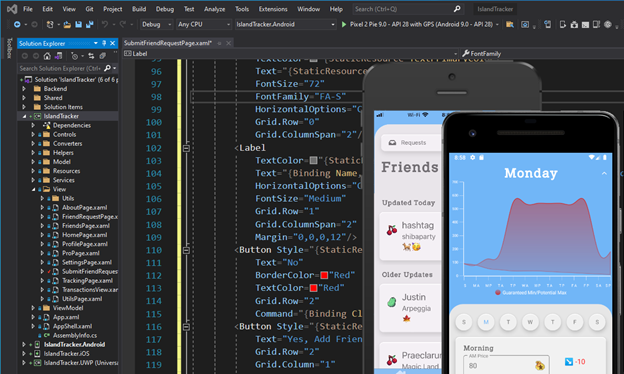
Develop rich native apps for iOS, Android, macOS, and Windows with C# in Visual Studio. Leverage Xamarin.Forms to build native and performant cross-platform user interfaces across platforms and plug into the .NET ecosystem taking advantage of .NET Standard libraries to share code and the NuGet ecosystem.
Universal Windows Platform
One Windows platform, many devices
Leverage your skills in C# and Visual Basic to take advantage of the power of Windows 10 to build the next generation of apps.
Windows 10 runs on a single, unified core across devices—mobile, desktop, Xbox, or elsewhere. Windows 10 apps you build with C# and Visual Basic run as fast as C++ with the .NET Native runtime.
Как добавить net в visual studio
Чтобы облегчить написание, а также тестирование и отладку программного кода нередко используют специальные среды разработки, в частности, Visual Studio. Рассмотрим создание приложений на C# с помощью бесплатной и полнофункциональной среды Visual Studio Community 2022, которую можно загрузить по следующему адресу: Microsoft Visual Studio 2022
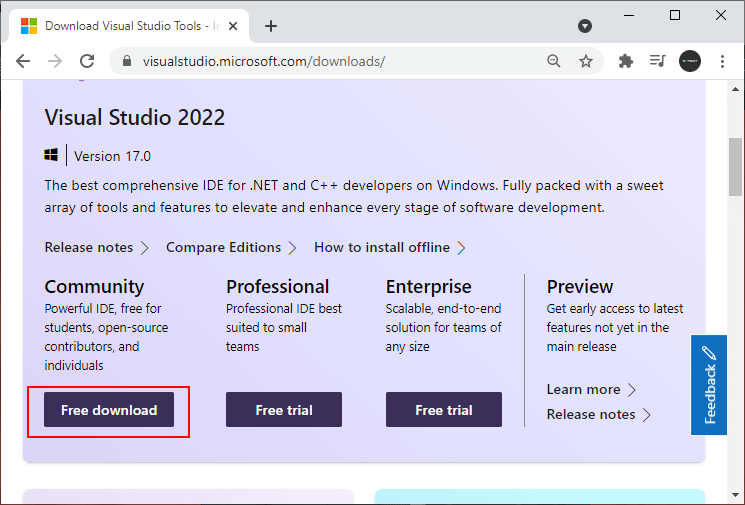
После загрузки запустим программу установщика. В открывшемся окне нам будет предложено выбрать те компоненты, которые мы хотим установить вместе Visual Studio. Стоит отметить, что Visual Studio — очень функциональная среда разработки и позволяет разрабатывать приложения с помощью множества языков и платформ. В нашем случае нам будет интересовать прежде всего C# и .NET.
Чтобы добавить в Visual Studio поддержку проектов для C# и .NET, в программе установки среди рабочих нагрузок можно выбрать только пункт ASP.NET и разработка веб-приложений . Можно выбрать и больше опций или вообще все опции, однако стоит учитывать свободный размер на жестком диске — чем больше опций будет выбрано, соответственно тем больше места на диске будет занято.
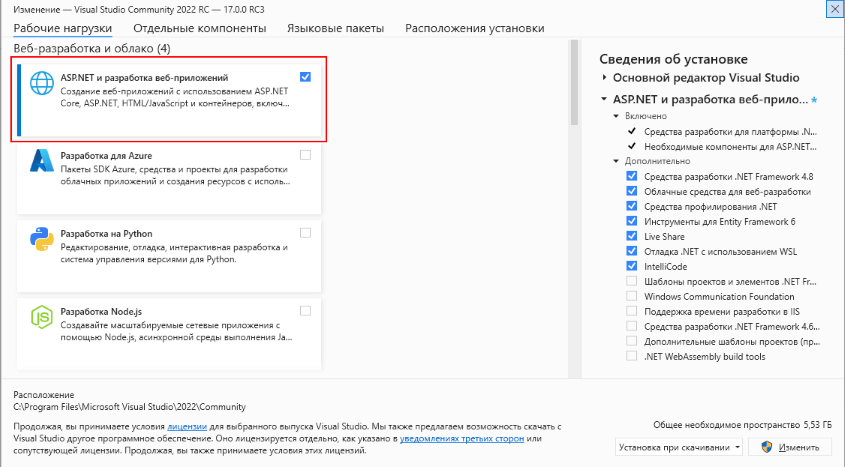
И при инсталляции Visual Studio на ваш компьютер будут установлены все необходимые инструменты для разработки программ, в том числе фреймворк .NET.
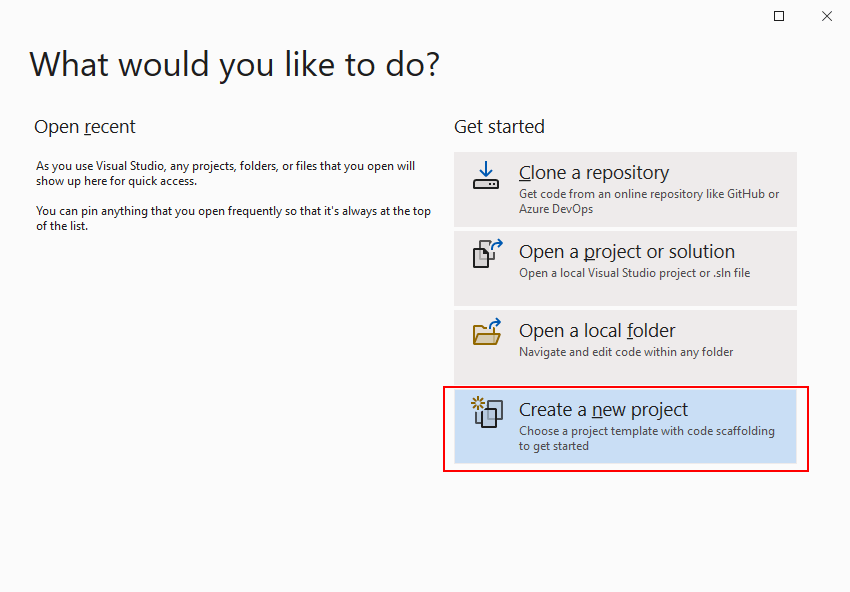
После завершения установки создадим первую программу. Она будет простенькой. Вначале откроем Visual Studio. На стартовом экране выберем Create a new project (Создать новый проект)
На следующем окне в качестве типа проекта выберем Console App , то есть мы будем создавать консольное приложение на языке C#
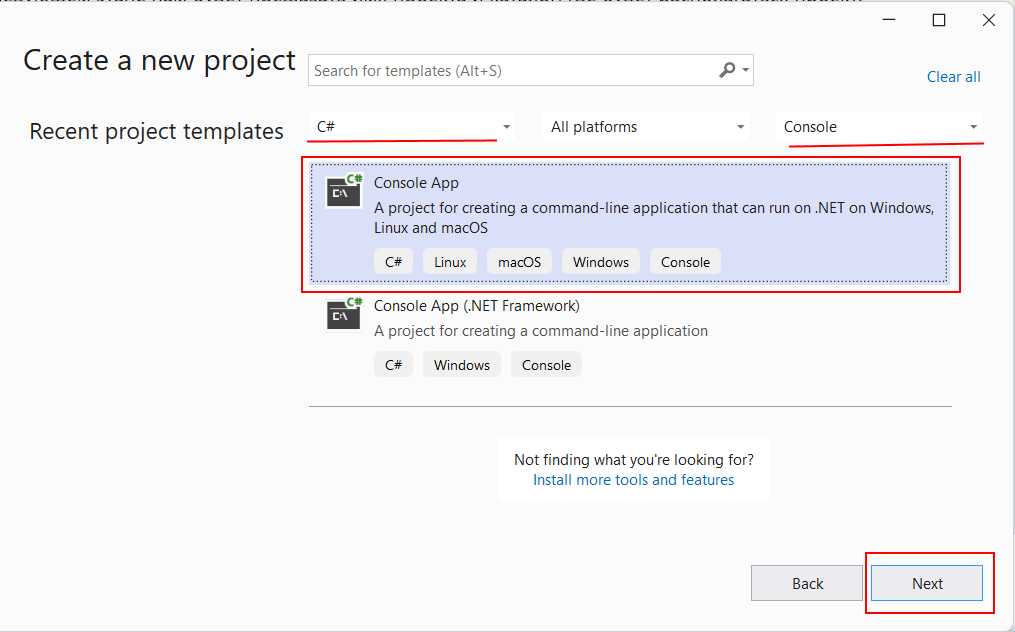
Чтобы проще было найти нужный тип проекта, в поле языков можно выбрать C# , а в поле типа проектов — Console .
Далее на следующем этапе нам будет предложено указать имя проекта и каталог, где будет располагаться проект.
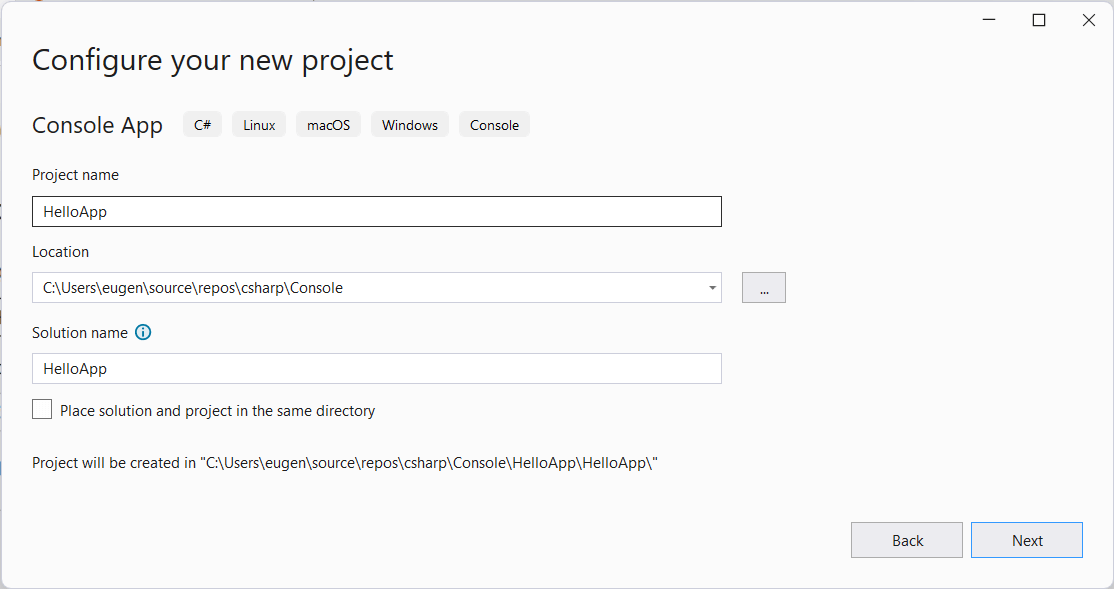
В поле Project Name дадим проекту какое-либо название. В моем случае это HelloApp .
На следующем окне Visual Studio предложит нам выбрать версию .NET, которая будет использоваться для проекта. Выберем последнюю на данный момент верси. — .NET 8.0:
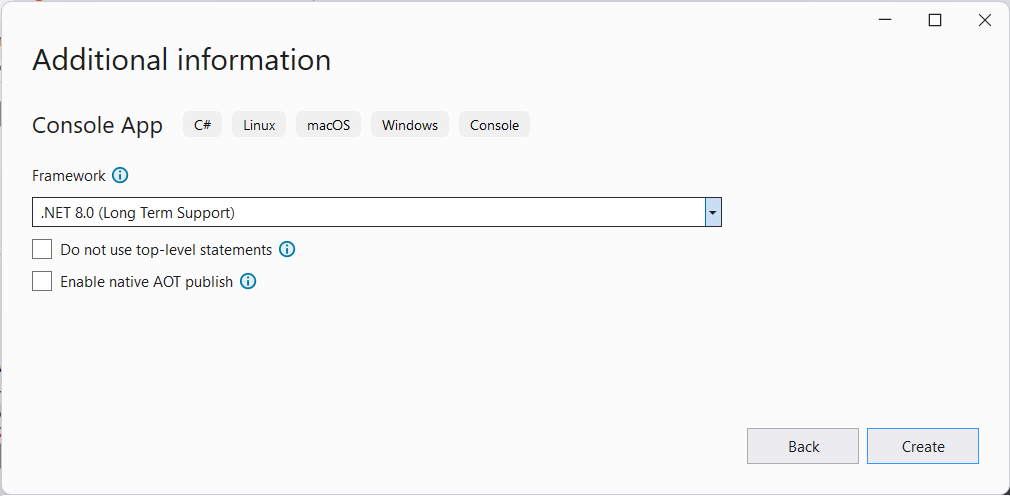
Нажмен на кнопку Create (Создать) для создания проекта, и после этого Visual Studio создаст и откроет нам проект:
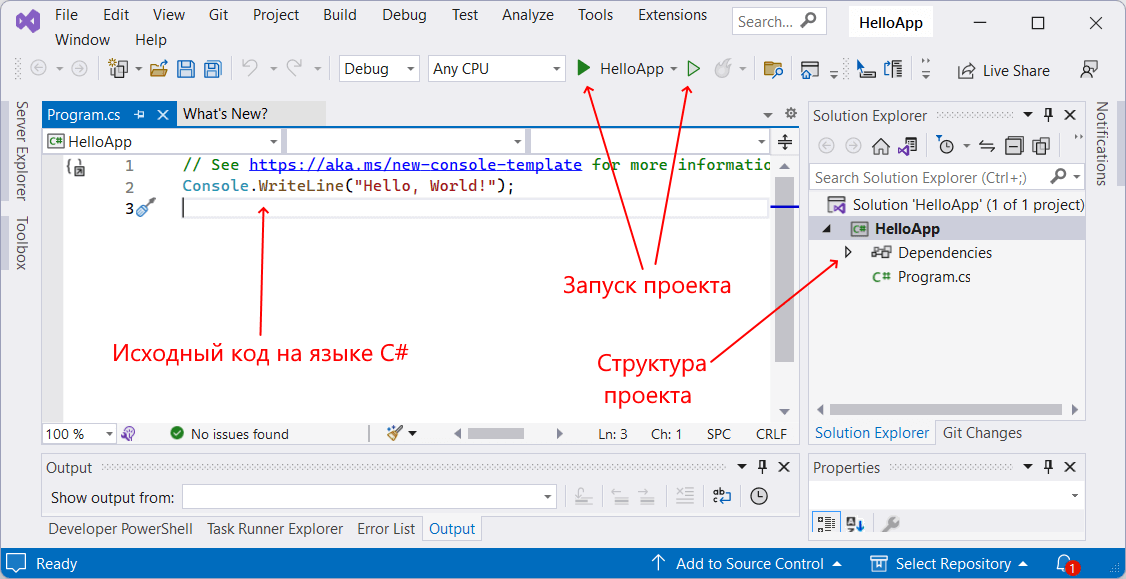
В большом поле в центре, которое по сути представляет текстовый редактор, находится сгенерированный по умолчанию код C#. Впоследствии мы изменим его на свой.
Справа находится окно Solution Explorer, в котором можно увидеть структуру нашего проекта. В данном случае у нас сгенерированная по умолчанию структура: узел Dependencies — это узел содержит сборки dll, которые добавлены в проект по умолчанию. Эти сборки как раз содержат классы библиотеки .NET, которые будет использовать C#. Однако не всегда все сборки нужны. Ненужные потом можно удалить, в то же время если понадобится добавить какую-нибудь нужную библиотеку, то именно в этот узел она будет добавляться.
Далее идет непосредственно сам файл кода программы Program.cs , который по умолчанию открыт в центральном окне и который имеет всего две строки:
// See https://aka.ms/new-console-template for more information Console.WriteLine("Hello, World!");
Первая строка предваряется символами // и представляет комментарии — пояснения к коду.
Вторая строка собственно представляет собой код программы: Console.WriteLine(«Hello World!»); . Эта строка выводит на консоль строку «Hello World!».
Несмотря на то, что программа содержит только одну строку кода, это уже некоторая программа, которую мы можем запустить. Запустить проект мы можем с помощью клавиши F5 или с панели инструментов, нажав на зеленую стрелку. И если вы все сделали правильно, то при запуске приложения на консоль будет выведена строка «Hello World!».
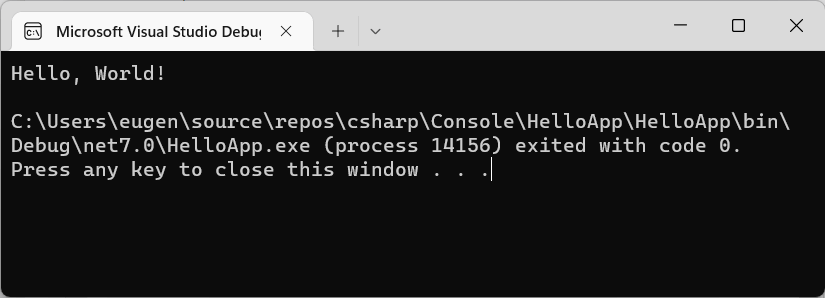
Теперь изменим весь этот код на следующий:
Console.Write("Введите свое имя: "); var name = Console.ReadLine(); // вводим имя Console.WriteLine($"Привет "); // выводим имя на консоль
По сравнению с автоматически сгенерированным кодом я внес несколько изменений. Теперь первой строкой выводится приглашение к вводу.
Console.Write("Введите свое имя: ");
Метод Console.Write() выводит на консоль некоторую строку. В данном случае это строка «Введите свое имя: «.
На второй строке определяется строковая переменная name, в которую пользователь вводит информацию с консоли:
var name = Console.ReadLine();
Ключевое слово var указывает на определение переменной. В данном случае переменная называется name . И ей присваивается результат метода Console.ReadLine() , который позволяет считать с консоли введенную строку. То есть мы введем в консоли строку (точнее имя), и эта строка окажется в переменой name .
Затем введенное имя выводится на консоль:
Console.WriteLine($"Привет ");
Чтобы ввести значение переменной name внутрь выводимой на консоль строки, применяются фигурные скобки <>. То есть при выводе строки на консоль выражение будет заменяться на значение переменной name — введенное имя.
Однако чтобы можно было вводить таким образом значения переменных внутрь строки, перед строкой указывается знак доллара $.
Теперь протестируем проект, запустив его на выполнение, также нажав на F5 или зеленую стрелочку.
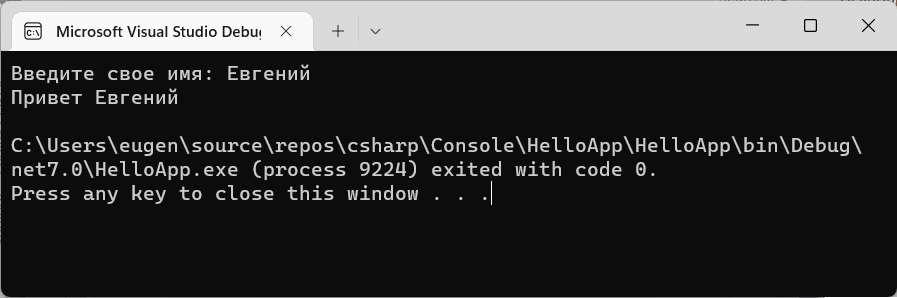
Скомпилированное приложение можно найти в папке проекта в каталоге bin\Debug\net8.0 . Оно будет называться по имени проекта и иметь расширение exe. И затем этот файл можно будет запускать без Visual Studio, а также переносить его на другие компьютеры, где установлен .NET 8.