3 способа отключить работу дополнения AdBlock в браузере Google Chrome
Многие пользователи знакомы с таким эффективным расширением для браузера Google Chrome, как AdBlock. Данное расширение полностью освобождает пользователя от просмотра рекламы на различных веб-ресурсах. Однако в данном случае будет рассмотрена ситуация, когда необходимо включить показ рекламы в AdBlock.
Многие веб-ресурсы уже научились бороться с блокировщиками рекламы – для этого доступ к веб-странице или вовсе блокируется, или появляются различные ограничения, например, при просмотре фильмов онлайн нельзя увеличить качество. Единственный способ обхода ограничения – это отключение работы AdBlock.
Как отключить расширение AdBlock?
В расширении AdBlock предусмотрены три варианта активации показа рекламы, каждый из которых подойдет в зависимости от ситуации.
Способ 1: отключение AdBlock на текущей странице
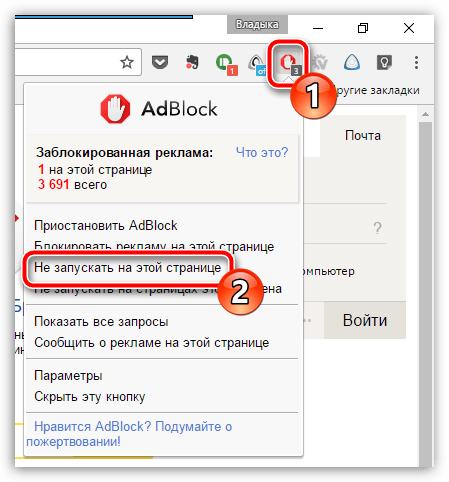
- Щелкните в верхнем правом углу Google Chrome по иконке AdBlock.
- Во всплывшем меню расширения выберите пункт «Не запускать на этой странице».
- В следующее мгновение страница будет перезагружена, а отображение рекламы будет активировано.
Способ 2: отключение рекламы для выбранного сайта
- Щелкните по иконке AdBlock и во всплывшем меню сделайте выбор в пользу пункта «Не запускать на страницах этого домена».
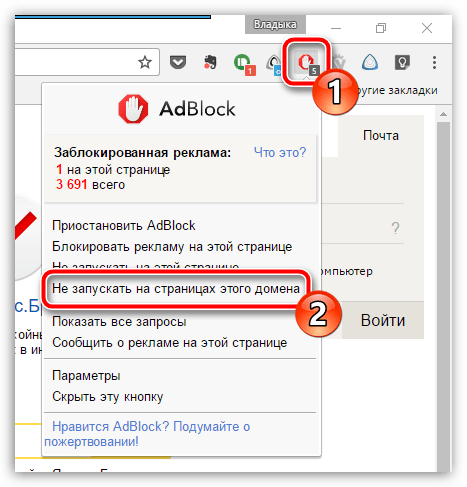
- На экране отобразится окно с подтверждением, в котором вам потребуется щелкнуть по кнопке «Исключить».
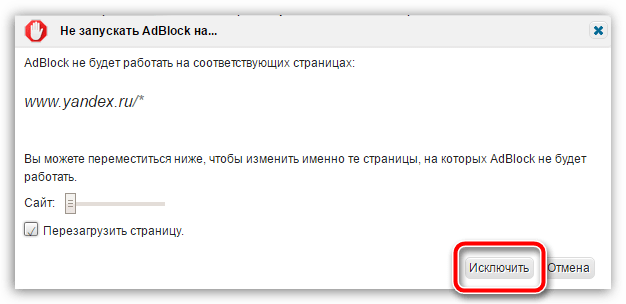 Следом страница будет автоматически перезагружена, после чего вся реклама на выбранном сайте будет отображаться.
Способ 3: полное отключение работы расширения
В том случае, если вам необходимо полностью временно приостановить работу AdBlock, для этого вам потребуется:
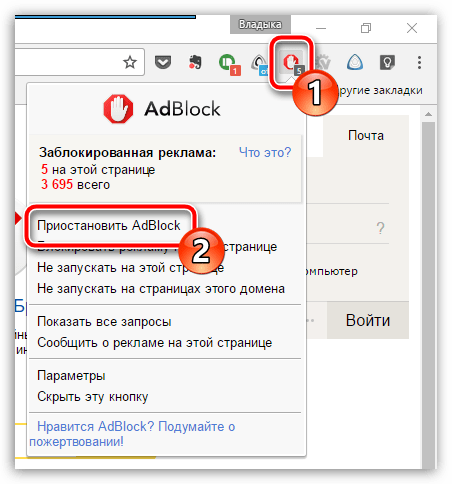
- Щелкнуть по кнопке меню браузера
- Во всплывшем меню щелкнуть по кнопке «Приостановить AdBlock».
- Чтобы вновь активировать работу Adblock, в меню дополнения вам потребуется щелкнуть по кнопке «Возобновить работу AdBlock».
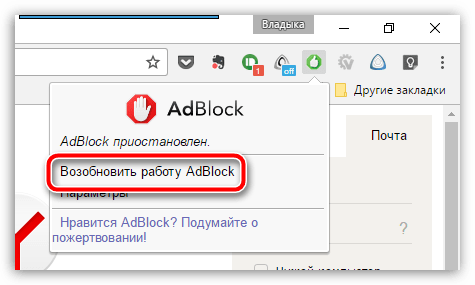
Надеемся, рекомендации в данной статье были для вас полезны.
Best Google Chrome Ad-block extensions
In a world where online advertisements are a necessary evil, ad-blockers that keep websites free to access are becoming more and more popular. Unfortunately, many website business models abuse this, with intrusive pop-up ads, trackers within cookies, and scammers running riot.
Luckily, by using an ad-blocker, Chrome users can avoid annoying ads and stop nosy advertising companies tracking what they do online!
The best ad-blocker extensions for Chrome: a quick rundown
Right off the bat, these are the best Google Chrome ad-block extensions on the market.
- Total Adblock — The best ad-block extension for Google Chrome. A versatile and powerful adblocking solution, capable of blocking ads, malware, and more.
- CleanWeb — CleanWeb is Surfshark’s combined ad-blocker, pop-up blocker, and malware and data breach-alert service. The CleanWeb Chrome browser extension is free with Surfshark VPN subscriptions.
- AdLock — A superb ad-blocking solution for Chrome, with the best cross-platform compatibility. Works seamlessly with browsers, apps, and more.
- AdGuard — A great stand-alone ad-blocker with an excellent browser extension for Chrome. Offers impressive levels of customization.
- uBlock Origin — The best free ad-blocker for Chrome users. It has a rock-solid reputation and it’s truly an open-source provider.
The best ad-blocker extensions for Chrome, in-depth analysis
Our experts have reviewed almost every Google chrome ad-block extension out there and, in our opinion, these six services are the best currently on offer. All the options listed below (except AdLock and CleanWeb) have free tiers and will provide an excellent defense against intrusive ads and website tracking.
1. Total Adblock
Editor’s Choice | November 2023
Total Adblock is the best ad-block extension for Google Chrome. With a paid version, you also get TotalAV (anti-virus), anti-malware, and spyware protection.
Pricing
- Premium: Block Unlimited Ads + FREE Total AV: $2.42/mth
Pros
- Works with most popular browsers
- Free plan is available
- Blocks ads, pop-ups, trackers, and more
- Provides an award-winning antivirus protection
- Blocks YouTube ads
Cons
- There’s only one subscription plan currently
- Vague billing strategies
- Free version shows upgrade pop-ups too often
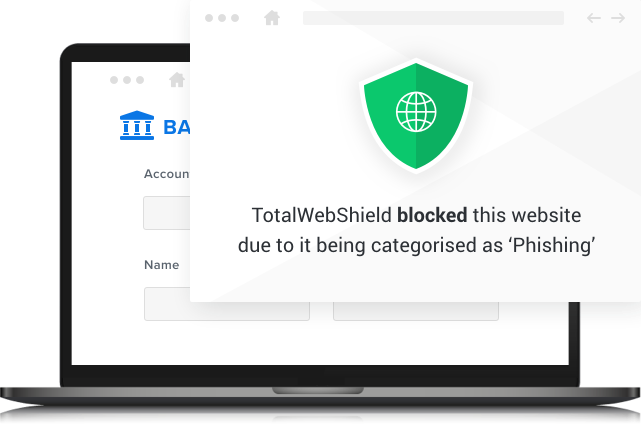
Total Adblock is a Chrome extension that effectively blocks annoying ads, trackers, and pop-ups. Paid version also includes its proprietary antivirus TotalAV, malware and spyware protection, and an exclusive YouTube ad-blocker. Besides, by removing cookies, this ad-blocker makes your internet experience safer and faster. Total Adblock is a superb choice for Chrome users, but it works like a charm across all the other popular browsers too, including Firefox, Microsoft Edge, and Opera.
Block unwanted ads, trackers, notifications, and more
Not only does Total Adblock eliminate ads and trackers while you’re browsing on Google Chrome, but it also helps you:
- Enjoy seamless video watching, without auto-play advertisements
- Prevent third-party trackers from snooping on your online activities
- Avoid ads and trackers on popular social platforms such as YouTube and Facebook
- Restrict ads and trackers on streaming websites like ESPN and CNN
- Block ads on the go with the Total Adblock app
- Enjoy browsing on Firefox, Microsoft Edge, Opera, and other browsers too, unhindered by annoying ads and notifications
Tailored service
Another significant benefit of Total Adblock is that you can let through all the ads that you find useful or, at least, acceptable, thanks to the ‘Acceptable Ads’ option. It’s always good to have the option of managing your own list of preferred websites and ads that they are showing. Besides, by whitelisting your favorite websites, you support them by allowing them to show you their ads.
Go premium
While the free version of Total Adblock offers decent (but limited) protection from suspicious ads and trackers, the premium option has great additional benefits. For starters, you’ll no longer see its upgrade pop-ups, which some users find quite annoying. Even more importantly, you’ll be able to block unlimited ads, including those on YouTube, and you’ll get free award-winning antivirus protection.
So, for just a fraction of a price of an average ad-blocker, you get layered protection for all your devices. Plus, if you’re a first-time subscriber, you can also benefit from some large discounts this company often sets in place.
2. CleanWeb
Surfshark’s multi-purpose ad-blocker removes all ads from sites found using the Chrome browser – including video ads. The blocker forms part of the CleanWeb 2.0 browser extension, which comes free with all VPN subscriptions
Pricing
- 1 month: $12.95/mth
- 24 months + 2 months FREE: $2.3/mth
Pros
- Easy to enable
- Blocks cookie-related pop-ups
- Prevents video ads from interrupting streamed content
- Detects malware and historical data breaches
Cons
- Surfshark subscription required
- No browser extension for Safari
Surfshark’s CleanWeb functions as an ad-blocker, as well as a cookie pop-up blocker and alert service. It’ll tell you whether individual sites have suffered from data breaches in the past or been infected by malware. The service is available either via the Surfshark browser extension or app.
Opening the CleanWeb 2.0 Chrome browser extension takes you straight to the dashboard, with its clean and intuitive GUI.
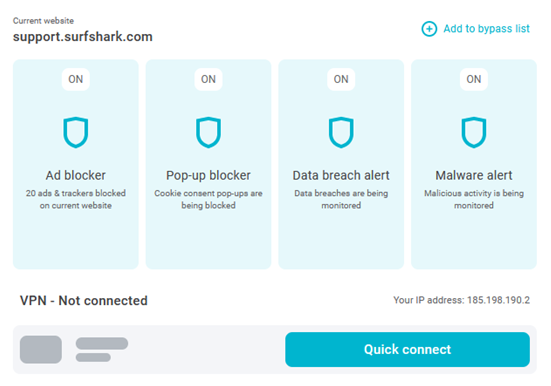
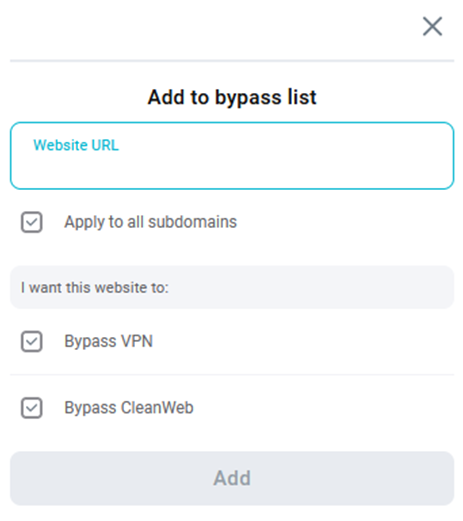
If you discover a website that won’t work with CleanWeb turned on, you can add it to a bypass list by clicking the plus symbol in the upper-right corner of the screen. As well as bypassing CleanWeb, you can also set it to bypass the VPN.
The CleanWeb browser extension has four main protective features: the ad-blocker, pop-up blocker, data breach alert, and malware alert.
The ad-blocker removes all adverts from pages before they are displayed to you. This includes video ads shown by streaming platforms.
The pop-up blocker stops cookie requests from being shown. It works in the background to reject all that it can. Of those that can’t be rejected, the blocker only accepts those that are strictly necessary for the site to work.
The data breach alert notifies you if a site that you’re visiting has ever been breached. If so, it will provide you with the date of the incident and the number of accounts exposed. The malware detector, meanwhile, alerts you to the presence of a virus or malware.
You can select which of these features to enable via the CleanWeb settings tab. Note that you don’t need to be connected to the Surfshark VPN for CleanWeb features to function.
As well as Chrome, the CleanWeb 2.0 browser extension is available on the Firefox and Edge browsers.
3. AdLock
A great all-round ad-blocker for Chrome and more. AdLock is a lightweight, highly effective system-level adblocker, capable of protecting not just browsers but all manner of apps as well.
Pricing
Pros
- Cheap subscription options
- 24/7 support
- Blocks ads in multiple apps at the same time
- Support for multiple platforms and 5 devices per sub
Cons
- Requires manual installation on Android
- No free version
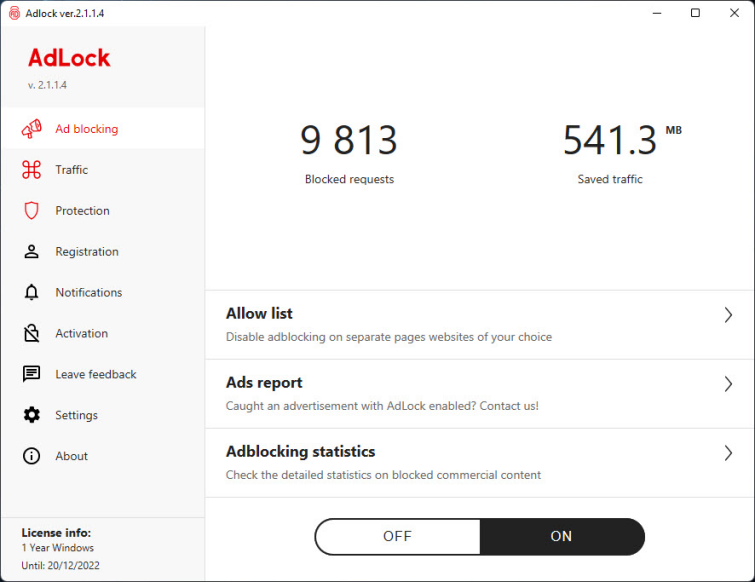
Rather than running as a browser extension, AdLock is a stand-alone app that runs on your device of choice, with support for five different devices on one subscription and apps available for Mac, iOS, Android (though not through the Play Store, the .APK must be manually installed on your device), and Windows PCs. It will protect not only Chrome, but all your other apps and browsers as well. It can even block YouTube ads!
Reasonably priced
Unlike some of the other options on this list, AdLock does not have a free tier. Even so, we think it’s well worth your money, with competitively priced monthly, yearly, or five-yearly subscription options on offer. We think it’s a brilliant choice for both mobile and desktop users and should you find it’s not quite a fit for you, it’s backed up by a 30-day money-back guarantee so you can try it out with no risk at all.
Responsive support
One of the benefits of opting for a paid product rather than a free one is that you get proper customer support. In our testing, we found AdLock’s support super responsive to our questions, updating their filters in a matter of hours when we flagged sites that weren’t working properly. You won’t get that sort of fast reply with any of the free options on this list.
Block apps entirely
Not only capable of blocking ads, AdLock comes with built-in firewall functionality to restrict internet connectivity for apps and browsers. This is especially important if you’re using mobile broadband as they often have fairly stingy download caps where every megabyte counts. With AdLock, you can restrict internet connections to just browsers, messengers, or only to selected apps. This way, you can make sure nothing is quietly downloading some massive update in the background that’s going to use up your allowance.
4. AdGuard
AdGuard is an impressively flexible and customizable ad-block extension that can block intrusive ads, website trackers, cookies, and more.
Pricing
- Free extensions: $0/mth
- 1 yr personal license/3 devices: $29.88/mth
- lifetime personal license/3 devices: $59.99/mth
- 1 yr family license/9 devices: $65.88/mth
- lifetime family license/9 devices: $129.99/mth
Pros
- Free to use
- Open source
- Works with Youtube adverts
- Stand-alone version available
Cons
- Range of customization can be overwhelming
- Extension sometimes freezes
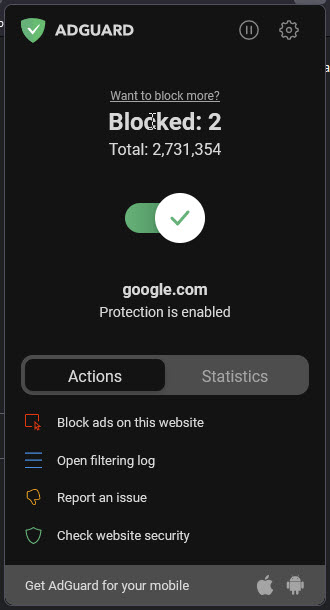
AdGuard’s user base may not be as impressive as uBlock Origin’s or Adblock Plus’, but its ad-blocking credentials are nothing to be sneezed at. AdGuard’s Tracking Protection filter is designed to remove all forms of tracking with a filter list even larger than Ghostery. Version 4 of the extension has just been released and brings with it an impressive suite of new features and quality of life updates that make it well worth a look.
Stand-alone and browser
AdGuard comes in a variety of flavors depending on your needs. There’s both a stand-alone desktop version available for macOS, Windows, and more, and also a browser extension that can be downloaded and used on your browser of choice – like Chrome! While there is a paid offering available that offers additional functionality, the browser extension can be used free of charge.
Stealth mode
One of the greatest feathers in AdGuard’s cap is Stealth mode, which offers a truly impressive array of options for blocking not just adverts and trackers but a range of other online options that can compromise your security. You can hide your search queries so websites don’t know what you typed in to find them, block WebRTC entirely to protect your IP address, hide referrer details, block or limit cookies, and more. This flexibility makes AdGuard one of the most full-featured Chrome extensions around.
Blocking adverts
Again, all of this is great, but it’s useless if an ad blocker doesn’t block adverts. AdGuard won’t let you down, with the ability to set up and customize multiple filters for all kinds of ads and trackers. It comes with categories already set for ad-blocking filters, social media-related filters, and more. You can either just choose the individual filters you want, or all of them at once. All of this functionality comes free in the browser extension, and the stand-alone version comes with a 60-day money-back guarantee, so there’s no risk in giving the paid version a try!
5. uBlock Origin
uBlock Origin is a free, open-source privacy extension for Chrome, focusing on blocking ads, trackers, malware, and other privacy threats.
Pros
- Totally free!
- Open source and lightweight
- Over 10 million active users
- Extensions for all popular browers
- Jam-packed with filter lists
Cons
- Not available for iOS
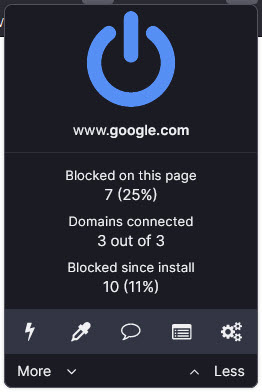
uBlock Origin is a fork from the original uBlock ad blocker. It’s completely free, like most of the other extensions on this list, and is completely open-source. It maintains unparalleled transparency, which sets it apart from many competing products, featuring a statistical breakdown of how well the ad blocker has performed across the current session.
Lightweight ad-blocking
Top-of-the-range filter lists are used to block intrusive advertisements, malware, and trackers, including AdServer List, Advanced Tracking List, EasyPrivacy List, and Malware Domains. uBlock Origin also allows users to choose separately whether they block pop-ups, large media elements, cosmetic filtering, remote custom website fonts, JavaScript, and more, all while remaining lightweight and minimally impacting how your device runs. With efficiency as the main priority, uBlock Origin is ideal for a relatively resource-hungry browser such as Chrome as it taxes your system much less than other competition with a low resource overhead.
Simple setup
uBlock Origin can be downloaded from your add-on/extension page of choice within your browser. There’s support for Firefox, Chrome, Opera, and Microsoft Edge and, unlike some of its competitors, uBlock Origin works right out of the box. With a one-click install, you’ll be set up and protected from adverts and trackers, whereas some of uBlock’s competitors still leave these things enabled and rely on you to go in and manually disable them, which can be a daunting prospect for inexperienced users.
Additional privacy
uBlock is what’s described as a «wide-spectrum content blocker». What this means is that it’s more than just an ad-blocker, it’s a general-purpose blocker for all kinds of internet irritations. As well as blocking ads, it blocks trackers, it can disable pre-fetching to keep you from leaking your IP address to pages you haven’t yet loaded, and it can even help protect you from WebRTC leaks!
6. Adblock Plus
Adblock Plus is one of the original ad-blocking solutions. It’s free, and available for multiple browsers. It’s one of the most popular adblocking solutions around.
Pros
- Can be used for free
- Open source
- Over 10 million downloads
- 52 languages supported
- Users can create personalized whitelists
Cons
- Part of the Acceptable Ads program
- Some ads can still sneak by
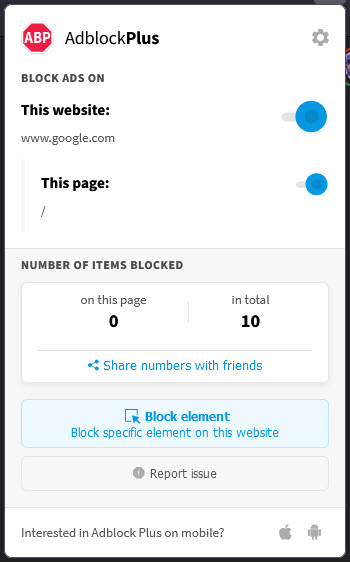
Adblock Plus first made a name for itself on Firefox before being ported over to Chrome. Its open-source approach has prompted several notable competitors, with the similarly named but unaffiliated ‘AdBlock’ using Adblock Plus’ source code. The organization behind it is responsible for establishing one of the most comprehensive filter lists out there, as well as adding support for 52 different languages. The Adblock Plus extension also sits among the most frequently updated.
Simple to use
It doesn’t matter how good your product is if it’s too difficult to use, and Adblock Plus makes sure that getting started is a breeze. Just install the extension and you’re good to go, though you will need to go into the settings if you want to change the Acceptable Ads filter or start whitelisting individual sites. AdblockPlus even shows you how many ads it’s blocking on the page, so you can immediately see how effective it is at streamlining your browsing experience.
Blocks ads and more
It wouldn’t be much of an ad-blocker if it didn’t block adverts, and Adblock Plus certainly doesn’t disappoint. While the inclusion of the Acceptable Ads scheme may be controversial for some users, Adblock Plus is still perfectly capable of blocking YouTube adverts, pop-ups, pop-unders, multimedia ads, banner ads, and more. All this not only saves you bandwidth, but will also improve website loading times and even protect you from adverts carrying malware.
Selective ad blocking
As you may already know, some websites depend on their advertising to survive, and maybe there are some sites you visit regularly, and you want to support them by leaving adverts enabled on their pages. Adblock Plus allows you to configure whitelists where sites are allowed to show their ads, especially if they are non-intrusive and do not really disturb your browsing session. This is above and beyond Adblock Plus’ built-in Acceptable Ads filter, which can also be turned off if you disagree with them about what adverts are acceptable!
7. Ghostery
Ghostery is a powerful open-source privacy tool for Chrome users. It blocks ads, trackers, and more with a paid tier for more functionality.
Pros
- Free to use
- Sleek UI
- Detailed tracker statistics
- Blocks adverts and trackers
Cons
- Blocklist customization can be complicated
- Collects user data unless you specifically opt out
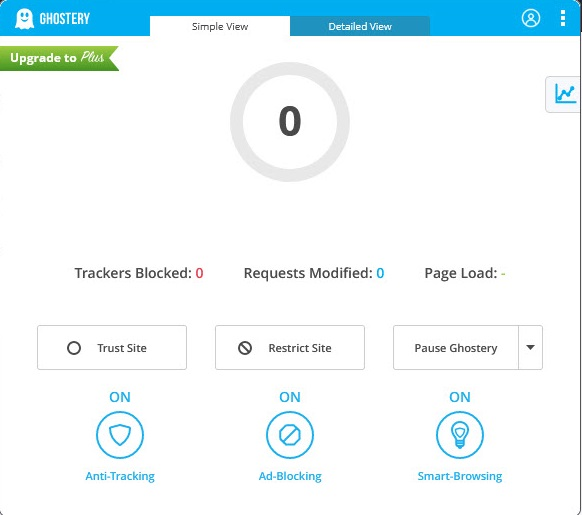
Ghostery is built with privacy in mind, designed to stop trackers and block advertisements. The extension blocks ads, site analytics, and adult advertising trackers by default, but this can be customized depending on your needs. Unblocked and unknown trackers are also anonymized with enhanced anti-tracking turned on.
Tracker blocker
Ghostery can block an impressive number of different web trackers, including ad trackers, analytics, social media, comments, chat, and more. You can even choose whether to restrict or trust sites on a case-by-case basis. It even tells you how many trackers are on the site you’re visiting, displaying a handy little floating box that shows the number of trackers it’s found, giving you access to see exactly what’s on the site and which are allowed/blocked.
Smart-Browsing
Smart-Browsing is a clever little feature Ghostery employs when full-on ad/tracker blocking would stop a site from working properly. Instead of completely blocking the tracker, Ghostery lets it run but removes any of your personal information from it. Not only does this ensure that your sites still work properly while protecting your privacy, but it also means that any trackers using browser fingerprinting will be useless. Ghostery modifies the information that’s sent back, which means that your fingerprint will keep changing so you can’t be tracked.
Ad blocking
All this is fine and good, but the main purpose of an ad-blocker is to, well, block adverts. Ghostery doesn’t disappoint in that regard, being more than capable of blocking banners, pop-ups, and interstitial adverts to ensure that your web browsing experience will be a smoother, cleaner, and faster one. The best part of all this is that the browser extension is available for the low price of absolutely nothing. It’s entirely free to download and use, so there’s no reason not to give it a try for yourself.
Why do I need an ad-blocker?
Every website provides a different experience, but most have one thing in common: they are all trying to build a personal profile of your interests by tracking your data or doing their best to coerce clicks on advertisements. These ads are sometimes intrusive and can be taxing to your system when trying to load them. Other times, they are deceptive and are used to distribute data-stealing malware. Some websites even use crypto-jacking code to mine cryptocurrency in the background, at the expense of your hardware and electricity.
Useful Guides
The Best VPN Services to use in 2023 | Top VPN Providers for all Devices Tested
Secure Privacy Email Options 2023
Best Password Managers — Keep your Passwords secure in 2023
What is an Ad-Blocker, and Should You Be Using One?
Can you trust Google Chrome with your data?
How will an ad-blocker protect your browsing?
Choose carefully, and beware of scams. Always check the reviews before you install anything on your browser, desktop, or mobile device!
The ad-blockers on this list are designed with privacy and security in mind, helping to preserve your anonymity online and keep you safe from both malicious or just downright annoying code and adverts. A wide selection of filter lists helps to identify trackers, block advertisements, and blacklist hundreds of thousands of known online scams. It’s important to choose your ad-blocker carefully, as their accessibility has prompted many copycats and scammers to fill app stores with fakes that look almost identical to the real things.
If our list doesn’t do the trick for you, looking at reviews and seeing just how many people have installed an extension can help settle your suspicions. If, however, you want to take another quick look at our rundown of the best Google Chrome Ad-block extensions, here it is.
From $0.00/month
The best ad-block extension for Google Chrome. A versatile and powerful adblocking solution, capable of blocking ads, malware, and more.
ProPrivacy TrustScore: 10 out of 10 User-definable whitelisting Yes Open source No
From $2.30/month
CleanWeb is Surfshark’s combined ad-blocker, pop-up blocker, and malware and data breach-alert service. The CleanWeb Chrome browser extension is free with Surfshark VPN subscriptions.
ProPrivacy TrustScore: 9.9 out of 10
From $1.05/month
A superb ad-blocking solution for Chrome, with the best cross-platform compatibility. Works seamlessly with browsers, apps, and more.
ProPrivacy TrustScore: 9.8 out of 10 User-definable blockists No User-definable whitelisting No Open source No
From $0.00/month
A great stand-alone ad-blocker with an excellent browser extension for Chrome. Offers impressive levels of customization.
ProPrivacy TrustScore: 9.7 out of 10 User-definable blockists Yes User-definable whitelisting Yes Open source Yes
From $0.00/month
The best free ad-blocker for Chrome users. It has a rock-solid reputation and it’s truly an open-source provider.
ProPrivacy TrustScore: 9.6 out of 10 User-definable blockists Yes User-definable whitelisting Yes Open source Yes
Alternatives to extensions
Browser extensions are a great place to start with ad-blocking, security, and privacy, but they are limited in their abilities. You need to download an extension for every browser you have, and they only work within that specific browser. That isn’t necessarily a bad thing, but it means any other apps you use outside of the browser will still serve you with adverts.
Instead, you could take a look at the alternative ways of ad-blocking when surfing the web, such as stand-alone applications, VPNs with extra features, or router-loaded ad blockers.
Are all ad blockers effective?
Not all ad blockers are equally effective. How well an ad blocker works depends on various factors, including the type of ad block technology used, the type of ads that need to be blocked, and the level of customization that the ad blocker provides.
Some ad blockers are designed as browser extensions and work to block ads when you surf the web in that browser. Other ad blockers are standalone apps that can block ads within all the different browsers or applications you use.
Other ad blocks may be installed at the network level, to filter out adds before they get to your device. VPNs, for example, used DNS based filtering rules to block ads and trackers at the server level.
The important thing to remember is that some ad blockers may be more effective at blocking certain types of ads — while others work to block a broader range of ads on a large number of websites and services.
Some ad blockers even have the ability to detect and block new types of ads, and can effectively spot new advertising techniques that attempt to circumvent ad blockers.
Unfortunately, in addition to being better or worse at blocking ads, ad blockers differ in the number of false positives they produced. These ad blockers may inadvertently block parts of a website that you do want access to by accident.
The best way to get a smooth online experience is often to use various ad blocker type extensions and services together. For example, you could use an ad block like Adbock Plus alongside uBlock Origin and Privacy Badger to help reduce tracking and ads, while also improving page load times.
The ad blockers recommended in this guide each have their own benefits. So you should check to see which one is most suitable for your specific needs. Remember that not all ad blockers work to block ads on services like YouTube and Twitch, so if this is your requirement, you may need to do some additional research.
Written by: Damien Mason
In his first year with ProPrivacy, Damien found himself quoted in Forbes, Digital Spy, Reader’s Digest and several other publications before stepping up as Content Editor. Graduating with a bachelor’s degree in Film & Television Production, he is familiar with all areas of writing and often produces scripts for ProPrivacy’s own YouTube channel. Outside of the company, he can be found playing video games, binging television shows and writing about both.
AdBlock для Chrome
Блокируйте любую рекламу в Chrome! Не хотите видеть всплывающие объявления, автоматическое воспроизведение видеообъявлений и рекламу на Facebook, YouTube и своих любимых сайтах? Более 225 тысяч людей поставили AdBlock пять звезд. Это самый надежный блокировщик для Chrome. Установите его прямо сейчас, и ваша работа в сети станет быстрее и безопаснее!
226 173 отзывов с пятью звездами (и их становится больше!)
Отзывы пользователей AdBlock
Jessica Williams
Samarth Gupta
Что такое AdBlock для Chrome?
AdBlock для Chrome — это расширение для браузера, которое блокирует рекламу в Chrome и запрещает сторонним трекерам доступ к вашей активности. Им пользуются более 60 млн человек, и это самое надежное и популярное из скрывающих рекламу расширений. Миллионы людей по всему миру используют AdBlock для блокировки рекламы, ускорения загрузки страниц и защиты личных данных . Это расширение просто использовать, легко настроить и оно изменит ваши представления о работе в Интернете.
Блокируйте рекламу и защищайте свои данные
После установки AdBlock, вы получите лучший блокировщик рекламы для Chrome и лучший способ удалить раздражающую или назойливую рекламу на всех посещаемых сайтах. AdBlock удаляет рекламу на Facebook , Google, YouTube и других ваших любимых сайтах. Также, это расширение защитит ваш браузер от вредоносного ПО и скроет историю браузера и личные данные от рекламодателей.
Блокируйте рекламу на YouTube
YouTube — один из самых популярных сервисов в сети. И именно там постоянно встречается самая неприятная реклама. AdBlock для Chrome избавит вас от необходимости смотреть любую рекламу на YouTube, в том числе рекламные ролики перед каждым видео. После установки, AdBlock скроет всю рекламу на YouTube : попрощайтесь с рекламой, которая всплывает и перед, и во время видео, и в разделе «Следующее». Вас больше ничего не будет отвлекать при просмотре.
Настройки скрытия рекламы на YouTube
Хотите блокировать рекламу на YouTube в Chrome, но, вместе с этим, поддерживать авторов контента ? AdBlock для Chrome поможет и в этом! AdBlock — единственный блокировщик рекламы на YouTube , который позволяет составить список любимых каналов, где будет разрешен показ рекламы. Поддерживайте своих любимых авторов и блокируйте рекламу во всех остальных местах. Разрешив показ рекламы на любимых каналов, вы сможете поддержать авторов, не отключая блокировку вручную каждый раз.
Блокируйте рекламу в Twitch
Для блокировки рекламы на Twitch.tv лучше всего подойдет AdBlock для Chrome. Это расширение справляется лучше всех блокировщиков на рынке. Установите AdBlock для Chrome, откройте меню и выберите «Включить скрытие рекламы во время стрима на Twitch» в разделе «Общие параметры». Эта опция заблокирует звук и скроет рекламу, которая проигрывается во время стрима на Twitch .
Часто задаваемые вопросы
Часто задаваемые вопросы
Как установить AdBlock? arrow_forward_ios
В большинстве случаев, установить AdBlock очень просто: нужно посетить наш сайт с помощью вашего любимого браузера и нажать на кнопку Установить AdBlock. Для получения более детальных инструкций по установке для каждого браузера, посетите наш Центр Помощи .
AdBlock платный? arrow_forward_ios
Может быть, вам известно, что AdBlock для Chrome — бесплатный . Так и есть! Оплата AdBlock остается на ваше усмотрение . Если вы хотите поддержать AdBlock, вы можете сделать пожертвование или оформить подписку на AdBlock Premium . Если сейчас вы не можете или не хотите платить, это нестрашно! Мы хотим, чтобы в Интернете было приятно находиться независимо от потраченных на это денег.
AdBlock безопасен? arrow_forward_ios
AdBlock совершенно безопасен и не содержит никаких вредоносных программ. Но не забывайте, что скачивать его надо с нашего сайта или из официального магазина расширений для браузера. В любом другом месте под видом AdBlock вы можете скачать вредоносную программу, которая повредит ваш компьютер. AdBlock — ПО с открытым исходным кодом, который кто угодно может использовать в своих целях. К сожалению, это приводит к появлению множества неудачных копий, потому будьте осторожны при установке расширений, похожих на AdBlock. Никто же не хочет установить рекламное ПО вместо блокировщика рекламы!
Зачем AdBlock разрешения? arrow_forward_ios
- Иметь доступ к каждой странице, которую вы открываете. При этом AdBlock получает доступ к URL каждой страницы.
- Просматривать данные на странице и искать незаблокированную рекламу. При этом AdBlock получает доступ к любым заполняемым вами формам и к истории браузера.
- Менять данные на странице, добавляя коды HTML, CSS и JavaScript. Это позволяет скрыть рекламу.
Важно понимать, что AdBlock имеет доступ к любым данным на странице, но это не значит, что они как-то используются. Расширение не записывает историю браузера, не перехватывает пароли и платежную информацию, не собирает и не меняет данные, которые вы вводите в формы.
Что AdBlock делает с моей информацией? arrow_forward_ios
Мы регулярно обезличиваем всю информацию, позволяющую идентифицировать личность. Все данные, которые у нас есть, полностью анонимны. Мы не продаем и не анализируем никакие данные. Это противоречит нашим принципам. Чтобы получить больше информации, ознакомьтесь с нашей политикой конфиденциальности .
Что такое «списки фильтров»? Как их использовать? arrow_forward_ios
В работе AdBlock применяются списки фильтров — они определяют, какие рекламные объявления будут скрыты на посещаемых вами сайтах. Хотя AdBlock начинает блокировать рекламу сразу после установки, списки фильтров позволяют настроить этот процесс гораздо точнее. Например, с их помощью можно заблокировать всплывающие новостные рассылки, виджеты в соцсетях и предупреждения об использовании файлов cookie. Если вы хорошо разбираетесь, вы можете создать свои настраиваемые фильтры . Но вы можете ни о чем не думать, если не хотите! При установке AdBlock вы будете сразу же подписаны на списки фильтров, необходимые для блокировки назойливой рекламы.
© Copyright 2009 — 2023, все права защищены
- check Deutsch (DE)
- check English (US)
- check Espanol (España) (ES)
- check Francais (FR)
- check Italiano (IT)
- check 日本語 (JA)
- check Nederlands (NL)
- check Portugues (Brasil) (BR)
- check Pусский (RU)
- check Svenska (SE)
- check 中国人 (CN)
- check 繁體中文 (Traditional Chinese)
Мы используем некоторые файлы cookie, которые помогают повысить эффективность работы с нашим сайтом. Продолжая работу с сайтом, вы подтверждаете, что предупреждены об этом и разрешаете нам использовать cookie. Вы можете в любое время настроить это разрешение. Подробности.
Отключение блокировщика рекламы в Google Chrome
Несмотря на пользу от блокировщиков рекламы в Google Chrome на компьютере, иногда работа подобного ПО может стать причиной появления некоторых ограничений. Специально на такой случай, а также если вы просто хотите избавиться от вспомогательных функций, нами была подготовлена инструкция по отключению блокировки тремя различными способами.
Способ 1: Настройки браузера
По умолчанию в Хроме присутствует отдельная опция, блокирующая некоторые элементы, представляющие опасность для пользователя по мнению Google. Для отключения этого достаточно будет воспользоваться внутренними параметрами веб-браузера.
- В правом верхнем углу программы кликните левой кнопкой мыши по значку с тремя вертикальными точками и через появившийся список откройте раздел «Настройки».

- Пролистайте параметры браузера до блока «Конфиденциальность и безопасность» и щелкните ЛКМ по строке «Настройки сайта».

- На открывшейся странице найдите и нажмите по параметру «Реклама».
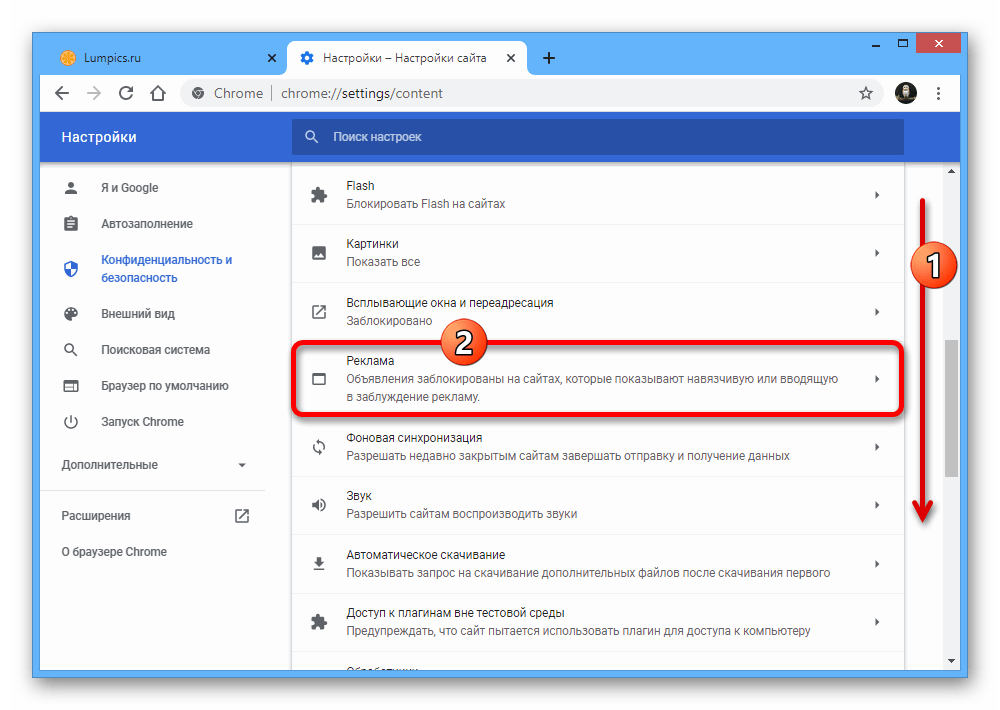
- Измените положение ползунка под строкой «Поиск» в состояние «Разрешено» и можете попросту выйти из настроек.

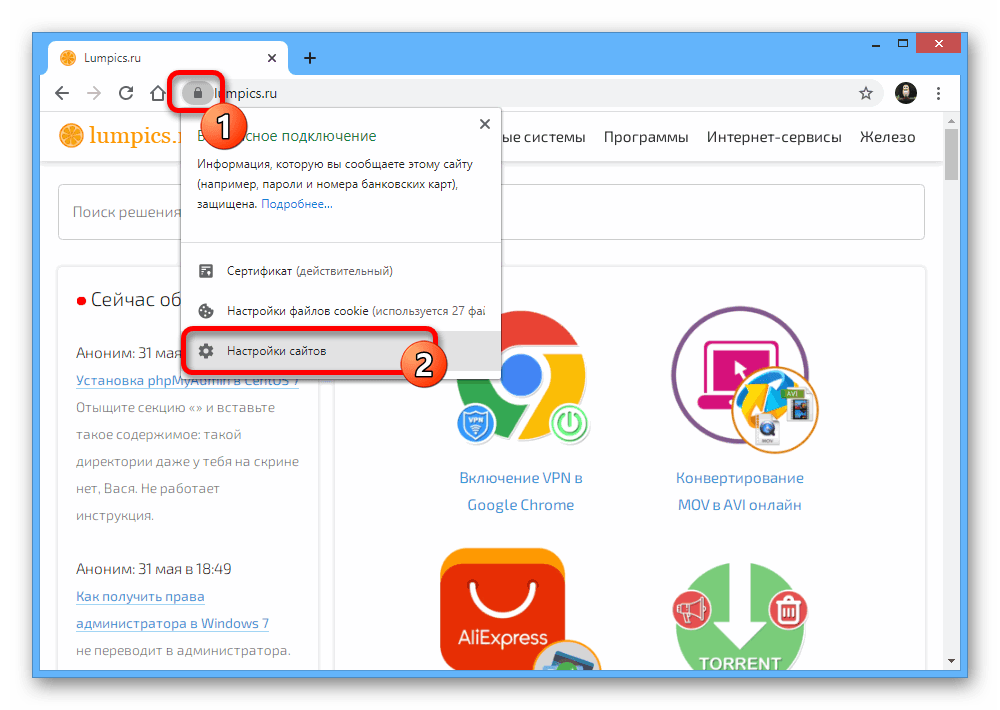
- Если потребуется, данный параметр можно отключать отдельно для каждого веб-сайта. Для этого перейдите на нужный ресурс, в левой части адресной строки нажмите по значку с замком или буквой «i» и откройте «Настройки сайтов».
- Найдите пункт «Реклама», разверните выпадающий список и установите значение «Разрешить».
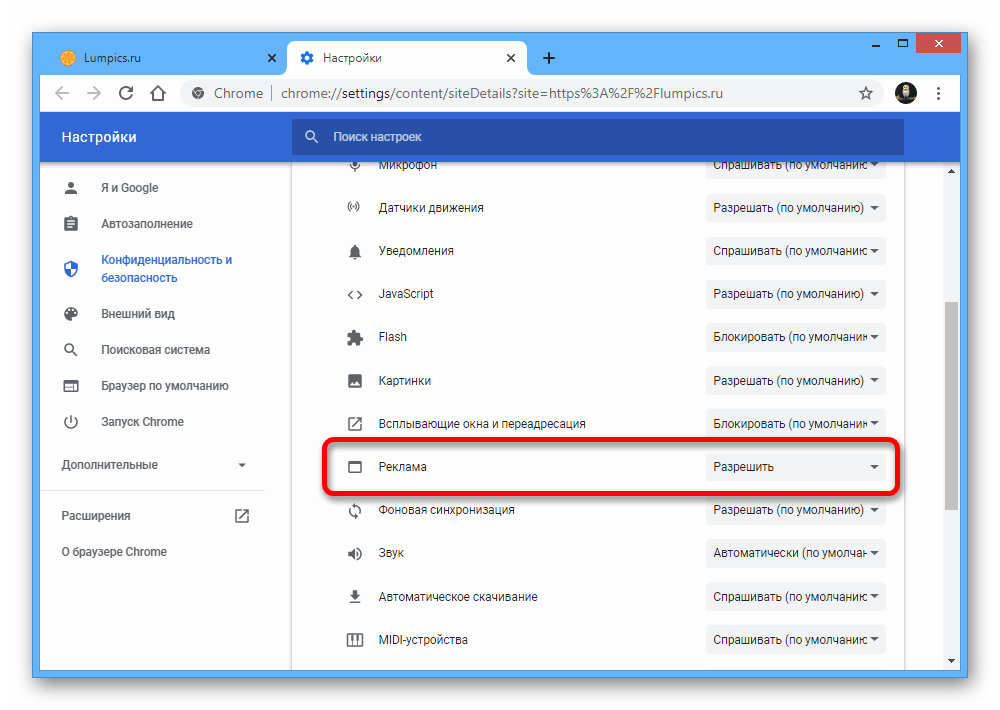
Описанный порядок действий позволит деактивировать по умолчанию активную блокировку нежелательных элементов, в результате чего на веб-сайтах будет отображаться вся возможная реклама. Учтите, что делать это следует только на свой риск, потому что в Google Chrome данная опция является скорее средством защиты, нежели полноценным блокировщиком.
Способ 2: Отключение расширений
Чаще всего в рассматриваемом интернет-браузере в качестве средства блокировки выступают специальные расширения, установленные из официального магазина Chrome или любым другим способом. Соответственно, чтобы включить отображение объявлений, необходимо деактивировать каждое такое ПО.
Параметры браузера
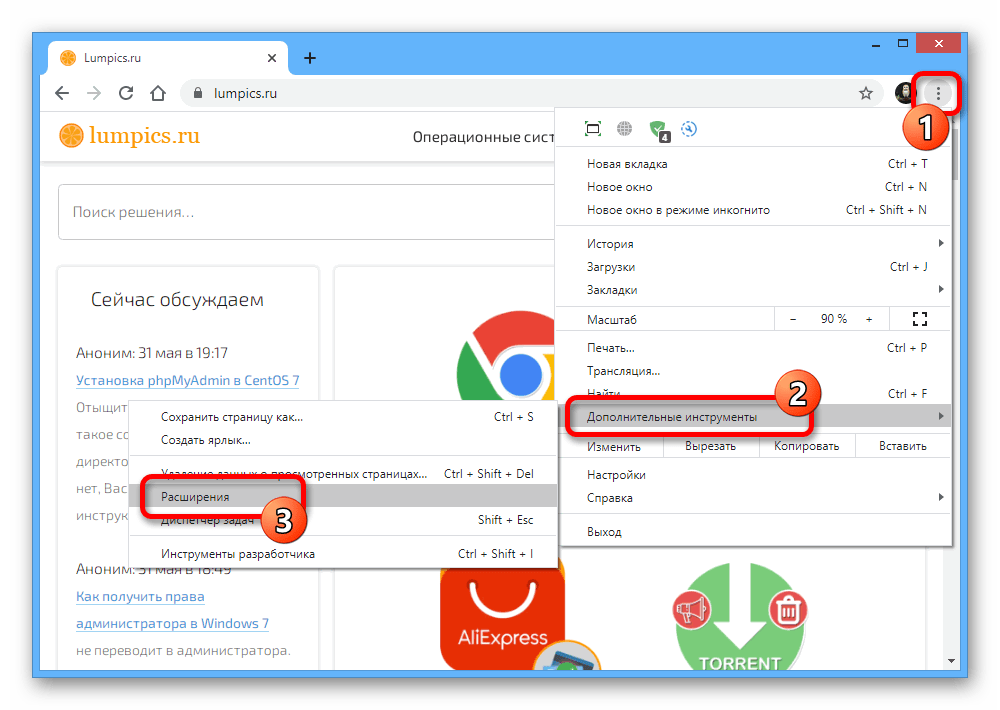
- Единственным универсальным решением, работающим с любыми расширениями, является их отключение системными средствами Chrome. Для этого откройте главное меню в правом верхнем углу программы, разверните «Дополнительные» и выберите раздел «Расширения».
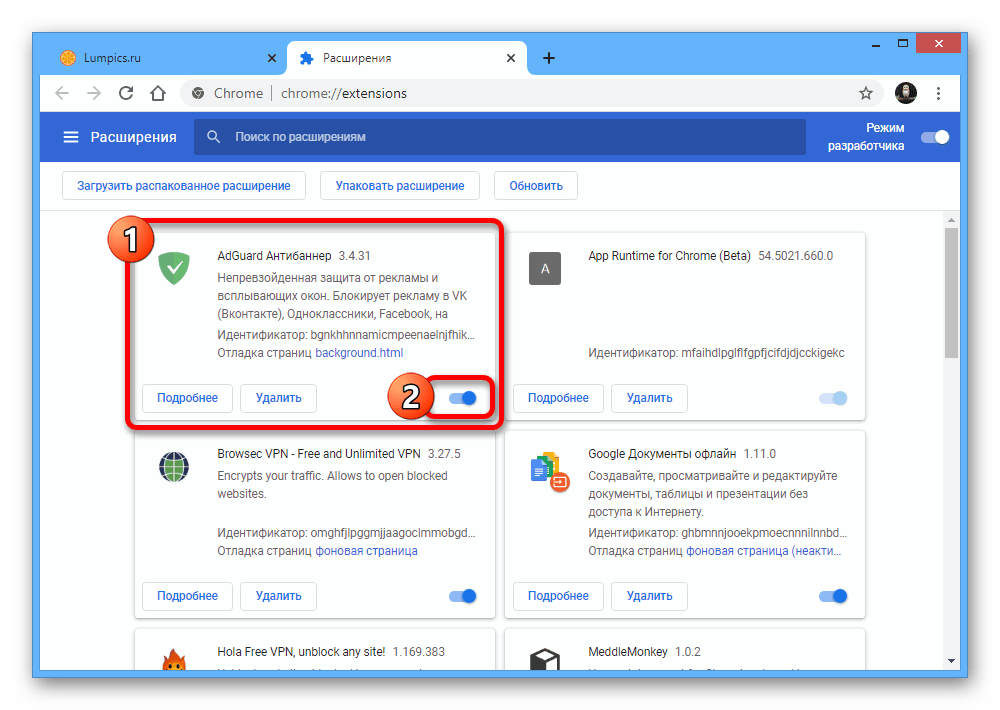
- Оказавшись на странице с установленным ПО, найдите используемый блокировщик рекламы и сместите ползунок в левую сторону. Данное действие приведет к выключению расширения и отображению баннеров на всех сайтах. Подробнее: Отключение расширений в Google Chrome
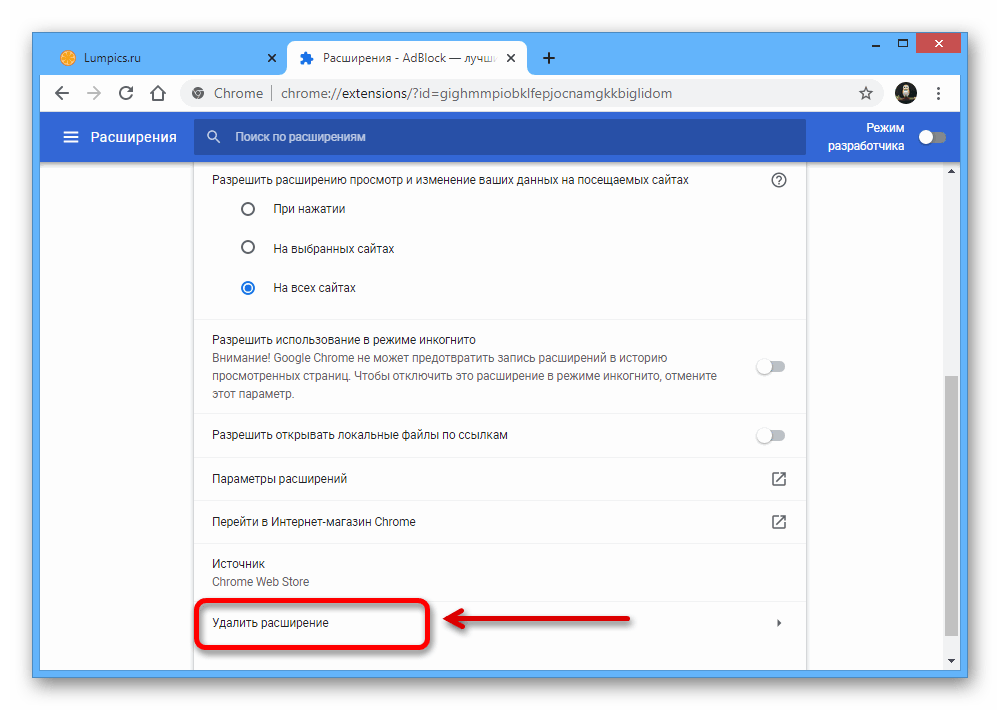
- В качестве альтернативы можете открыть страницу «Подробнее» нужного варианта и воспользоваться опцией «Удалить». Подробнее: Удаление расширений из Google Chrome
AdBlock
Наиболее известный блокировщик рекламы AdBlock или AdBlock Plus, установленный у большинства пользователей компьютерной версии Chrome, можно отключить отдельно через внутренние параметры. Данная возможность распространяется как на работу ПО в целом, так и на показ выбранных объявлений. Более детально процедура деактивации этого расширения была описана в другой инструкции.

AdGuard
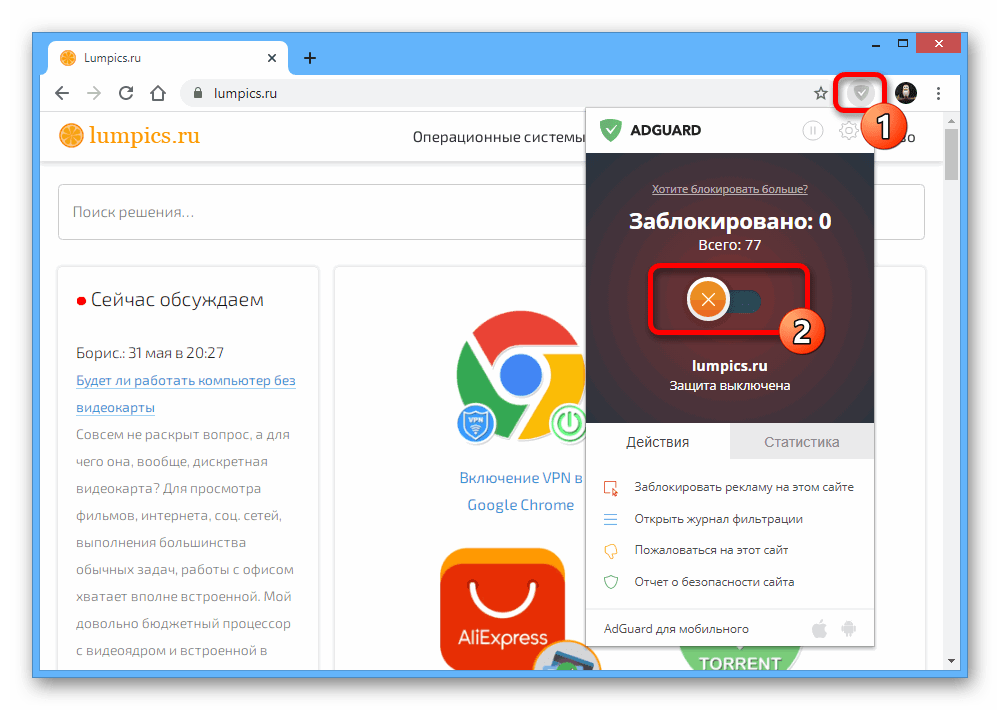
- Еще одним достаточно известным ПО, устанавливаемым в качестве расширения, является AdGuard. Произвести деактивацию в данном случае достаточно легко, попросту кликнув по значку на верхней панели браузера и в появившемся окне воспользовавшись кнопкой «Приостановить защиту».
 Полная деактивация отразится на внешнем виде ПО, окрасив интерфейс в серые цвета.
- В случае необходимости можно поступить иначе, открыв параметры с помощью значка на панели расширений, но на сей раз воспользовавшись ползунком в центре. Это приведет к изменению цвета на красный и остановке блокировки на конкретном сайте.
uBlock
- Последним часто используемым расширением для Хрома выступает uBlock, не сильно отличающийся от прочего ПО. Чтобы произвести его деактивацию на открытом сайте, нужно кликнуть левой кнопкой мыши по пиктограмме блокировщика на верхней панели Хрома и воспользоваться значком выключения.

- Дополнительно отключение можно ограничить только открытой страницей сайта, если во время нажатия на значок выключения зажать на клавиатуре клавишу «CTRL». При этом в обоих случаях для применения изменений придется вручную выполнить перезагрузку вкладки.
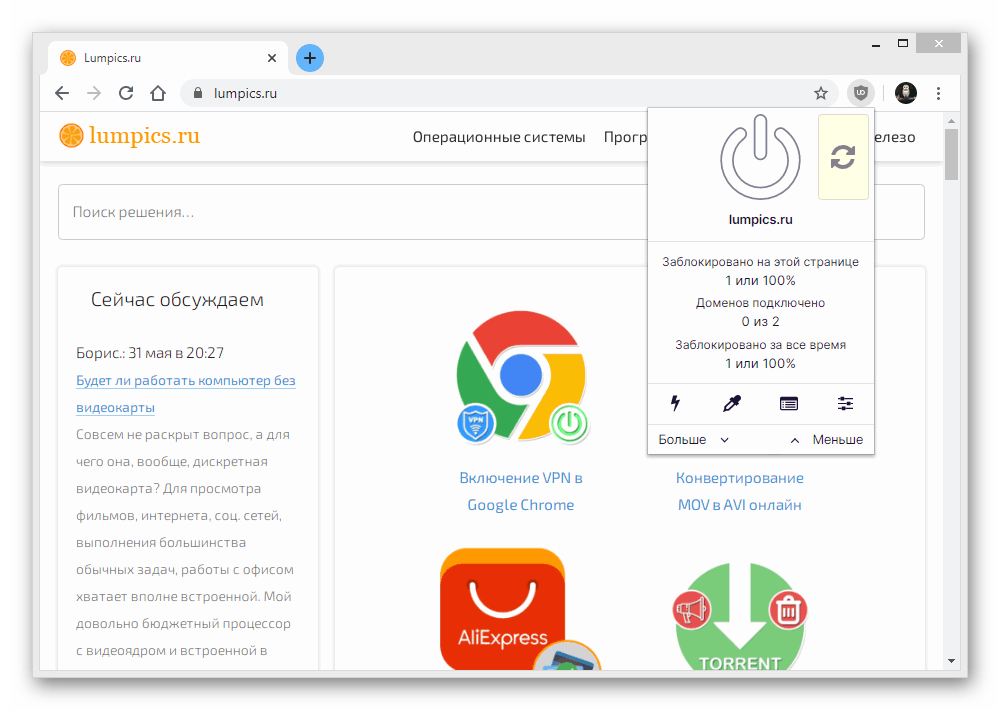
Для полного ограничения работы данного ПО придется использовать метод с настройками браузера, так как сам по себе блокировщик можно деактивировать лишь на отдельных страницах.
Способ 3: Отключение программ
Для компьютера в качестве полноценных программ также существуют блокировщики, наиболее известным из которых является AdGuard. Чтобы деактивировать софт и снова отобразить рекламу, можно или полностью избавиться от ПО, выполнив деинсталляцию, или воспользоваться внутренними настройками.
Полное удаление
- Выполнить удаление АдГуард с ПК можно стандартным образом через «Программы и компоненты». Для открытия нужного раздела нажмите сочетание клавиш «WIN+R», вставьте в открывшееся окно команду appwiz.cpl и нажмите «ENTER». Подробнее: Удаление софта в Windows 7, Windows 8 и Windows 10

- Щелкните левой кнопкой мыши по строке с программой и нажмите «Удалить» на верхней панели.
 Будьте внимательны, процедура деинсталляции не требует подтверждения и будет запущена моментально. По завершению же программа исчезнет с ПК и блокировка рекламы будет автоматически отключена.
Деактивация блокировщика
- Самый простой метод отключения работы рассматриваемого софта заключается в открытии главного окна и переключении ползунка «Защита» в состояние «Отключена». Это позволит восстановить показ объявлений во всех браузерах, включая и Google Chrome.

- Если вас не устраивает данный вариант, оставьте ползунок в исходном положении и перейдите в «Настройки» с помощью верхней панели.
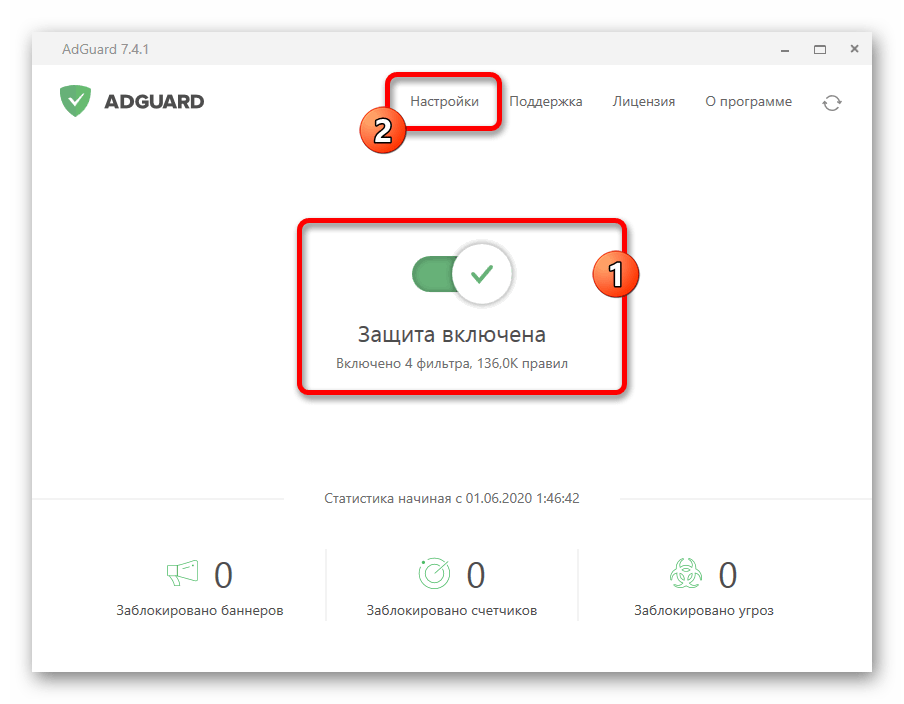
- Здесь необходимо переключиться на вкладку «Сеть», пролистать страницу до блока «Фильтрация трафика» и нажать кнопку «Список фильтруемых приложений».

- Из представленного списка выберите Хром, сняв рядом расположенную галочку, и нажмите «ОК» для сохранения новых параметров.

После выполнения действий реклама в нужном браузере вернется, тогда как в других программах все будет блокироваться без изменений. Мы ограничимся только представленным софтом, так как прочие варианты редко используются и в целом не сильно отличаются.
Вариант 2: Мобильное устройство
На мобильных устройствах вне зависимости от платформы также может использоваться блокировка рекламы, включенная по умолчанию в Google Chrome или добавленная с помощью стороннего приложения. Мы рассмотрим два основных метода возвращения объявлений.
Способ 1: Настройки браузера
В плане предоставляемых настроек, отвечающих за отображения контента на посещаемых сайтах, мобильная версия Google Chrome почти не отличается от полноценной программы. Для отключения также придется посетить настройки.
- Коснитесь значка с тремя точками в правом верхнем углу приложения и выберите пункт «Настройки».
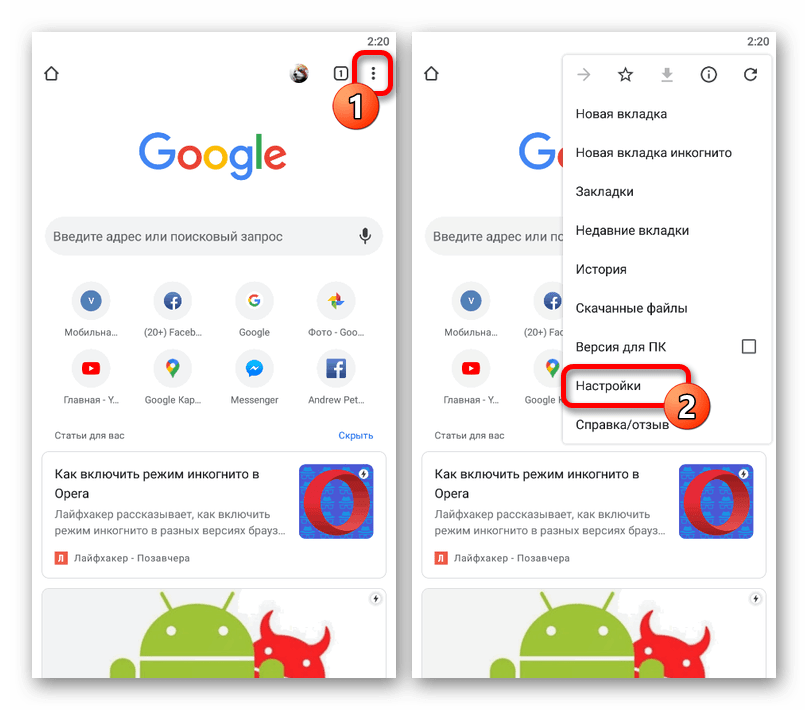
- Пролистайте страницу ниже до блока «Дополнительные» и тапните «Настройки сайтов».
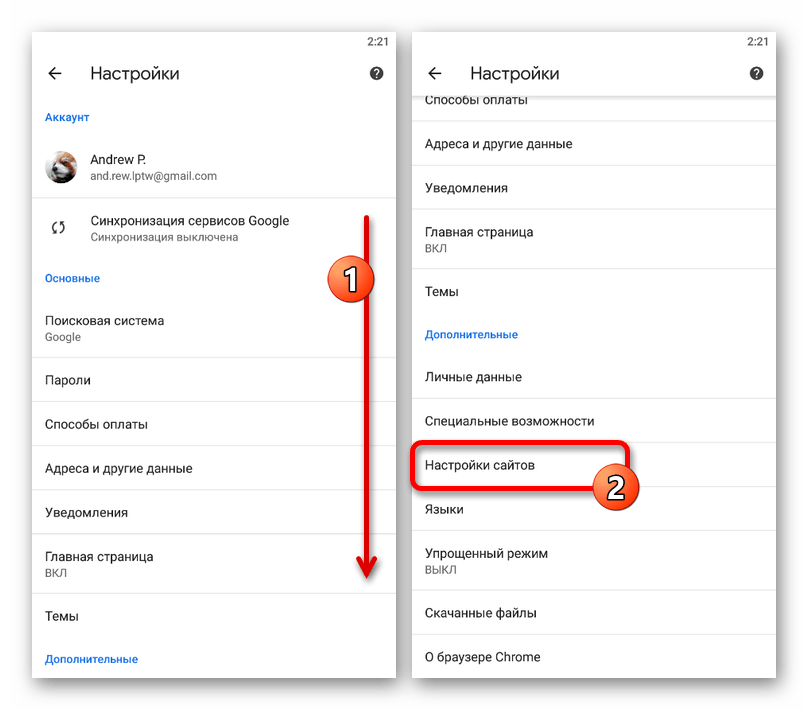
- Найдите и разверните пункт «Реклама». Чтобы произвести выключение блокировщика, сместите ползунок вправо и убедитесь в появлении значения «Разрешено».
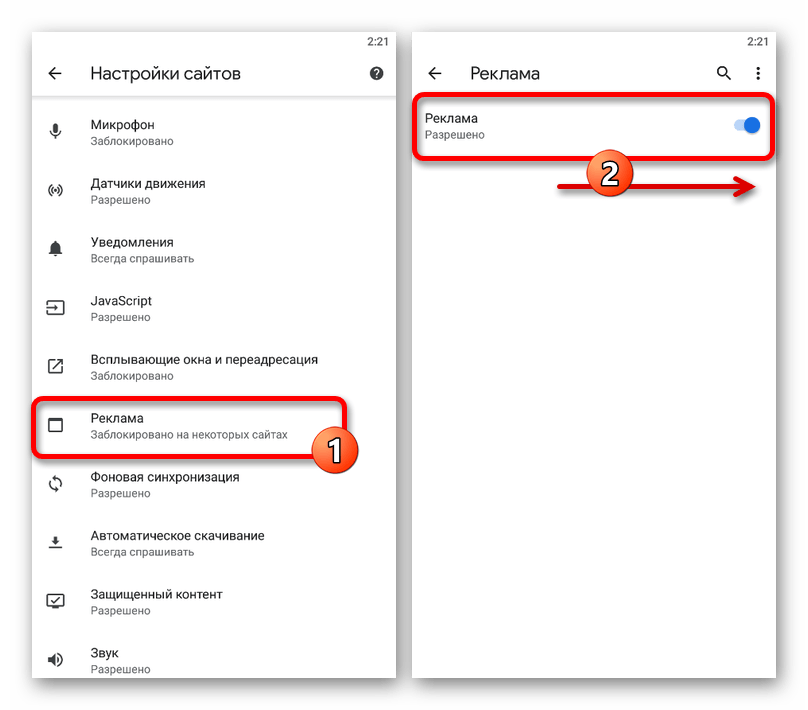
На этом настройка обозревателя заканчивается, потому как назначить разрешение для одного конкретного сайта в данном случае не получится.
Способ 2: Отключение приложений
Блокировка баннеров на телефонах, как правило, производится с помощью специальных приложений вроде AdGuard, фильтрующих трафик и не допускающих демонстрацию рекламы в разных браузерах. Мы рассмотрим процесс отключения на примере только одного указанного ПО.
- Перейдите в приложение и на главной странице сместите ползунок «Защита» до появления статуса «Выключена». Это позволит полностью деактивировать функции блокировщика.
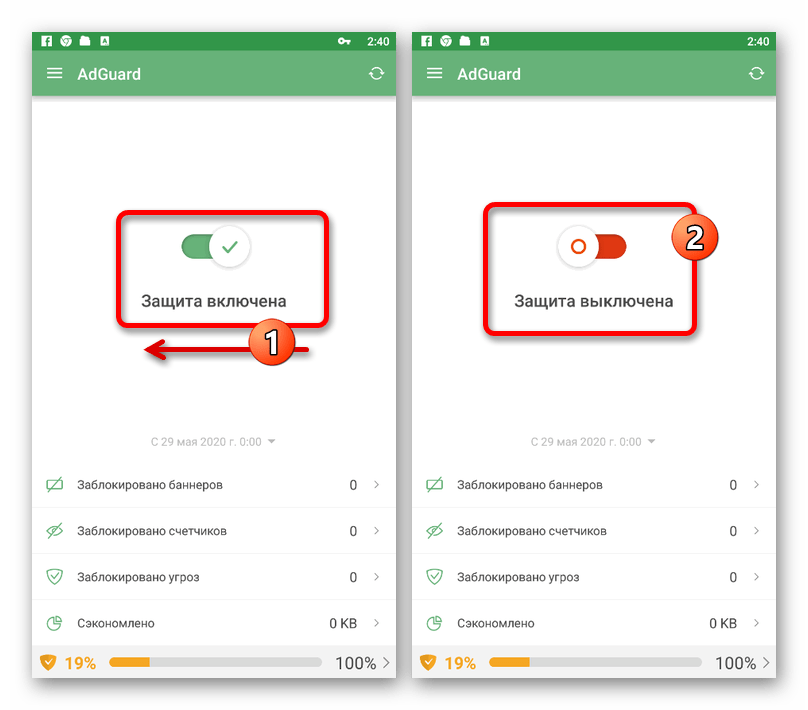
- Чтобы изолировать от работы ПО только браузер Хром, разверните главное меню в левом углу и выберите «Настройки приложений».
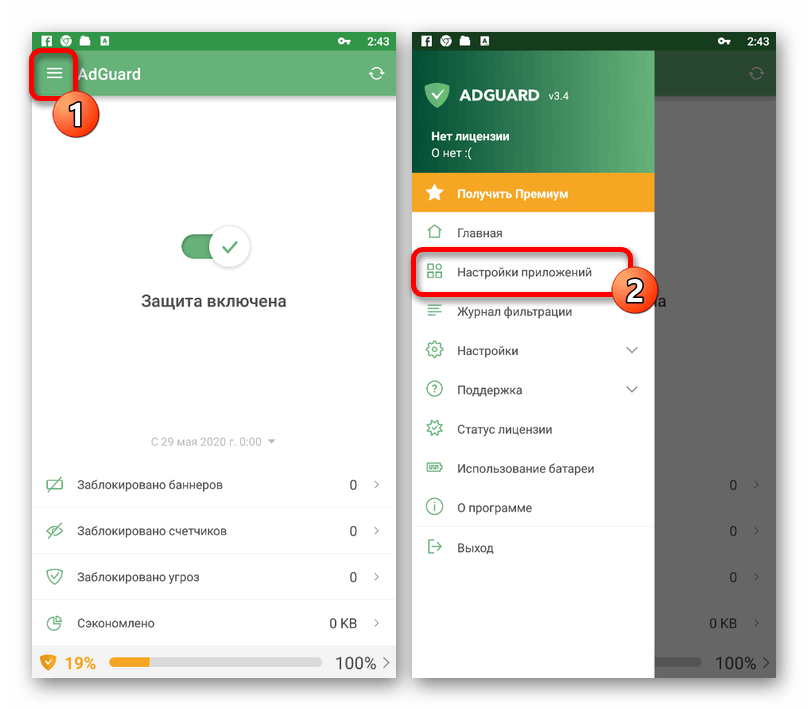
- В представленном списке программ найдите нужный браузер, по необходимости используя поле поиска.
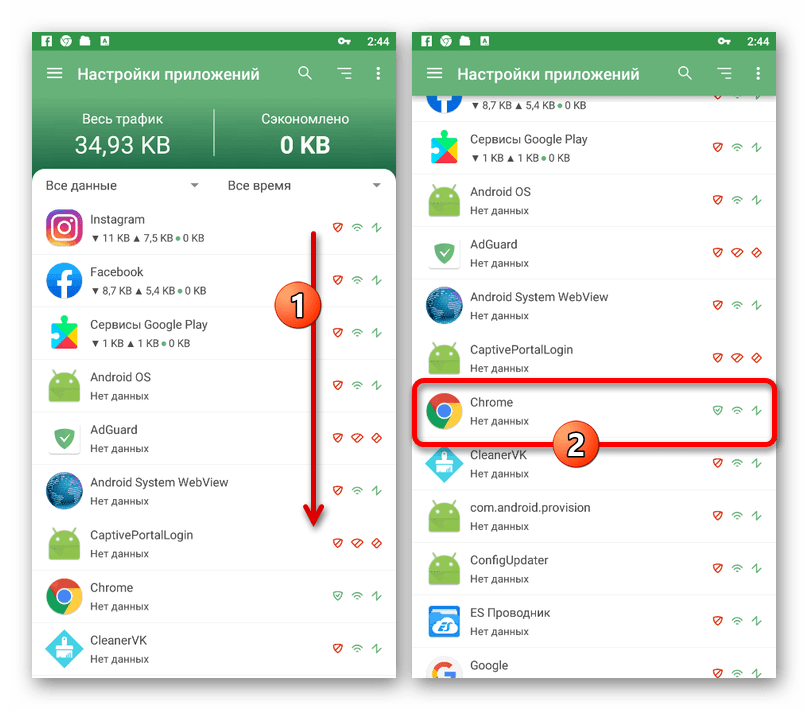
- Оказавшись на экране с подробной статистикой Google Chrome, найдите блок «Настройки» и сместите ползунок «Блокировка рекламы» в левую сторону.
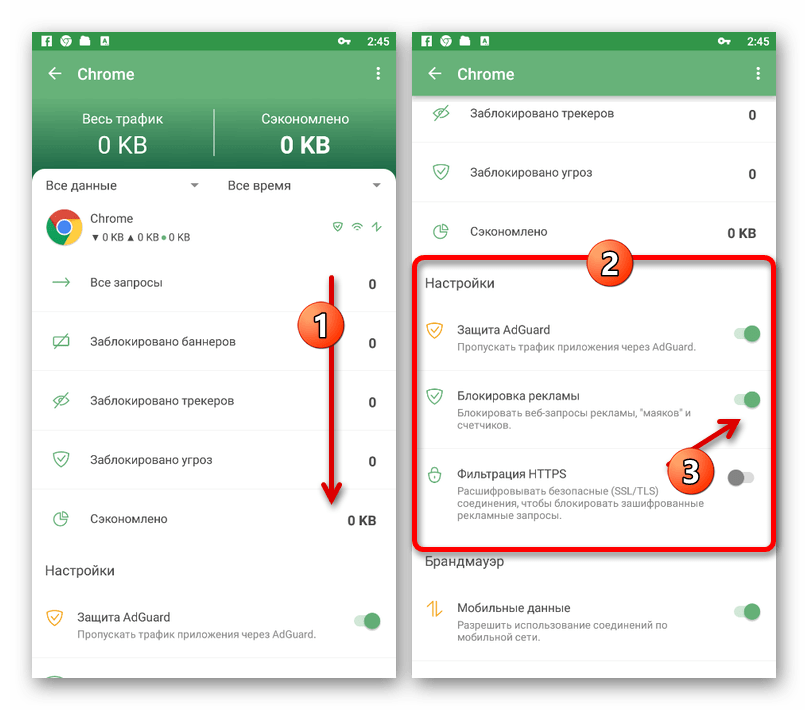 Если все было сделано правильно, подключения внутри Хрома перестанут фильтроваться, что как раз и вызовет появление рекламных объявлений.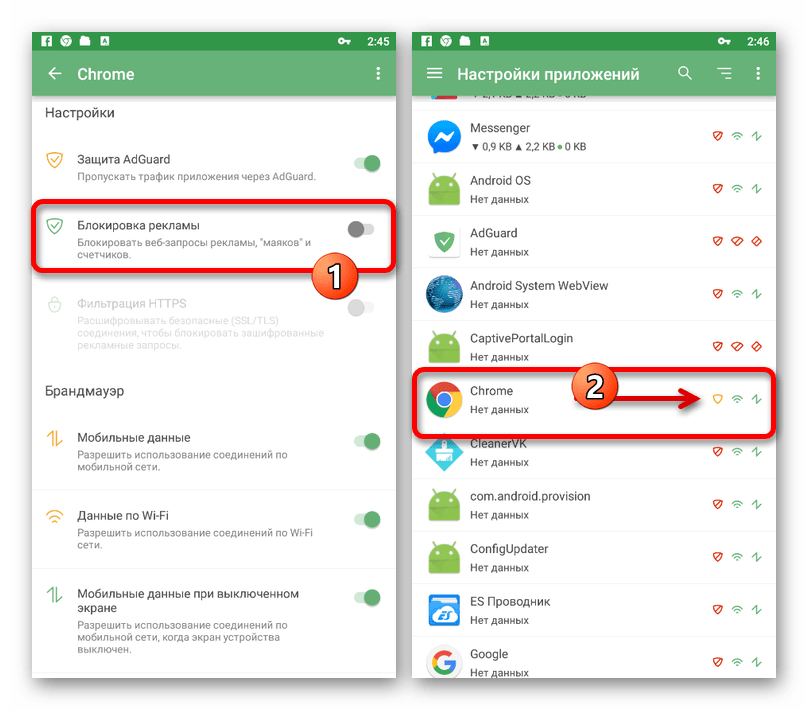
В качестве альтернативы отключению можете произвести полное удаление ПО, используя системные настройки. Для этого достаточно будет следовать инструкциям из представленной ниже статьи, выбирая в качестве приложения AdGuard.