Как задать цвет SVG? — Вопросы по CSS
Сегодня важный день для проекта Joomla! Мы отмечаем два года напряженной работы наших добровольцев, решивших выпускать новую основную версию каждые два года. После большого количества обсуждений, спринтов по написанию кода и устранения ошибок этот день наконец настал и мы с гордостью объявляем о выпуске новой мажорной ( major ) версии Joomla 5.0, наряду с Joomla 4.4.
В Joomla Extensions Directory появился тег совместимости с Joomla 5.
Joomla-разработчики, проверившие совместимость своих расширений с Joomla 5 могут поставить галочку ��
JoomlaDay Spain, Madrid.
В Мадриде, Испания 5-6 октября 2023 года проходит Joomla Day — конференция, посвящённая как новичкам, так и профессионалам, работающим с Joomla.
Как изменить цвет svg
Изменим цвет svg картинки двумя способами: сначала используем свойство fill , затем mask-image .
Первый способ. Картинка должна быть inline SVG. Если так, тогда просто изменим цвет с помощью свойства fill
Цвет svg картинки изменяется с помощью CSS свойства fill — заливки.
Если svg в вставлено в HTML в виде тега img , то нужно добавить следующий js-код:
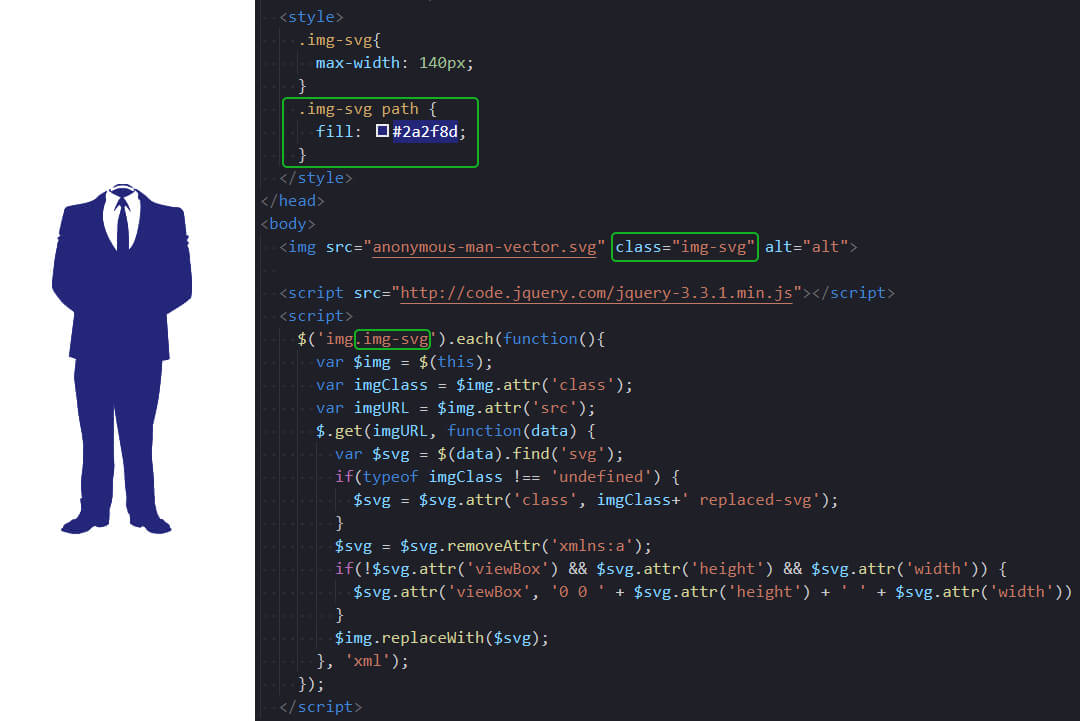
$("img.img-svg").each(function () < var $img = $(this); var imgClass = $img.attr("class"); var imgURL = $img.attr("src"); $.get(imgURL, function (data) < var $svg = $(data).find("svg"); if (typeof imgClass !== "undefined") < $svg = $svg.attr("class", imgClass + " replaced-svg"); >$svg = $svg.removeAttr("xmlns:a"); if (!$svg.attr("viewBox") && $svg.attr("height") && $svg.attr("width")) < $svg.attr("viewBox", "0 0 " + $svg.attr("height") + " " + $svg.attr("width")) >$img.replaceWith($svg); >, "xml"); >);В данном примере мы используем класс img-svg , который мы добавляем к изображению в HTML-странице, благодаря которому svg-картинка из img станет inline svg.
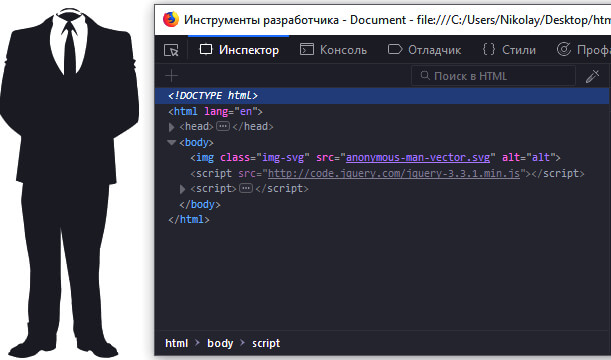
Изображение было в виде тега img :
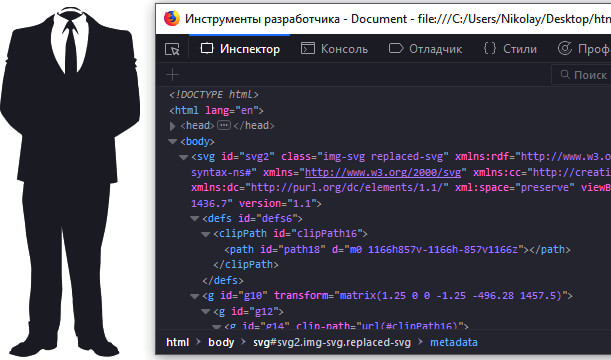
Изображение стало inline svg :
Теперь можем изменить цвет нашей svg картинки, используя свойство fill , как в первом примере.
Какие ещё свойства можно применить к svg картинке
.img-svg path, .img-svg polygon < fill-opacity: 0.5; /* прозрачность заливки */ stroke: #ff6c00; /* цвет обводки */ stroke-width: 10px; /* толщина обводки */ stroke-opacity: 0.8; /* прозрачность обводки */ >Это далеко не полный перечень свойств, которые можно использовать для работы с svg, это лишь самые часто используемые.
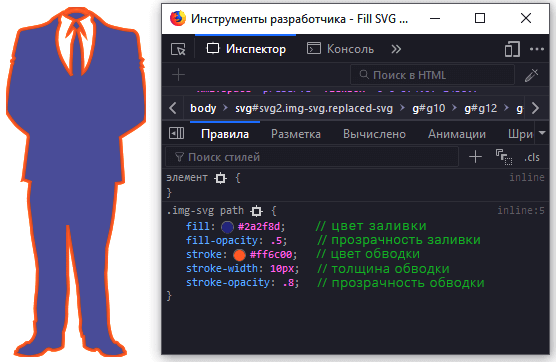
Второй способ. Реализуем с помощью свойства mask-image
В HTML создадим два элемента: div и ссылку:
Используем свойство mask-image чтобы задать фон для картинки и background-color чтобы задать цвет:
.link < width: 30px; height: 26px; background-color: #000; display: block; mask-image: url("img/youtube.svg"); >.div < height: 55px; width: 62px; background-color: #000; mask-image: url("img/youtube.svg"); >Пробуем изменить цвет:
Полезные ссылки
- Как вставить SVG на сайт.
- Анимация SVG.
Надеюсь, вам понравилась данная информация. Если вам интересна тема web-разработки, то можете следить за выходом новых статей в Telegram.
Поделиться с друзьями:
Статьи из данной категории:
- JavaScript: Работа с Массивами
- Наличие Динамически Добавленного Элемента
- Стилизация Input File
- Предзагрузка Картинок — Предварительная Загрузка Изображений на JavaScript
- Стилизация Скролла
- События Формы
Fills and Strokes
There are several ways to color shapes (including specifying attributes on the object) using inline CSS, an embedded CSS section, or an external CSS file. Most SVG you’ll find around the web use inline CSS, but there are advantages and disadvantages associated with each type.
Fill and Stroke Attributes
Painting
Basic coloring can be done by setting two attributes on the node: fill and stroke . Using fill sets the color inside the object and stroke sets the color of the line drawn around the object. You can use the same CSS color naming schemes that you use in HTML, whether that’s color names (that is red ), rgb values (that is rgb(255,0,0) ), hex values, rgba values, etc.
rect x="10" y="10" width="100" height="100" stroke="blue" fill="purple" fill-opacity="0.5" stroke-opacity="0.8"/>
In addition, you can specify the opacity of either the fill or stroke separately in SVG. These are controlled by the fill-opacity and stroke-opacity attributes.
Note: In Firefox, rgba values are also allowed, and will give the same effect. But for compatibility with other viewers, it’s often best to specify the fill / stroke opacity separately. If you specify both an rgba value and a fill / stroke opacity value, both will be applied.
Stroke
In addition to its color properties, there are a few other attributes available to control the way a stroke is drawn on a line.

svg width="160" height="140" xmlns="http://www.w3.org/2000/svg" version="1.1"> line x1="40" x2="120" y1="20" y2="20" stroke="black" stroke-width="20" stroke-linecap="butt"/> line x1="40" x2="120" y1="60" y2="60" stroke="black" stroke-width="20" stroke-linecap="square"/> line x1="40" x2="120" y1="100" y2="100" stroke="black" stroke-width="20" stroke-linecap="round"/> svg>
The stroke-width property defines the width of this stroke. Strokes are drawn centered around the path. In the example above, the path is shown in pink, and the stroke in black.
The second attribute affecting strokes is the stroke-linecap property, demonstrated above. This controls the shape of the ends of lines.
There are three possible values for stroke-linecap :
- butt closes the line off with a straight edge that’s normal (at 90 degrees) to the direction of the stroke and crosses its end.
- square has essentially the same appearance, but stretches the stroke slightly beyond the actual path. The distance that the stroke goes beyond the path is half the stroke-width .
- round produces a rounded effect on the end of the stroke. The radius of this curve is also controlled by the stroke-width .
Use stroke-linejoin to control how the joint between two line segments is drawn.

svg width="160" height="280" xmlns="http://www.w3.org/2000/svg" version="1.1"> polyline points="40 60 80 20 120 60" stroke="black" stroke-width="20" stroke-linecap="butt" fill="none" stroke-linejoin="miter"/> polyline points="40 140 80 100 120 140" stroke="black" stroke-width="20" stroke-linecap="round" fill="none" stroke-linejoin="round"/> polyline points="40 220 80 180 120 220" stroke="black" stroke-width="20" stroke-linecap="square" fill="none" stroke-linejoin="bevel"/> svg>
Each of these polylines has two segments. The joint where the two meet is controlled by the stroke-linejoin attribute. There are three possible values for this attribute. miter extends the line slightly beyond its normal width to create a square corner where only one angle is used. round creates a rounded line segment. bevel creates a new angle to aid in the transition between the two segments.
Finally, you can also use dashed line types on a stroke by specifying the stroke-dasharray attribute.

svg width="200" height="150" xmlns="http://www.w3.org/2000/svg" version="1.1"> path d="M 10 75 Q 50 10 100 75 T 190 75" stroke="black" stroke-linecap="round" stroke-dasharray="5,10,5" fill="none"/> path d="M 10 75 L 190 75" stroke="red" stroke-linecap="round" stroke-width="1" stroke-dasharray="5,5" fill="none"/> svg>
The stroke-dasharray attribute can take a series of comma and/or whitespace separated numbers as its argument.
The first number specifies a distance for the filled area, and the second a distance for the unfilled area. So in the above example, the second path fills 5 pixel units, with 5 blank units until the next dash of 5 units. You can specify more numbers if you would like a more complicated dash pattern. The first example specifies three numbers, in which case the renderer loops the numbers twice to create an even pattern. So the first path renders 5 filled, 10 empty, 5 filled, and then loops back to create 5 empty, 10 filled, 5 empty. The pattern then repeats.
There are additional stroke and fill properties available, including fill-rule, which specifies how to color in shapes that overlap themselves; stroke-miterlimit , which determines if a stroke should draw miters; and stroke-dashoffset, which specifies where to start a dasharray on a line.
Using CSS
In addition to setting attributes on objects, you can also use CSS to style fills and strokes. Not all attributes can be set via CSS. Attributes that deal with painting and filling are usually available, so fill , stroke , stroke-dasharray , etc. can all be set this way, in addition to the gradient and pattern versions of those shown below. Attributes like width , height , or commands cannot be set through CSS. It’s easiest just to test and find out what is available and what isn’t.
Note: The SVG specification decides strictly between attributes that are properties and other attributes. The former can be modified with CSS, the latter not.
CSS can be inserted inline with the element via the style attribute:
rect x="10" height="180" y="10" width="180" style="stroke: black; fill: red;"/>
Or it can be moved to a special style section that you include. Instead of shoving such a section into a section like you do in HTML, though, it’s included in an area called .
svg width="200" height="200" xmlns="http://www.w3.org/2000/svg" version="1.1"> defs> style> ]]>style> defs> rect x="10" height="180" y="10" width="180" id="MyRect"/> svg>
Moving styles to an area like this can make it easier to adjust properties on large groups of elements. You can also use things like the :hover pseudo class to create rollover effects:
#MyRect:hover stroke: black; fill: blue; >
You can also specify an external stylesheet for your CSS rules through normal XML-stylesheet syntax:
svg width="200" height="150" xmlns="http://www.w3.org/2000/svg" version="1.1"> rect height="10" width="10" id="MyRect"/> svg>
Where style.css looks something like:
#MyRect fill: red; stroke: black; >
Found a content problem with this page?
- Edit the page on GitHub.
- Report the content issue.
- View the source on GitHub.
This page was last modified on Mar 6, 2023 by MDN contributors.
Your blueprint for a better internet.
MDN
Support
- Product help
- Report an issue
Our communities
Developers
- Web Technologies
- Learn Web Development
- MDN Plus
- Hacks Blog
- Website Privacy Notice
- Cookies
- Legal
- Community Participation Guidelines
Visit Mozilla Corporation’s not-for-profit parent, the Mozilla Foundation.
Portions of this content are ©1998– 2023 by individual mozilla.org contributors. Content available under a Creative Commons license.
Can I change the fill color of an svg path with CSS?
Yes, you can apply CSS to SVG, but you need to match the element, just as when styling HTML. If you just want to apply it to all SVG paths, you could use, for example:
path < fill: blue; > External CSS appears to override the path’s fill attribute, at least in WebKit and Gecko-based browsers I tested. Of course, if you write, say, then that will override external CSS as well.
15.8k 5 5 gold badges 81 81 silver badges 101 101 bronze badges
answered Mar 2, 2012 at 7:17
Nicholas Riley Nicholas Riley
43.7k 6 6 gold badges 102 102 silver badges 124 124 bronze badges
Does this still work with Chrome? I’m having difficulty trying to change my SVG path’s color with CSS.
Nov 1, 2013 at 6:51
Yes, I just tested it with a current Chrome version and it still works. If you still need help, please post a question including a self-contained example (SVG with external or embedded CSS) and a description of your expected result and what you’re actually seeing (not just “I’m having difficulty”).
Nov 1, 2013 at 17:01
Thanks Nicholas, I believe I have found the reason. My SVG was embedded into the page through an tag, CSS doesn’t appear to be able to modify any content within. Is this correct?
Nov 1, 2013 at 22:29
Keep in mind that in order for CSS to style the SVG, you have to include the SVG code in the markup, it doesn’t work if you include the SVG via the tag.
Dec 30, 2013 at 20:23
@RicardoZea One caveat to that: you can include an object from an external SVG file with and your local CSS will still apply to some degree.
Oct 24, 2017 at 17:38
if you want to change color by hovering in the element, try this:
path:hover
answered May 16, 2013 at 7:32
Mark Esluzar Diamat Mark Esluzar Diamat
612 5 5 silver badges 5 5 bronze badges
works when the property is not declared as inline style already. Otherwise the change is not visible.
Jul 5, 2022 at 19:24
EDITED Apr-2021
If you go into the source code of an SVG file you can change the color fill by modifying the fill property.
Use your favorite text editor, open the SVG file and play around with it.
I figured out another way of changing the color from outside the SVG, and that is by importing the SVG content and removing the style rule where the fill is declared. And then controlling the fill from within my CSS style sheet.
Then inside my CSS file I go about:
Now that You’re removing the higher hierarchy fill declaration from the SVG the one outside takes control.
This works for me with no problem at all.
answered Dec 3, 2016 at 1:14
Samuel Ramzan Samuel Ramzan
1,798 1 1 gold badge 15 15 silver badges 24 24 bronze badges
Technically correct based on the wording of the question «. other means without actually changing it inside the path tag» and worked exactly how I needed. Have an upvote!
Feb 23, 2017 at 17:50
How is this an answer? The question is on CSS, not native SVG
Nov 1, 2019 at 7:47
This is not answer. This is the distortion of the question.
Mar 9, 2020 at 23:06
The thing is you need to get rid of this hardcoded value inside the SVG to be able to control via CSS.
Sep 20, 2021 at 12:20
you put this css for svg circle.
svg:hover circle
answered Sep 4, 2017 at 9:37
Dulendra Singh Dulendra Singh
211 2 2 silver badges 4 4 bronze badges
Put in all your svg:
fill="var(--svgcolor)" :root
To use pseudo-classes:
span.github:hover
Explanation
root = html page.
—svgcolor = a variable.
span.github = selecting a span element with a class github, a svg icon inside and assigning pseudo-class hover.
answered Jun 10, 2020 at 17:34
363 3 3 silver badges 5 5 bronze badges
Welcome to StackOverflow, Neto. This looks like a good answer. Thanks for helping.
Jun 10, 2020 at 18:07
— is the syntax for CSS Variables, and being newer, a compatibility note is worth adding here, even if the concern will fade over time: CSS Variables are supported by everything except old IE and Opera Mini. Opera Mini is an important concern given its Developing World popularity — you should not use this technique to inform the user about something important, since the 100mil+ Opera Mini users will not be able to see it. caniuse.com/#feat=css-variables
Aug 25, 2020 at 20:20
If the svg is replaced, the function is lost.
Nov 2, 2021 at 2:44
Thanks, in my case I couldn’t use another solution.
Jul 8, 2022 at 14:51
I came across an amazing resource on css-tricks: https://css-tricks.com/using-svg/
There are a handful of solutions explained there.
I preferred the one that required minimal edits to the source svg, and also didn’t require it to be embedded into the html document. This option utilizes the tag.
Add the svg file into your html using ; I also declared html attributes width and height . Using these width and heights the svg document does not get scaled, I worked around that using a css transform: scale(. ) statement for the svg tag in my associated svg css file.
Create a css file to attach to your svn document. My source svg path was scaled to 16px, I upscaled it to 64 with a factor of four. It only had one path so I did not need to select it more specifically, however the path had a fill attribute so I had to use !IMPORTANT to force the css to take precedent.
#svg2 < width: 64px; height: 64px; transform: scale(4); >path